
Route planner with limited desk space
Wants to view maps on a separate screen while keeping room for a keyboard, mouse and monitor stand.


Start by measuring the space for the screen and stand; screen size alone won’t tell you whether a monitor will fit on a small desk. The specifications for models from LG, Philips, iiyama and Dell offer a range of options: Full HD, 16:10 WUXGA for extra vertical pixels, or QHD. If you use your monitor frequently, check how adjustable it is too. And if you’re using a laptop, compare the monitor’s video and charging requirements with the ports and capabilities on your laptop.
Wants to view maps on a separate screen while keeping room for a keyboard, mouse and monitor stand.
Views a map, route details and browser controls side by side or stacked, so compares resolution and aspect ratio.
Plans routes regularly and pays attention to screen positioning or keeping their laptop connections tidy.
First, measure what will fit on your desk. Then decide how you want to arrange the map and route details, and finally check which connection your laptop needs.
| What to consider | What to look for | Who is this important for? |
|---|---|---|
| Desk space | Measure the available width and depth and compare them with the external dimensions of the exact model, including its stand. | I want to keep using my keyboard and mouse without the stand taking up my workspace. Around 33% of consumers mainly focus on whether a monitor will physically fit. |
| Maps and route details | Compare 1920 × 1080, 1920 × 1200 and 2560 × 1440, and try the text and browser scaling you use. | I want to arrange and read maps, route information and browser controls comfortably. Around 27% of consumers prioritise this aspect of the display. |
| Screen positioning | Check the adjustment options for the exact model and whether its stand will fit on your desk alongside your other items. | When planning routes regularly, I want to be able to position the screen comfortably. Around 20% of consumers mainly focus on adjustability. |
| Laptop connection | Compare your laptop’s video output and charging requirements with the monitor’s explicitly listed connections and Power Delivery specifications. | I want to connect my laptop neatly and know in advance whether the chosen connection will support both the display and power. This is a priority for around 20% of consumers. |
Screen size describes the display, not the amount of space the whole setup needs. A stand can take up a significant part of a small desk.
Measure the available space and check the external dimensions of the exact model, including its stand. Remember to leave room for your keyboard and mouse too.
If the stand doesn’t fit the available space, you may need to rearrange your desk.
The monitor and laptop need to support the same video and charging functions. The presence of a USB-C port alone doesn’t confirm this.
Check what your laptop’s port supports and compare its charging requirements with the specifications for the exact monitor model.
If the connection doesn’t support all the functions you need, you may also need a separate charging adapter or video cable.
According to the Dutch Government, there is no fixed statutory warranty period in the Netherlands. What you can expect from a product depends partly on the product itself and the circumstances.
Before paying for an additional cover plan, compare its specific cover and exclusions with your existing statutory rights.
The Dutch product page for the LG 24BA450-B describes a 23,8-inch Full HD IPS monitor with an adjustable stand.
Philips describes the 24B2U3301D/00 as a 24,1-inch 16:10 work monitor.
The Dutch manufacturer’s page describes the ProLite XUB2492QSU-B1 as a 23,8-inch QHD monitor with an adjustable stand.
Dell describes the P2425DE as a 23,8-inch QHD USB-C hub monitor for a laptop workstation.
AOC’s product page describes the 24P4CV as a 23,8-inch Full HD monitor with docking features.
These Joybuy picks cover Full HD and 16:10 route planning, adjustable screen positioning and QHD on a compact monitor.
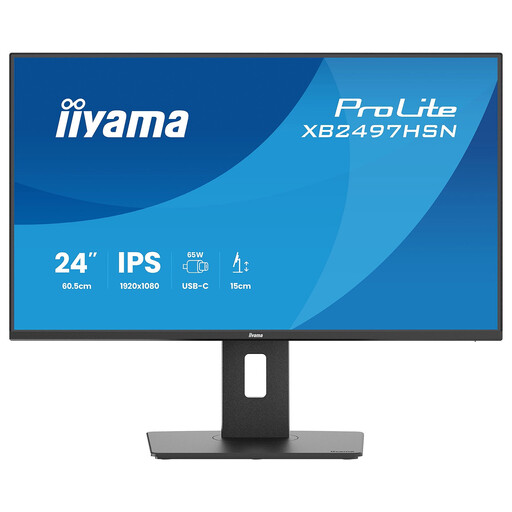 No image available
An option for anyone looking for a Full HD screen for route planning at a laptop workstation.
The product name lists a 24-inch screen, Full HD, 100 Hz and an IPS panel.
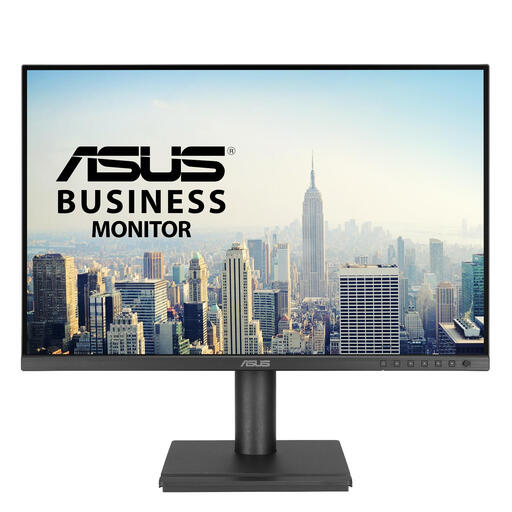 No image available
An option for displaying maps and route information with extra vertical screen space.
The product name lists 1920 × 1200 pixels, WUXGA and a 16:10 aspect ratio.
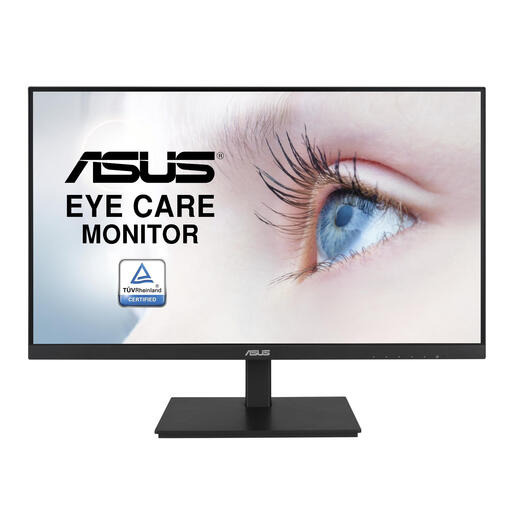 No image available
An option for anyone looking for a Full HD monitor with an adjustable screen position for their workspace.
The product name lists 1920 × 1080 pixels and a Full HD LCD screen.
 No image available
An option for anyone considering QHD and a laptop-focused workstation. Check your laptop’s connection and charging requirements.
The product name lists 2560 × 1440 pixels and Quad HD. Dell specifies USB-C power delivery of up to 90 W for the P2425DE; compatibility depends on the laptop.
 No image available
An option for anyone looking for a QHD screen with an adjustable position for route planning.
The product name lists 2560 × 1440 pixels and Quad HD.
No. A bigger screen isn’t automatically the best choice for a small desk. First measure the space for the screen and stand, then choose a resolution and aspect ratio that suit the way you arrange maps and browser windows.
It depends on the layout you want to use and how easy the content is to read at your chosen scaling. A 1920 × 1200 screen has 200 more vertical pixels than a 1920 × 1080 screen; on paper, 2560 × 1440 has more pixels than either of these options. These resolutions alone don’t tell you how much desk space the stand takes up or how comfortably you’ll be able to read text at your workstation.
No. Check the capabilities of both your laptop’s port and the exact monitor model. Compare video and data support, as well as the required charging power, with the listed specifications. USB-C alone doesn’t guarantee compatibility.
Make sure your screen and input devices are positioned comfortably, and check the monitor’s adjustment options when choosing. Arboportaal describes the risks of prolonged screen work. The stated requirements for setting up a workstation with a screen apply to employers and employees in certain circumstances, and don’t automatically apply to every home user.
For eligible distance purchases, you generally have a 14-day cooling-off period, according to the Dutch Government. The Netherlands also has statutory consumer rights, but no single fixed statutory warranty period. What you can expect from a product depends partly on the product itself and the circumstances. Check the terms for your specific purchase and compare any paid additional cover with your existing rights.