
Developer with limited desk space
You want to code and test without the screen and stand taking over your workspace. Measure the available space before choosing a monitor.


First, measure the available desk space, including room for the stand. Then decide whether you’d prefer extra vertical space or more pixels for side-by-side windows. Dell specifies a 16:10 screen with 1920 × 1200 pixels for the P2425; the Dell and Lenovo QHD models reviewed have 2560 × 1440 pixels. A USB-C hub is most useful if your laptop supports video over that connection and the monitor’s power delivery is suitable for your laptop.
You want to code and test without the screen and stand taking over your workspace. Measure the available space before choosing a monitor.
You want to view your code, browser and developer tools at the same time, so you’re comparing resolution and readability in a compact screen size.
You switch between using your laptop and working at a desk, so you’re considering screen height, connections and cable space.
Measure your setup first, then decide whether you need more lines of code, more room for windows, an adjustable screen or a simple laptop connection.
| What to consider | What to look for | Who should prioritise this? |
|---|---|---|
| Fits on your desk | Measure the available width and depth, then compare them with the full dimensions of the screen and stand. If you’re using a monitor arm, check that it can be attached to your desk. | I want to make sure the screen, stand and keyboard will fit on my small desk. Around 36% of consumers put fit first. |
| Room for code and browser | Compare the resolution and aspect ratio, and check that your usual window layout and text scaling work well. Lenovo Netherlands and Dell Netherlands specify compact QHD models with 2560 × 1440 pixels. | If I want to see my editor, browser and developer tools at the same time, a practical window layout is my priority. Around 29% of consumers prioritise this combination. |
| Screen position and readability | Check the height adjustment, tilt, glare and position in relation to windows and lighting. Arboportaal lists small text, glare, contrast and ambient light as factors that affect readability. | I want to adjust the screen to suit my workspace and read text comfortably. Around 21% of consumers put adjustability and a readable setup first. |
| Connecting to your laptop | Check the functions of the exact port, your laptop’s video output and the power delivery required. Dell lists the P2425’s USB-C downstream port as data-only, up to 15 W, and the P2425E as a hub with up to 90 W power delivery. | I want to connect my laptop properly and, ideally, use fewer cables. Around 14% of consumers prioritise connectivity; just make sure your laptop and monitor are compatible. |
Features vary by model. Dell describes the P2425’s USB-C port as a downstream data port; the P2425E is a separate hub model.
Check the functions of the exact monitor port, as well as your laptop’s video and power capabilities.
If the connection isn’t compatible with your laptop, you may need a separate video cable or charger.
The stand and viewing distance also affect how practical a monitor is on a small desk. The same screen size doesn’t mean the complete setup will fit.
Measure the available desk space and check the dimensions of the screen, stand and any mounting equipment.
You may need a different stand or monitor arm if the supplied stand doesn’t fit your workspace.
The features listed apply to specific models and versions. Always compare the full model and its port functions; a brand name alone won’t tell you which connections or stand you’ll get.
The Pro Plus versions reviewed include a 16:10 model, a 16:10 hub model and a 23.8-inch QHD hub monitor.
The ThinkVision P24q-30 is a 23.8-inch QHD option with an IPS panel that we reviewed.
The ProArt PA248QV version reviewed combines a 24.1-inch screen with a 16:10 aspect ratio and 1920 × 1200 pixels.
The 24E1N1300AE/01 reviewed is a 23.8-inch Full HD version with a USB-C connection.
This product selection includes compact 24-inch monitors for coding and browser testing, with both QHD and Full HD versions.
 Image unavailable
A compact QHD option if you want to view code and your browser side by side and are looking for a suitable USB-C hub.
23.8 inches; 2560 × 1440 pixels. Dell describes this model as a USB-C hub monitor with up to 90 W power delivery. Check that your laptop supports video over USB-C and that this power output is sufficient.
 Image unavailable
A QHD version to consider if you’re looking for a compact screen with more room for coding and browser testing.
24 inches; 2560 × 1440 pixels.
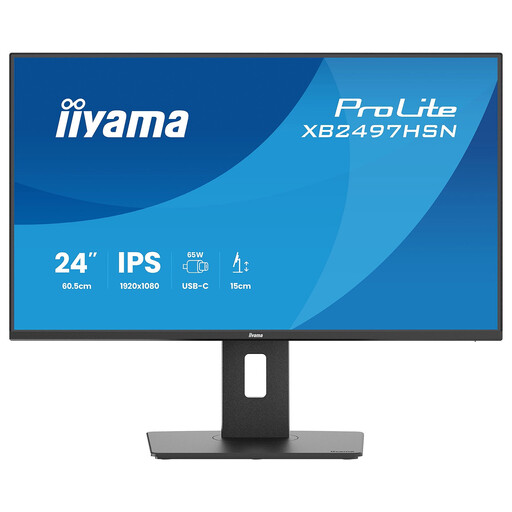 Image unavailable
A compact Full HD version to include in your comparison if you don’t need QHD resolution for your window layout.
24 inches; Full HD; IPS; 100 Hz.
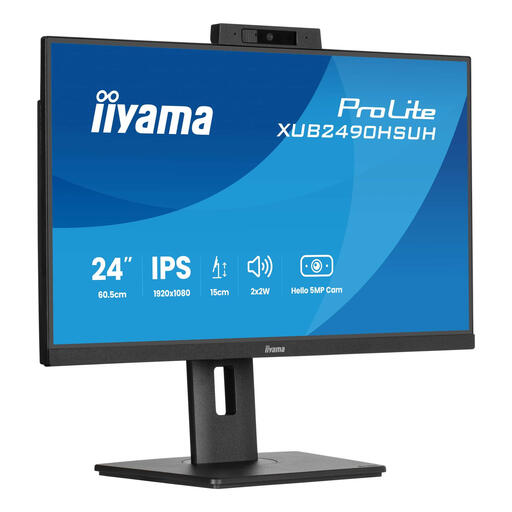 Image unavailable
An option to compare if you’d also like a built-in camera and microphone at your workspace for coding and browser testing.
24 inches; IPS; built-in Windows Hello camera and microphone.
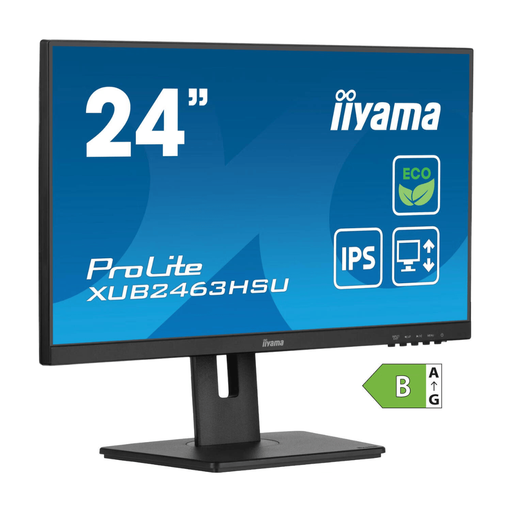 Image unavailable
A Full HD option to consider if a compact basic setup for coding and browsing suits your needs.
24 inches; IPS; Full HD.
Measure the full dimensions of the screen and stand, then compare them with the available width and depth of your desk. Allow space for your keyboard, viewing distance and preferred screen position too. A monitor arm will only work if your desk is suitable for its mount.
No, it depends on the monitor’s port functions and your laptop’s capabilities. Dell lists the P2425’s USB-C downstream port as data-only, while it describes the P2425E as a hub monitor with up to 90 W power delivery. Also check that your laptop supports video output over USB-C and how much power it needs.
Adjust the available height and tilt, and check the screen’s position in relation to windows and lighting. Arboportaal lists small text, glare, contrast and ambient light as factors that affect readability; a monitor on its own can’t prevent discomfort.
EU rules cover electronic displays, including computer monitors. The European Commission describes the energy label as a scale from A to G. According to ACM ConsuWijzer, there is no fixed statutory warranty period of exactly two years: what matters is what you could reasonably expect from the product under normal use. If something goes wrong, contact the seller.
In many cases, purchases made online from a business come with a 14-day cooling-off period. The Dutch government lists some exceptions, so check the terms of the specific purchase and who the seller is.