Start by measuring the space available on your desk and planning a setup that leaves enough room for your keyboard and arms; screen size alone won’t tell you whether a monitor will fit. Then decide whether you’d benefit from extra vertical space for long code diffs, QHD for more pixels on a compact screen, or a USB-C hub, provided your laptop supports the video connection and charging power required. Each option has different connections and limitations, so none is right for every workspace.
Who is this choice relevant to?
Code reviewer with limited desk space
You want to fit a monitor on your desk without losing room for your keyboard and arms. Arboportaal points out that inadequate arm support when working at a screen can lead to a static posture, so check the stand and adjustability too.
Reviewer working with long code diffs
You want to see more lines or context at once, so you’re comparing aspect ratio, resolution and text scaling. Models from Dell Netherlands, Philips Netherlands and BenQ Netherlands offer different combinations of vertical pixels and resolution.
Laptop user looking to reduce cable clutter
You may be looking for a monitor that can act as a hub for your laptop. Check whether the exact model supports video over USB-C and provides enough charging power; Dell, for example, distinguishes between a data connection and a USB-C hub.
What should you look for?
| Key consideration |
What should you check? |
Who is this important for? |
| Desk fit and setup |
Measure the available desk space, depth and room for the stand; check the height adjustment. |
If my desk isn’t very deep, I want to leave room for my keyboard and arms and position the monitor so it fits. Around 36% of consumers give desk fit and an adjustable setup top priority. |
| Code on screen and text size |
Compare 1920 × 1200, 2560 × 1440 and 2560 × 1600 with your editor, viewing distance and preferred text size. |
When reviewing long diffs, I want to see more lines or context, but the text still needs to be readable at my viewing distance. Around 29% of consumers prioritise visible code and readable text. |
| Laptop connection |
Check video over USB-C, the upstream function, charging power and the cable required for the exact model. |
If I want to reduce cable clutter, the connection also needs to suit my laptop’s capabilities and power requirements. Around 21% of consumers give a suitable laptop connection top priority. |
| Simple setup |
Work out which video input your computer uses and whether you need extra vertical space, QHD or a dock. |
If I mainly use one code window, I don’t want to pay for features I don’t need. Around 14% of consumers consider a simple setup without unused features the most important factor. |
How to avoid common buying mistakes
-
Assuming USB-C automatically turns a monitor into a laptop dock
Not every USB-C port supports video and laptop charging. Dell, for example, describes the USB-C port on the P2425 as a downstream data port; the P2425DE is a separate hub model.
Compare the full model code and check the video and charging functions of the monitor, laptop and cable together.
If the connection you choose isn’t compatible with your laptop, you may need a separate adapter or dock.
-
Comparing screen size alone
A screen may fit on your desk while its stand takes up too much room for your keyboard or arms.
Measure the available space and check the stand dimensions and adjustability of the model you plan to buy.
-
Assuming more pixels mean more readable text
The compact models differ in resolution and aspect ratio; usable text size also depends on your scaling settings and viewing position.
Try a familiar code diff at your preferred text size before making extra pixels the deciding factor.
Brands to compare
Dell
Dell Netherlands lists compact models with 16:10 WUXGA, QHD and a separate QHD model with a USB-C hub.
- According to Dell Netherlands, the P2425 has 1920 × 1200 resolution, while the P2425D has 2560 × 1440 at 100 Hz.
- According to Dell, the P2425’s USB-C downstream port is a data connection with a maximum of 15 W, not proof that it works as a laptop dock. Check the full model code.
BenQ
According to BenQ, the RD240Q is an approximately 24-inch programming monitor with 2560 × 1600 resolution and coding modes.
- Its resolution and coding modes give you specific features to compare with your preferred text scaling.
- BenQ’s claims about code differentiation or reduced eye strain are not independently proven results for your situation.
Philips
Philips Netherlands lists the 24B2U3301D/00 as a 24.1-inch 16:10 WUXGA monitor with an IPS panel.
- It has a resolution of 1920 × 1200; Philips also lists a refresh rate of 100 Hz.
- Check that the stand and connections suit your desk and computer; productivity and eye comfort benefits are claims made by Philips.
LG
According to LG Netherlands, the LG 24BA750-B is a 23.8-inch Full HD monitor with 65 W USB-C Power Delivery and RJ45.
- These connections may be useful if they suit your laptop and the setup you want.
- Full HD has fewer vertical pixels than the 16:10 WUXGA models considered here. Also check that the stand fits on your desk.
Joybuy products
These products are suited to compact monitor setups for code reviews, with options for extra vertical space, QHD or a simple Full HD setup.
 No image available
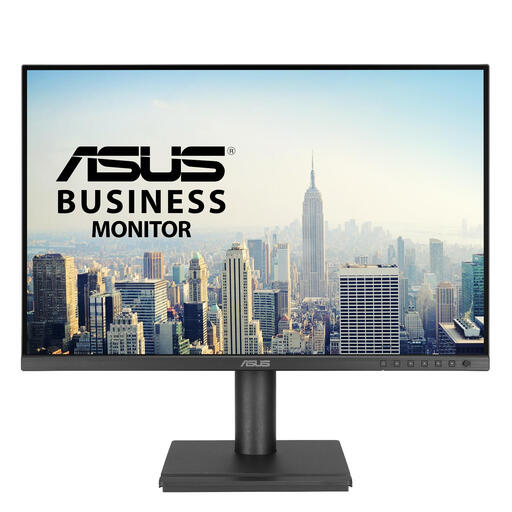
ASUS BE248CFN WUXGA monitor, 24.1 inches
An option if you want extra vertical space on a compact screen; check that the connections and charging power suit your laptop.
WUXGA, 1920 × 1200 pixels.
Joybuy
 No image available
Dell Pro Plus P2425DE QHD monitor, 24 inches
Suited to those considering QHD on a compact screen and a USB-C hub; check that the video and charging capabilities suit your laptop.
Dell Netherlands lists 2560 × 1440 pixels, a USB-C hub, up to 90 W Power Delivery and RJ45 for the P2425DE.
Joybuy
 No image available
Dell Pro Plus P2425D QHD monitor, 24 inches
A compact QHD option if you want more pixels for code or a secondary window; adjust the text size to suit your viewing distance.
Dell Netherlands lists 2560 × 1440 pixels at 100 Hz for the P2425D.
Joybuy
 No image available
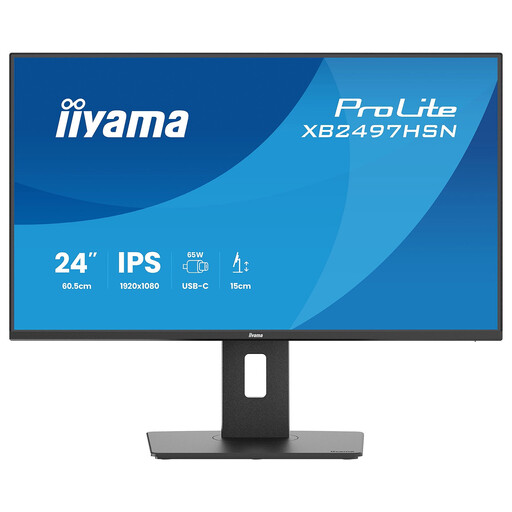
iiyama ProLite XB2497HSN-B1 Full HD monitor, 24 inches, 100 Hz
A compact Full HD option if that resolution is enough; check that the connections and stand suit your desk and laptop.
Full HD, 1920 × 1080 pixels.
Joybuy
 No image available
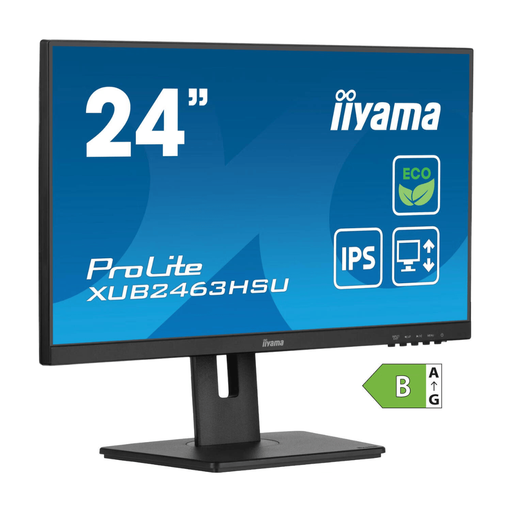
iiyama ProLite IPS Full HD monitor, 24 inches
A straightforward IPS and Full HD option for a compact workspace; check that the stand and connections suit your setup.
IPS panel, Full HD.
Joybuy
Frequently asked questions
Is 16:10 or QHD more useful for a code diff?
It depends on what you want to see at once: the 16:10 WUXGA models mentioned here offer 1920 × 1200 pixels, while the 23.8-inch QHD model considered has 2560 × 1440 pixels. Then adjust the text size to suit your viewing distance; more pixels don’t automatically mean more readable text.
How should I set up a monitor on a small desk?
As well as the space for the screen, measure the room needed for your keyboard and arms. Check the stand and position an adjustable screen to suit your setup; Arboportaal points out that inadequate arm support when working at a screen can contribute to a static posture.
Can any USB-C monitor work as a laptop dock with one cable?
No. Dell describes the USB-C connection on the P2425 as downstream, for data only and with a maximum of 15 W. Check the exact monitor model and your laptop to make sure the connection supports video and provides the charging power you need.
What do energy labels, the cooling-off period and the warranty mean when buying online?
The European Commission says that EU energy labelling and ecodesign rules also apply to displays; compare the label for the specific models you’re considering. According to the Dutch government, online purchases from a business generally come with a 14-day cooling-off period, subject to exceptions. Your statutory rights if a product is faulty are separate from any additional manufacturer’s warranty.


