What should you consider when choosing?
34-inch ultrawide
A good fit if: you want to keep two editors and a preview side by side and have enough desk space. LG specifies a 21:9 screen with a resolution of 3440 × 1440 pixels for the 34BA75QE-B.
Trade-off: a wide screen needs space; also consider whether text is comfortable to read from your usual viewing distance.
27-inch 16:9 QHD or 4K
A good fit if: you prefer a conventional screen layout or value desk space more than maximum width. ASUS lists the PA278CV as a QHD model, while Dell specifies the U2725QE as a 4K model.
Trade-off: a 16:9 screen offers less horizontal space for side-by-side windows than an ultrawide. If you choose 4K, check which text scaling works for you.
3:2 programming monitor
A good fit if: you mainly want more vertical space for code and planning overviews. BenQ specifies a resolution of 3840 × 2560 and a 3:2 aspect ratio for the RD280U.
Trade-off: this format has a different emphasis from an ultrawide and doesn’t automatically give you more room for three side-by-side windows. BenQ’s claims about coding modes or eye comfort are manufacturer claims, not proven productivity gains.
When building a rehearsal planner, your window layout and main buying priority are a good place to start. Then compare readability, adjustability and laptop connections.
| What to consider |
What should you check? |
Who is this most relevant to? |
| Room for windows |
Compare the aspect ratio and resolution with your usual layout of editors and preview. |
I want to keep two editors and possibly a preview on screen at the same time; around 36% of shoppers prioritise room for side-by-side windows. |
| Readability and vertical space |
Assess text scaling and readability from your usual viewing distance; more pixels don’t automatically mean larger text. |
I read a lot of code and documentation and want characters to be easy to distinguish; around 29% of shoppers give readability and vertical space top priority. |
| Adjustability |
Check height adjustment, reflections and the space on your desk; assess a monitor arm separately. |
I want to adjust my screen to suit my workspace and minimise distracting reflections; around 21% of shoppers choose adjustability as their main priority. |
| Connecting a laptop |
Check your laptop’s video output, the charging power required and whether the cable is suitable. |
I want to use my own laptop with the connection I have in mind and make sure it charges sufficiently; around 14% of shoppers prioritise laptop connectivity that meets their needs. |
Joybuy products
This selection focuses on wide monitors for using editors and other windows side by side.
 No image available
LG UltraWide 34U601B-B WQHD VA monitor, 34-inch
A 34-inch ultrawide option to consider if you want to use several windows side by side.
WQHD resolution, VA panel, curved 1800R design and 120 Hz.
Joybuy
 No image available
Philips 34B2U5900C/00 34-inch curved dual-mode business monitor
A 34-inch curved monitor to consider if you’re looking for a wide screen layout for work.
This model is described as a dual-mode business monitor.
Joybuy
 No image available
CRUA 49-inch curved ultrawide gaming monitor
An extra-wide screen to consider if you want plenty of horizontal space for editors and a preview.
5120 × 1440, 32:9, 165 Hz, 1500R VA panel, 2 × HDMI 2.1, 2 × DP 1.4 and VESA 75 × 75. The stand is height-adjustable; bear in mind that this monitor needs a wide desk.
Joybuy
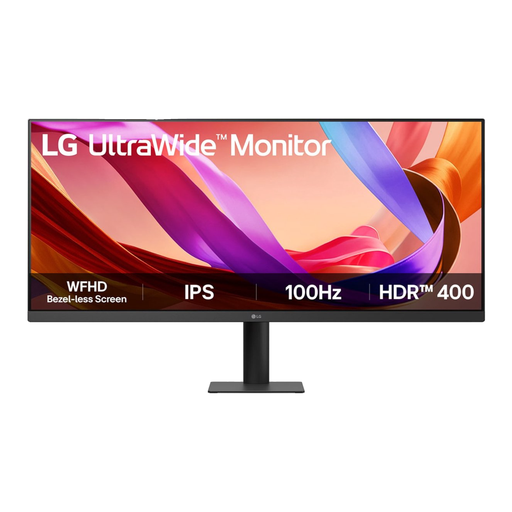 No image available
LG UltraWide 34U511A-B, 34-inch
A 34-inch ultrawide option to compare if you use several programmes side by side.
WFHD resolution of 2560 × 1080 and 100 Hz.
Joybuy
 No image available
iiyama G-MASTER 45-inch Dual QHD monitor with KVM switch and USB-C dock
A Dual QHD option to consider if you want to use editors side by side and the listed connection features suit your workspace.
The product name mentions a USB-C dock, RJ45 and a height-adjustable stand.
Joybuy
Frequently asked questions
Do you need an ultrawide for two editors?
No, not necessarily. Visual Studio Code supports side-by-side editor windows on one screen; an ultrawide may suit you if you also want to show a preview. Consider whether a 27-inch screen is enough for your text scaling and layout.
How should you set up a monitor for long programming sessions?
Adjust your screen and furniture to suit your body, make sure characters are easy to read and avoid glare. These are workstation tips from Arboportaal; a specific display mode doesn’t replace them.
Does USB-C mean your laptop will work with one cable?
Not automatically. Check whether your laptop can output video through the connection you plan to use, how much charging power it needs and which cable is suitable. The monitors listed have different specified Power Delivery ratings.
What are your rights if a monitor bought online isn’t suitable or breaks down too soon?
According to ACM ConsuWijzer, online consumer purchases generally come with a cooling-off period of up to 14 days after delivery, with some exceptions. Your statutory guarantee is separate: if a product doesn’t meet what you could reasonably expect under normal use, the seller is responsible for providing an appropriate solution. There is no single fixed statutory guarantee period in the Netherlands for all monitors.
Are there Dutch workplace requirements for monitors?
Rules on display screen work apply in employer and employee workplaces. Arboportaal notes, among other things, that if you work at a screen for more than 2 hours a day, the screen and keyboard must not be attached to each other, and the screen must be adjustable and non-reflective. These employment-related requirements don’t automatically apply to every private buyer.


