What should you look for in a shared workspace?
Start with the calendar’s purpose. For a digital schedule, what matters most is whether the text and time slots are easy to view at the chosen display scale. If you also review colour-critical print work, consider the colour gamut; then check which connections the shared laptops actually need.
| What to consider |
What should you check? |
Who should pay particular attention? |
| Readability and workspace |
View one of your own calendar pages from a normal viewing distance, using the display scale and window layout you plan to work with. |
I want to see appointments, names and design panels clearly without small text becoming unreadable. Around 40% of consumers give readability and workspace the highest priority. |
| Colour accuracy |
Decide whether the calendar will only be viewed digitally or also assessed as colour-critical print work; then compare the colour gamut of the exact model. |
If I also need to assess the colours of a finished design, I want the monitor to suit my digital or print workflow. Around 20% of consumers prioritise colour accuracy for this kind of work. |
| Adjustability at a shared desk |
Check how the stand can be adjusted, and consider the screen, lighting and window position together. |
At a shared desk, I want to adjust the screen position to suit my working posture and take reflections into account. Around 20% of consumers prioritise an adaptable workspace. |
| Laptop connection |
Compare each laptop’s video output and charging requirements with the monitor port and cable being used. |
When colleagues switch laptops, I want to know whether each device can deliver a picture and enough power through the connection selected. Around 20% of consumers prioritise connectivity for laptops used by different people. |
Monitors on Joybuy for calendar design and shared office work
These Joybuy monitors are worth considering for calendar design and shared workspaces. Compare their screen layout, resolution and connections with how the calendar is created and how the laptops are used.
 No image available
Dell Pro P3426WEV 34.1-inch Curved WQHD USB-C Hub Monitor
This 34.1-inch model is worth considering if you want to view lots of parts of a calendar side by side.
Curved WQHD screen with USB-C hub, webcam, 100 Hz and 90 W Power Delivery, as stated in the product name.
Joybuy
 No image available
MSI Modern MD272UPHG 27-inch 4K UHD monitor
This 27-inch 4K monitor is worth assessing with your own calendar layout and display scale.
The product name states 3840 × 2160 pixels and 4K Ultra HD.
Joybuy
 No image available
INNOCN CB27U1 27-inch 4K UHD monitor
This 27-inch model may suit a workspace where you need to review calendar details; check the text and layout at the scale you use too.
The product name states 3840 × 2160 IPS, USB-C with 90 W Power Delivery and a height-adjustable stand.
Joybuy
 No image available
Dell UltraSharp U2725QE 27-inch 4K UHD monitor
Consider this model if you want to compare a 27-inch 4K screen for calendar details and the connections available in a shared workspace.
The product name states 3840 × 2160 pixels and 4K Ultra HD.
Joybuy
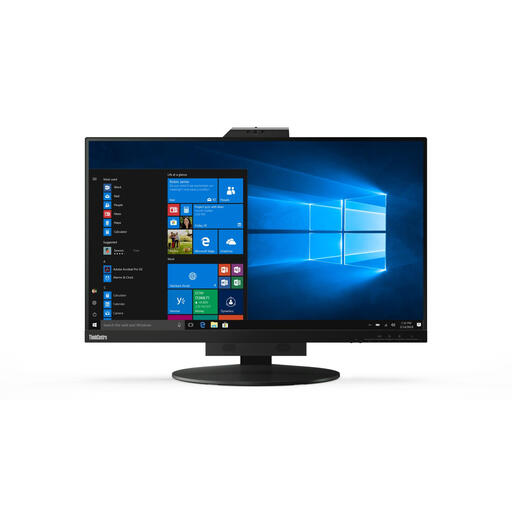 No image available
Lenovo ThinkCentre Tiny-In-One 27 QHD monitor
This 27-inch QHD monitor is worth comparing if you want to view calendar text and windows side by side.
The product name states 2560 × 1440 pixels. According to the product description, the power adapter must be purchased separately.
Joybuy
Frequently asked questions
Which resolution should you choose for a calendar with small text?
View the calendar from your normal viewing distance and at the display scale you plan to use. The 27-inch examples reviewed range from QHD (2560 × 1440) to 4K (3840 × 2160); neither resolution alone guarantees a comfortable text size.
Can every colleague get video and power through a single USB-C cable?
Not without checking compatibility. BenQ specifies USB-C with DisplayPort Alt Mode and 65 W Power Delivery for the PD2705U; check each laptop’s video support, charging requirements and cable needs.
What should you adjust at a shared display-screen workstation?
Adjust the screen for each user and assess reflections, lighting and its position in relation to windows. For applicable display-screen work, the Dutch Arboportaal recommends, among other things, a height-adjustable, non-reflective screen. For more than two hours of screen work a day, it also states that the screen and keyboard should not be attached to each other; the employer must assess the applicable workstation requirements.
Who can help if a product is faulty, and do you need an extended warranty?
For a consumer purchase, the Dutch government says the seller must offer a solution if the product is faulty. There is no fixed statutory warranty period in the Netherlands; assess paid-for extended cover based on the rights it genuinely adds. For a business office purchase, check the terms of the agreement separately.
Is a particular brand or 4K legally required for this workspace?
The Dutch Arboportaal outlines requirements for safe display-screen work and the setup of applicable workstations, but does not specify a required monitor brand or a general 4K requirement. Assess the workstation requirements for your specific situation.


