
Slide and notes creator
You want to see slides, speaker notes and sources at a glance, while keeping the space available on a shared desk in mind. Samsung UK identifies desk space and the type of work as factors to consider when choosing a monitor.


Choose a compact screen if desk space is limited and you usually view one slide or document at a time. A larger QHD screen gives you more room to put slides and notes side by side. A USB-C monitor can make it easier to switch between laptops, provided both the monitor and each laptop support the required video and charging features. Also check that the screen can be adjusted to suit everyone sharing the workspace.
You want to see slides, speaker notes and sources at a glance, while keeping the space available on a shared desk in mind. Samsung UK identifies desk space and the type of work as factors to consider when choosing a monitor.
You share a desk and want to avoid connecting lots of separate cables when plugging in another laptop. Which features work also depends on the laptop’s ports and charging requirements.
You share the screen with people who need different viewing positions, so you pay attention to adjustment options and reflections. Arboportaal highlights screen positioning and glare as factors to consider in screen-based workspaces.
Start with the space available on the desk and the windows you want to see at the same time. Then check that the ports and settings suit the different users.
| What to consider | What should you check? | Who is this important for? |
|---|---|---|
| Space for slides and notes | Measure the available space and check whether slides and notes are easy to read side by side at your usual display scale. | If I want to view slides and notes at the same time, I need enough workspace without the screen taking up too much of the desk. Around 29% of consumers prioritise space for slides and notes. |
| Switching between laptops | Check USB-C video, the required charging power and which connections the exact monitor model supports through a single cable. | If I regularly connect a different laptop, I want to know whether that connection provides a picture and enough power. Around 29% of consumers prioritise easy switching between laptops. |
| Adjusting for multiple users | Check the height, tilt and swivel adjustments, and look out for reflections and the screen’s position in relation to windows. | When people with different viewing positions use the same workspace, I want to be able to readjust the screen. Around 24% of consumers prioritise adjustability for different users. |
| Reviewing text and slide layouts | Compare the resolution and model-specific colour information, then check on your own laptop that text and images are comfortable to review. | When I’m reviewing text and slide designs, I want details to be easy to see at my usual scale. Around 18% of consumers prioritise text and slide layouts. |
USB-C features and charging power vary between monitors; the laptop must also support the required video and charging features.
Before buying, compare what the laptop can do with the specifications of the exact monitor model.
A larger screen takes up more desk space, and screen size alone doesn’t tell you how many pixels are available.
Measure the space and compare both the dimensions and the resolution with the windows you want to use at the same time.
The Pro Plus P2725DE is a 27-inch QHD option for a shared laptop workspace where USB-C charging and a wired network connection are useful.
According to LG, the business-focused 27BA65QB-B combines QHD with USB-C charging, while the 27BA45QB-B is a QHD model with an adjustable stand.
The Philips 27E1N1600AE/00 is a 27-inch QHD monitor with USB-C, helping to keep your workspace tidy.
The ThinkVision T24m-29 is a 23.8-inch Full HD model with USB-C and Ethernet, designed as a more compact option for a smaller desk.
This selection includes monitors for shared desk work, with QHD or ultrawide screen space. Check the available adjustments and connections for each model: USB-C docking is not listed for every model.
 No image available
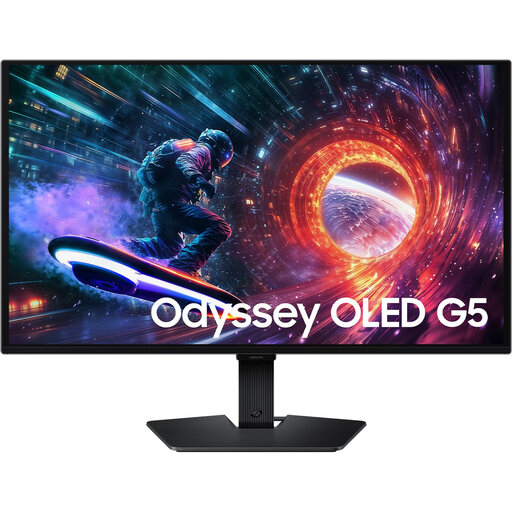
An option if you’re looking for a 27-inch screen for slides and other windows, and USB-C docking isn’t one of your selection criteria.
QHD, 2560 × 1440 pixels, OLED and 180 Hz; the product information also lists tilt adjustment.
 No image available
A good fit if you’re considering a 27-inch QHD screen for slides and source material, while checking the connections on your own device separately.
2560 × 1440 pixels, IPS panel, 180 Hz and 1 ms; the product information lists 2 × HDMI 2.0 and 1 × DisplayPort 1.4.
 No image available
An ultrawide option if you want to use several windows side by side and have enough desk space and a compatible laptop.
34.1 inches, 3440 × 1440 pixels, USB-C with up to 90 W Power Delivery, USB hub and KVM switch. The product information also lists RJ45 and an adjustable stand.
 No image available
A 27-inch QHD option if you want to view slides and text on a larger screen; check that it has the connections your shared workspace needs.
2560 × 1440 pixels, IPS panel and 144 Hz. The product name also lists DisplayPort 1.4 and HDMI 2.0.
 No image available
An option if you’re looking for a 27-inch QHD screen for slides and source material, without making USB-C docking a must-have.
2560 × 1440 pixels, IPS panel and 120 Hz; the product name lists HDMI, DisplayPort and VESA mounting.
No. A larger QHD screen can give you more room to put windows side by side, but it also takes up more space. Measure your desk and check that both windows are readable at your usual display scale.
No, check compatibility first. USB-C features and charging power vary between monitor models; also check whether the laptop supports video over USB-C and how much charging power it needs.
Adjust the screen position to suit the user, and consider glare, lighting and the screen’s position in relation to windows. Arboportaal highlights these points for screen-based workspaces; an adjustable monitor is no substitute for assessing the workspace as a whole.
According to Arboportaal, if employees spend more than 2 hours a day doing screen-based work, the screen and keyboard must not be attached to each other. Check the rules that apply to your working situation; this does not mean every buyer has to choose a particular monitor model.
For eligible consumer purchases made at a distance, you usually have a 14-day cooling-off period, according to the Dutch government. It also states that there is no fixed statutory warranty period in the Netherlands: what you can reasonably expect from a product is taken into account, and the seller is your point of contact if there’s a problem. Check the terms of your specific purchase, especially if an employer is buying for business use.