Choose a monitor that fits on the shared desk and can be adjusted comfortably by everyone who uses it. Then consider whether you mainly read text, work with several windows at once or regularly switch laptops. A compact QHD monitor combines a smaller footprint with high resolution, while a 27-inch QHD model gives you more room for windows. USB-C docking is only useful if your laptop supports the required video output and charging function. Also check your viewing distance, text scaling and connections: bigger or sharper does not automatically mean more comfortable for writing.
Who is this choice for?
Writer at a hot desk
You write and proofread longer pieces at a desk that other people use too. You want to be able to readjust the screen and read text clearly without distracting reflections. Arboportaal advises reassessing the setup each time you use a new workstation.
Editor working with multiple windows
You keep reference material, draft copy and the newsletter layout in view at the same time. A suitably sized screen can help, as long as it fits on the desk. The models reviewed by Dell Netherlands and Philips Netherlands include 27-inch QHD screens.
Laptop switcher at a shared desk
You regularly connect a different laptop and are considering docking with a single cable. Check whether each laptop’s USB-C port supports video and provides enough power for charging. Dell Netherlands and EIZO Netherlands list docking features for specific models.
What should you look for at a shared desk?
Compact, adjustable monitor of around 24 inches
Best for: mainly writing and proofreading, limited desk space, and users who readjust the screen each time they use it.
Trade-off: the smaller screen takes up less room, but offers less physical space for multiple windows than a larger screen.
Adjustable 27-inch QHD monitor
Best for: viewing reference material, draft copy and layout side by side when there’s enough room on the desk.
Trade-off: a larger screen needs more space and careful positioning on a shared desk.
27-inch 4K monitor
Best for: combining writing with reviewing images or fine layout details, if your computer and scaling settings are suitable.
Trade-off: 4K is not essential for working with text. Check that text remains comfortable to read at your preferred scale.
| What to consider |
What to look for when buying |
Who this matters to |
| Readability and posture |
Check the resolution, anti-glare finish, and height and tilt adjustment. |
If I write long pieces at a desk that other people use too, I want to read text clearly and readjust the screen. Around 36% of consumers prioritise readability and posture above all else. |
| Room for multiple windows |
Consider how reference material, drafts and layouts fit on the screen. |
When I need to view reference material, draft copy and the layout side by side while working on a newsletter, I want to see all those windows at once. Around 29% of consumers put room for windows first. |
| Switching between laptops |
Check video output via USB-C, charging requirements and the stated Power Delivery wattage. |
If I use different laptops at the same desk, I want to connect and disconnect them easily. Around 21% of consumers make switching between laptops their top buying priority. |
| Fine image and layout detail |
Check 4K support and assess text and layouts at your preferred scale. |
When I review images or small layout details as well as text, I want to see those details on screen. Around 14% of consumers prioritise fine image and layout detail. |
Common buying mistakes
-
Assuming USB-C guarantees single-cable docking
Video and power depend on the features of your laptop’s port and the amount of power the laptop needs for charging.
Before choosing a docking monitor, compare the exact laptop port and charging requirements with the monitor model’s specifications.
Depending on the combination, you may also need a separate charger, adapter or another cable.
-
Choosing a large or high-resolution screen without measuring your workspace
The screen needs to fit on the shared desk and be easy for each user to adjust. Small text or reflections can make it harder to read.
Measure the available space, check text at your preferred scale, and look at the adjustment options and reflections.
-
Treating a manufacturer’s eye-comfort claim as a guarantee
Screen features alone do not determine how comfortable the whole workspace will be for each user. Posture, lighting and how you use the screen also matter.
Assess the monitor alongside the desk setup and lighting, and check what adjustments are available to the user.
Brands and models as a guide
The features below apply to the models named and are not a general recommendation for every product from a brand.
Dell
The Pro Plus models reviewed offer a compact QHD option with a USB-C hub, as well as a larger QHD workspace.
- According to Dell, the P2425DE has an adjustable 23.8-inch QHD screen, Ethernet and USB-C Power Delivery up to 90 W.
- Dell lists a 27-inch QHD screen and height adjustment for the P2725D.
- Don’t assume the P2725D has the same hub features as the P2425DE; check the connections on the exact model.
Philips
The Business Monitor 27B2U3601/00 reviewed is a 27-inch QHD model for anyone looking to work with text, reference material and layout windows together.
- Philips lists QHD, IPS, 120 Hz and a SmartErgoBase for this model.
- These manufacturer specifications are not an independent assessment of reading comfort. Check the connections and adjustment options of the version on offer.
EIZO
The FlexScan EV2490 reviewed is a compact option with adjustment features and laptop docking.
- EIZO lists a 23.8-inch Full HD screen, anti-glare finish, extensive adjustment options, USB-C docking up to 70 W and Ethernet for this model.
- Full HD has fewer pixels than the compact QHD option reviewed. Also check that your laptop supports the docking features and that the charging power is sufficient.
LG
The UltraFine 27UP850K-W reviewed is a 27-inch 4K option for anyone who also works with images and fine layout details.
- LG lists a resolution of 3840 × 2160 pixels, a height-adjustable stand with tilt and pivot adjustment, and USB-C power delivery up to 96 W.
- Check compatibility with your laptop and readability at your chosen scale, and decide whether you need 4K for your work.
Monitors at Joybuy
This selection includes compact screens for writing and larger monitors for anyone who wants more room for windows. Check whether each model’s features suit your workspace.
 No image available
Dell UltraSharp U2724D
A good choice if you want to view reference material and newsletter layouts on a larger screen.
27 inches, QHD resolution and an adjustable stand.
The product information also lists a USB hub and an anti-glare IPS screen.
View at Joybuy
 No image available
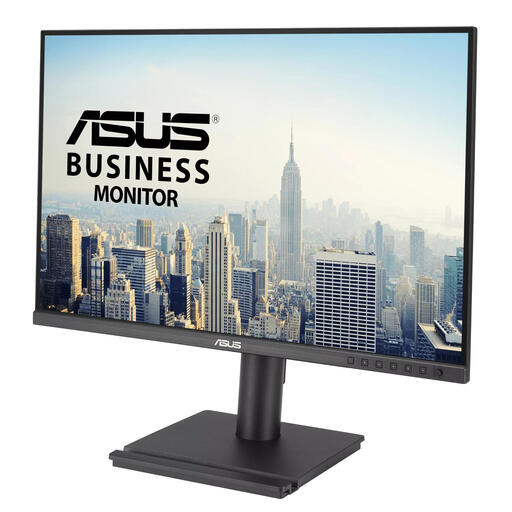
ASUS BE248QF
A compact option for writing and proofreading at a shared desk.
24.1 inches, WUXGA resolution of 1920 × 1200 pixels and a 16:10 aspect ratio.
The product information lists a matte finish, height adjustment and a USB hub with four USB-A ports.
View at Joybuy
 No image available
Dell Pro Plus P2425DE
Ideal if you’re looking for a more compact QHD screen and want to use laptop docking, provided your laptop is compatible.
23.8 inches, QHD resolution, an IPS panel and an adjustable stand.
Dell lists USB-C Power Delivery up to 90 W and Ethernet. Check that your laptop supports video over USB-C and that the charging power is suitable.
View at Joybuy
 No image available
Dell Pro Plus P2725D
A good choice if you want to view reference material, draft copy and newsletter layouts on one larger screen.
27 inches, QHD resolution and an adjustable stand.
Check this model’s connections separately if you need docking or laptop charging.
View at Joybuy
 No image available
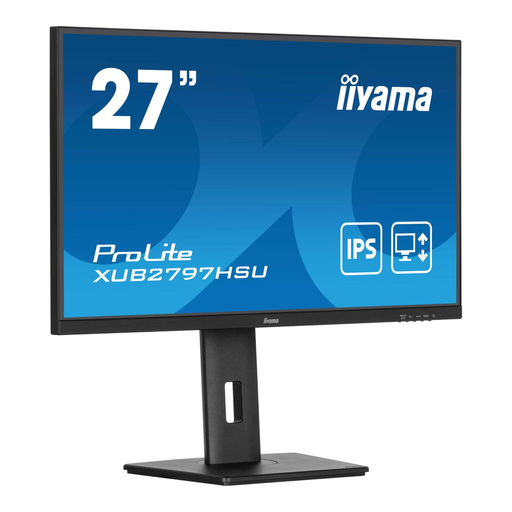
iiyama ProLite 27-inch IPS monitor
A larger option for anyone who wants to readjust the screen at a shared desk.
27 inches, Full HD, IPS panel and a height-adjustable stand.
The product information also lists a matte finish and a USB hub.
View at Joybuy
Frequently asked questions
How do I readjust the monitor after someone else has used the desk?
Position the screen directly in front of you and readjust its height and tilt. Arboportaal advises placing the top of the screen slightly below eye level and reassessing the workstation each time you use a new seat. This is guidance on how to use the setup, not a product specification.
Can any laptop receive video and power through a single USB-C cable?
No. It depends on whether the laptop’s port supports video and how much charging power it needs. Dell lists DisplayPort Alt Mode and Power Delivery up to 90 W for the P2425DE; EIZO lists power delivery up to 70 W for the EV2490. Check that these features are suitable for your laptop.
What workplace health and safety rules apply to a shared desk in the Netherlands?
For an employee workstation, Arboportaal states that if you work with a screen for more than two hours a day, the screen and keyboard must not be fixed together. Employers must also ensure that screen-based work is periodically alternated with other work or a break. These employment rules are not automatically purchase requirements for personal use.
How do I compare energy use, and what cooling-off period applies to online purchases?
Compare the EU energy label for the exact monitor. The European Commission lists a scale from A to G for electronic displays. For online purchases as a consumer, the Dutch Government says a 14-day cooling-off period applies in many cases. Check the seller’s information for your purchase.


