
Users of a shared workspace
You share the desk and want to readjust the screen whenever you take your turn. Arboportaal recommends positioning the screen directly in front of you, with the top just below eye level.


First, choose a monitor that fits on the shared desk and can be adjusted comfortably by each user. Then decide whether you want your learning materials and quiz questions on screen at the same time. A USB-C hub is useful mainly if your laptop supports video over USB-C and the monitor provides enough power to charge it. Otherwise, having the right HDMI or DisplayPort connections may matter more.
You share the desk and want to readjust the screen whenever you take your turn. Arboportaal recommends positioning the screen directly in front of you, with the top just below eye level.
You refer to source material while writing questions, and are weighing up extra screen space against the room taken up by the monitor and its stand.
You regularly connect a different laptop and want to know in advance whether a standard video connection will do, or whether a USB-C hub will work with your laptop.
First measure the available space, then decide whether adjustability, room for two windows or easy connectivity matters most. For USB-C, check separately whether your laptop supports video over that connection and whether the charging power is sufficient.
| What to consider | What should you check? | Who is this important for? |
|---|---|---|
| Readjusting the screen | Check the height adjustment and tilt of the exact model, and see how much space the stand takes up. | If I share the desk with others, I want to be able to readjust the screen each time for a comfortable viewing position. Around 33% of consumers prioritise adjustability. |
| Reading two windows | Compare the resolution and physical dimensions, and check your preferred window layout at a comfortable text size. | I want to read source material and quiz questions at the same time without the screen taking up too much room. Around 27% of consumers prioritise space for two windows. |
| Switching between laptops | Check video over USB-C, DP Alt Mode where needed, charging power and the cables supplied with the exact model. | When I regularly connect a different laptop, I want to know whether the chosen connection will provide video and, if needed, power. Around 20% of consumers prioritise quick, compatible connections. |
| Compact and simple | Measure the space available for the screen and stand, and check whether HDMI or DisplayPort already connects to the computer you use. | At a small shared desk, I only want to choose features and screen space that we’ll actually use. Around 20% of consumers prioritise a compact, simple set-up. |
Dell says the USB-C port on the Dell P2425 is a downstream data port; the AOC 24P3CV, on the other hand, specifies DP Alt Mode and Power Delivery. So the mere presence of a USB-C port doesn’t mean a monitor can provide your laptop with video and power over a single cable.
For the exact monitor model and your laptop, check USB-C video, data, charging power and compatibility.
If the connections aren’t right for your laptop, you may need a separate cable, power adapter or dock.
A larger screen can give you room to place windows side by side, but it still needs to fit on the shared desk with its stand. Screen size and resolution also describe different things.
Measure the available space, then consider the dimensions, resolution and preferred window layout together.
At a shared workstation, each user may need the screen in a different position. Arboportaal recommends readjusting the workstation whenever someone else takes a turn.
Check the adjustment options on the exact model and whether the stand supplied allows those movements.
If the stand can’t be adjusted to suit you, you may need a suitable monitor arm or a different stand.
The Pro Plus P2425 and P2425E are different models: one is an adjustable monitor with standard video inputs, while the other is a separate USB-C hub model.
The 24P3CV is a compact Full HD option with a hub, while the Q27B3CF2 is a separate, larger QHD model.
The 24BA850-B is a 23.8-inch Full HD model with a webcam and USB-C connection.
The business-focused 24B2G5301/00 is a 23.8-inch Full HD model with a built-in USB-C dock.
These Joybuy products are 27-inch QHD monitors for anyone who wants to view source material and quiz questions side by side. Measure the shared desk first to make sure the monitor will fit.
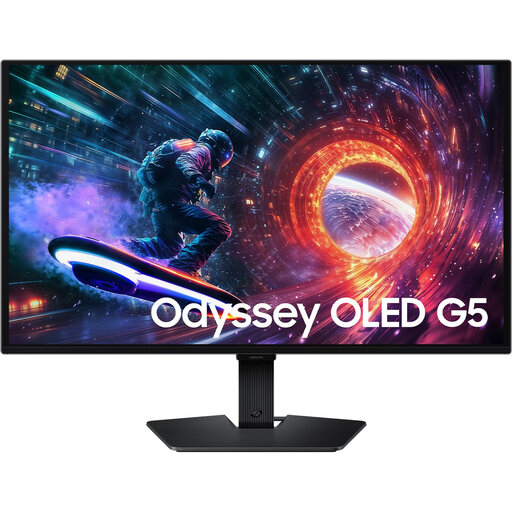 Image unavailable
The 27-inch QHD screen suits anyone who wants to view learning materials and quiz questions side by side; check the available desk space first.
Specifications: OLED, 2560 × 1440, 180 Hz, HDMI 2.0 and DisplayPort 1.2.
 Image unavailable
This 27-inch Quad HD model gives you room to place windows side by side; measure the shared desk before choosing this size.
Specifications: 2560 × 1440, 180 Hz, 2 × HDMI 2.0 and 1 × DisplayPort 1.4.
 Image unavailable
This 27-inch QHD model suits anyone who needs room for two windows; bear in mind the space available on the shared desk.
Specifications: IPS, 2560 × 1440, 144 Hz, DisplayPort 1.4 and HDMI 2.0.
 Image unavailable
This 27-inch QHD screen is an option if you want to view source material and quiz questions side by side; check that it will fit in your workspace.
Specifications: 2560 × 1440, IPS, 120 Hz, HDMI and DisplayPort.
 Image unavailable
This 27-inch Quad HD model suits anyone who wants to view several windows; measure the space available for the screen and stand.
Specifications: 2560 × 1440, IPS Black, HDMI and DisplayPort.
Position the screen directly in front of you and adjust it so you’re looking slightly downwards. Arboportaal recommends setting the top just below eye level and tilting the screen to suit you. Readjust the shared workstation whenever another user takes a turn.
No, that depends on the features of both the monitor and the laptop. According to Dell, the USB-C downstream port on the Dell P2425 is for data only; AOC lists DP Alt Mode and up to 65 W Power Delivery for the 24P3CV. Check how much charging power your laptop needs too.
According to ACM ConsuWijzer, online purchases often come with a cooling-off period of up to 14 days after delivery, although there are exceptions. If a product is faulty, you also have a statutory guarantee: the seller must put things right if, under normal use, the product doesn’t do what you could reasonably expect. This is separate from any voluntary manufacturer’s guarantee.
Not as a general requirement for every private buyer or student. Arboportaal outlines rules for employers and employees who work with display screens, including having an adjustable workstation. It separately mentions the condition of more than 2 hours of screen work per day when discussing the combination of a screen and keyboard; employers must assess which requirements apply to their workplace.