
Dialogue tree creator
You want to see plenty of nodes and reference text at once, so you’re comparing the screen’s aspect ratio with the space available on your desk.


If you want to keep branches, text and references in view at the same time, an ultrawide monitor is a sensible choice if your desk is wide enough. For a shared workstation where people mainly connect laptops, an adjustable USB-C docking monitor is worth considering. Whichever option you choose, check the space available on your desk, your laptop’s video support and whether the USB-C power delivery is suitable for your laptop.
You want to see plenty of nodes and reference text at once, so you’re comparing the screen’s aspect ratio with the space available on your desk.
You regularly switch between users or laptops and want to manage connections, power and peripherals without having to keep unplugging and reconnecting them.
You share your viewing position with someone else and want to adjust the screen height for each user.
First decide how much space you need to view the dialogue tree, then consider your laptop’s connections and how easily the screen can be adjusted for different users.
| What to consider | What should you check? | Who is this most relevant to? |
|---|---|---|
| Viewing the dialogue tree | Compare the aspect ratio, resolution and screen width with your software layout and the space available on your desk. | If I want to see branches and references at the same time, I prioritise having a clear overview. Around 33% of consumers put having a clear overview first. |
| Switching between laptops and peripherals | Check video support through the laptop port, USB-C power delivery and whether the model has KVM if you need to switch a keyboard and mouse between computers. | If I regularly switch between laptops, I want to know which devices work through a single connection and whether I can switch peripherals between them. Around 27% of consumers prioritise connecting and switching. |
| Adjusting the screen position | Check the height adjustment and tilt, and make sure there’s enough room on the desk to reposition the screen. | If several people use the same viewing position, I want to be able to adjust the monitor for each user. Around 27% of consumers make adjustability their top priority. |
| Essential features and energy consumption | Consider which docking or KVM features you’ll actually use, and check the energy label for the exact model. | I don’t want to choose features that won’t add anything to my setup, and I also keep an eye on power consumption. Around 13% of consumers prioritise essential features and energy use. |
A hub can make connecting devices easier, but that doesn’t automatically mean you can switch a keyboard and mouse between two computers.
Decide in advance whether you’ll just connect laptops one at a time or want to use the same peripherals with two computers. If it’s the latter, make sure the monitor specifically has KVM.
A large screen may take up too much room on a shared desk or be difficult to position comfortably.
Measure the available width and check the height adjustment and the screen’s position relative to windows and lighting. LG lists the 34WQ75C-B as 816,7 mm wide with the stand.
A feature may only work with certain operating systems on the connected computer.
Philips states that PowerSensor 2 on the 27B2G5601/00 only works with Windows 11. So only consider this feature if that requirement is met.
The P2725DE and P2725QE offer two 27-inch options: QHD with a USB-C hub, or 4K.
The 34WQ75C-B is an ultrawide model to consider if you want to view plenty of content side by side.
The Business Monitor 27B2G5601/00 is a 27-inch QHD option with an integrated USB-C dock.
These product picks focus on ultrawide workspace and connecting laptops at a shared desk.
 No image available
An ultrawide option for viewing dialogue branches and references side by side.
The product listing on Joybuy gives a resolution of 3440 × 1440 pixels, a 21:9 aspect ratio, height adjustment and USB-C with 96 W Power Delivery.
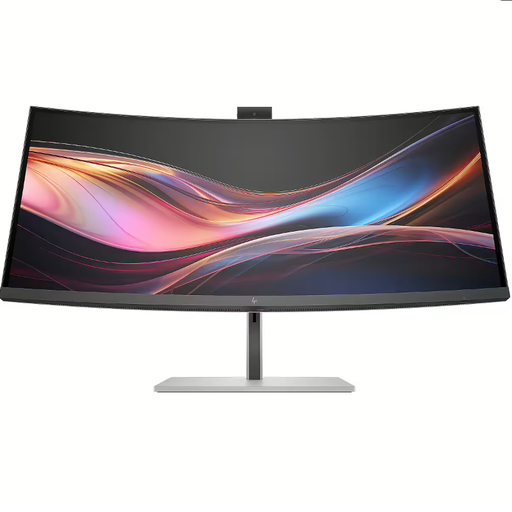 No image available
An ultrawide model for viewing multiple windows side by side and setting up a shared laptop workstation.
The product listing on Joybuy gives a resolution of 3440 × 1440 pixels, Thunderbolt 4, a USB hub and built-in KVM. The product description says the charger is not included as standard.
 No image available
An ultrawide option for anyone looking for connectivity as well as workspace for a shared setup.
The product listing on Joybuy gives a resolution of 3440 × 1440 pixels, a 21:9 aspect ratio, 100 W USB Power Delivery, RJ-45, Thunderbolt 4 and Smart KVM.
 No image available
A standard QHD option for a shared desk where a compatible laptop connects via USB-C.
The product listing on Joybuy gives a resolution of 2560 × 1440 pixels, USB-C with 90 W Power Delivery, RJ-45 and a stand with height, tilt and swivel adjustment.
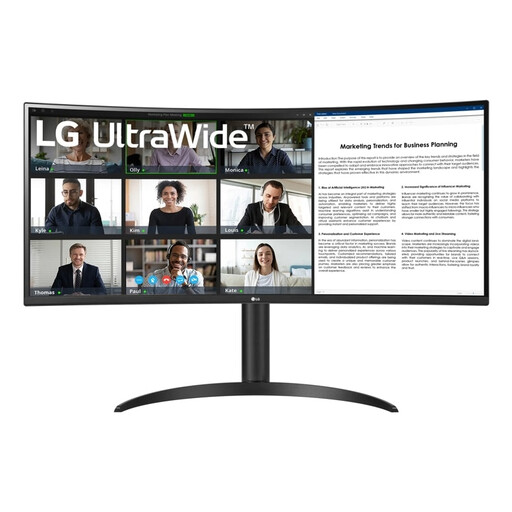 No image available
An ultrawide option for keeping dialogue branches and references in view side by side.
The product listing on Joybuy gives a resolution of 3440 × 1440 pixels, a 21:9 aspect ratio, USB-C for video, audio and power, and a stand with height, tilt and swivel adjustment.
Not necessarily: having two video inputs doesn’t automatically mean you can switch one keyboard and mouse between computers. LG lists both PBP and built-in KVM for the 34WQ75C-B; check for these features separately on other models.
Check that your laptop’s USB-C port supports video output and that the charging power is suitable for your laptop. Dell lists 90 W power delivery for the P2725DE; this monitor specification doesn’t confirm compatibility with every laptop.
For employees, Arboportaal outlines requirements for display screen workstations, including a height-adjustable screen. If you work at a screen for more than 2 hours a day, the screen and keyboard must not be fixed together; laptop users must be able to use a separate screen or keyboard. This isn’t a general legal product specification for every individual buyer.
Check the energy label and product information sheet for the exact model. The European Commission states that energy-labelling rules also cover computer monitors, with some types of screen exempt.
The Dutch Government says you’re entitled to a product that works as it should, and that the Netherlands has no fixed statutory warranty period. If a product is faulty, the seller must provide a solution; a manufacturer’s warranty is in addition to your statutory rights.