What should you look for when choosing?
First, try your preferred text size in your own writing software and see how much pattern information remains visible at once. Then compare resolution, adjustability and connections based on your computer and workspace.
Microsoft Support explains how to enlarge text or the interface in Windows. Dell UK lists a resolution of 2560 × 1440 pixels for the P2725DE, while LG UK lists 3840 × 2160 pixels for the 27UP850K-W. These model specifications help you compare QHD and 4K, but they don’t determine which text size will feel comfortable for you.
| What to consider |
What should you check? |
Who is this important for? |
| Readability of enlarged text |
Try your preferred text size in your own software and check how much of the document remains visible. Microsoft Support explains that Windows has separate settings for text size and display scaling. |
I want to read the instructions clearly without repeatedly losing my place in the guide. An estimated 33% of consumers put readability first. |
| Viewing text and pattern details together |
Open a representative page and pattern image side by side at your preferred text size. Compare the QHD and 4K specifications of models with the same screen size; Dell UK and LG UK describe these differences for their 27-inch models. |
If I want to check text and pattern pieces at the same time, the remaining window space matters. An estimated 27% of consumers put this overview at the top of their list. |
| Screen position in your workspace |
Check the height and tilt adjustments of the exact model, and consider how it will fit on your own desk. |
I want to position the screen so I can read the page comfortably during longer sessions. An estimated 20% of consumers prioritise their working posture. |
| Connecting to your computer |
Compare your computer’s video output with the monitor’s connections and the charging capacity you need. Also check which cable is suitable. |
I want to know whether my computer can output a picture and whether charging through the same connection will work for my setup. For an estimated 20% of consumers, connectivity is their main concern. |
Joybuy products
This selection includes QHD and 4K monitors for viewing text and pattern details, with examples of adjustable screens. Enlarged text still depends on the settings in your software.
 No image available
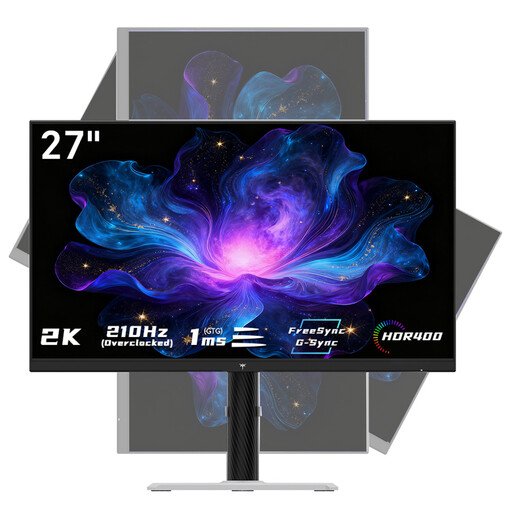
KTC H27T6
The QHD version is an option for viewing text and pattern images side by side. Set text magnification separately in your software.
Flat Fast IPS, 2560 × 1440 pixels, 200 Hz and Overdrive up to 210 Hz.
View at Joybuy
 No image available
Philips 27E1N1800AE/00
The 4K resolution is an option for viewing fine pattern details. Set the text size separately on your computer.
27 inches, IPS, 4K UHD (3840 × 2160), 60 Hz and 4 ms; with HDMI, DisplayPort and a height-adjustable stand.
View at Joybuy
 No image available
INNOCN CB27U1
The 4K version is worth comparing if fine pattern details matter. Adjust the text scaling separately for readability.
27 inches, IPS, 3840 × 2160 pixels and 120 Hz; with USB-C 90 W Power Delivery, HDMI, DisplayPort and a height-adjustable stand.
View at Joybuy
 No image available
ASUS ProArt PA278CV
This QHD model is an option if you want to view text and colour-coded illustrations. ASUS lists 100% sRGB and factory calibration for the PA278CV, but this doesn’t guarantee a match with a printout.
27 inches, 2560 × 1440 pixels and USB-C with 65 W; ASUS also lists a height-adjustable stand.
View at Joybuy
 No image available
ASUS ProArt PA278CGV
The QHD version is an option for viewing text and pattern details on one screen. Check your preferred text size in your own software.
27 inches and 2560 × 1440 pixels.
View at Joybuy
Frequently asked questions
Does a 4K monitor automatically make text larger?
No. Adjust the text size or display scaling in your operating system, then check the result in your writing software. Microsoft Support explains that Windows 10 and 11 have separate settings for text only and for the interface.
Can I print a pattern PDF at the same scale as I see it on screen?
Don’t assume so: screen magnification and print scale are separate settings. Adobe Acrobat Help explains options such as ‘Actual size’ and ‘Fit’; for a pattern where measurements matter, follow the pattern maker’s instructions and check any test square with a ruler.
What should I consider when adjusting a monitor?
Adjust the height and tilt to suit your workspace, and check that text and symbols are easy to read and free from reflections. Arboportaal lists small symbols, low contrast and reflections as factors that can affect readability. If you rotate the monitor, also check that the screen orientation has been updated in your operating system.
What are my rights when I buy a monitor online in the Netherlands?
According to ACM ConsuWijzer, online consumer purchases are generally covered by a statutory 14-day cancellation period from delivery, subject to legal exceptions. You’re also entitled to a product that does what you could reasonably expect it to do. If a fault occurs under normal conditions, the retailer is your point of contact for the statutory guarantee.
Do screen-work rules also apply if I write this guide for work?
For employers, Arboportaal mentions alternating screen work with other tasks or taking a break, as well as the possibility of eye tests for employees. Whether these employer rules apply to you depends on your working relationship. They aren’t general technical minimum specifications for a monitor you buy for personal use.


