Who is this guide for?

Teacher who gives written feedback digitally

You want to view pupils’ work and a feedback window at the same time, without constantly switching between documents. Onderwijskennis describes feedback as supporting pupils’ development; this does not prove a measured benefit from using two monitors.

Teacher who spends long periods working at a screen

When choosing a monitor, you prioritise its positioning and adjustability for reading and writing. The workplace rules that apply depend on your working situation.

Teacher with a laptop and a changing workspace

You want to know whether your existing laptop can support an extra screen, and whether you need one or two external monitors. The number of screens supported varies from computer to computer.

What should you look for?

Laptop screen with one external monitor

Best suited to: you if you want two work areas and already use a laptop – for example, with pupils’ work on one screen and feedback on the other.

Bear in mind: the difference in height and size between your laptop and monitor. Position the monitor to suit your workspace.

Two external monitors

Best suited to: you if you regularly work with pupils’ work and feedback side by side, and your computer supports the setup you want.

Bear in mind: the desk space you’ll need and your computer’s screen limit. A hub or daisy-chain feature will not automatically increase that limit.

What to consider What to look for Who is this important for?
Reading documents side by side Compare screen size, aspect ratio, resolution and any pivot function. Check how text appears using your own documents. If you want to keep pupils’ work and feedback windows readable at the same time, the layout is a key consideration for you; around 33% of consumers prioritise an overview of their documents.
Positioning your screen comfortably Check the height adjustment, tilt and any pivot function, as well as the space available on your desk. For extended periods of reading and writing, you’ll want to adjust the screen to suit your sitting and viewing position. Around 27% of consumers give positioning and adjustability top priority.
Connecting to your laptop Check your exact laptop model, video output, cable and the number of external screens it supports. If you want to use two external screens, you’ll need to know whether your computer can handle that setup; around 20% of consumers prioritise compatibility.
Finding the right size and features Work out how much desk space you have and which connections or adjustment options you really need. If you’d rather avoid a screen or features that don’t suit your workspace, compare only what you need; around 20% of consumers start by looking for a compact, practical option.

Common pitfalls

  • Assuming USB-C or daisy-chaining will let you use two external screens

    Your computer plays a part in determining how many external screens and which connection setups it supports. A feature on the monitor alone is not proof that it will work.

    Before buying, check the specifications for your exact laptop model and the entire connection setup.

    Depending on the connection, you may need a compatible cable or docking solution.

  • Choosing based on size and resolution alone

    A screen that doesn’t fit your workspace or is difficult to position won’t solve the challenges of setting up a workspace for extended use.

    Check the adjustment options for the exact model and measure the space available on your desk.

    Some setups may require a separate stand or monitor arm.

  • Assuming a two-year warranty period marks the end of all your rights

    ACM ConsuWijzer distinguishes between a seller’s or manufacturer’s warranty and your statutory rights. So a stated manufacturer’s warranty period does not automatically determine how long your statutory rights apply.

    Check the terms and conditions for your purchase, and distinguish between a consumer purchase and a business purchase by a school or employer.

Relevant monitor brands

Dell

The P2425E and P2425DE models have different aspect ratios and resolutions, making them suitable for different document and connection needs.

  • Dell lists the P2425E as having a 24-inch screen with a 16:10 aspect ratio, and the P2425DE as offering QHD and 90 W via USB-C.
  • These features apply to the models mentioned; they are not general performance claims for all Dell monitors.

LG

According to LG, the 27BA65QB-B combines a 27-inch QHD screen with a range of connections and an adjustable stand.

  • LG lists USB-C with 65 W Power Delivery, daisy-chain support and a stand with pivot, height and swivel adjustment.
  • Whether daisy-chaining works also depends on your computer and the full connection setup.

Philips

The 24E1N1300AE/01 is a 23.8-inch Full HD model with USB-C, suited to a compact secondary workspace.

  • Philips describes connection and power delivery via USB-C for a compatible device.
  • Check your laptop’s specifications and keep this model separate from QHD and 16:10 models when comparing options.

BenQ

According to BenQ, the GW2790QT is a 27-inch QHD USB-C monitor with adjustment options to help you set up your workspace.

  • The listed connection and adjustment features may be worth considering when setting up a larger workspace for documents.
  • Claims about comfort features are not independent proof that they reduce eye strain or help you write feedback faster.

Lenovo

The ThinkVision T24m-29 is a 23.8-inch Full HD monitor with USB-C and a DisplayPort output.

  • The listed DisplayPort output may be relevant when considering a multi-screen setup.
  • Whether daisy-chaining works depends on your computer and connection setup; the Full HD panel differs from the QHD models discussed.

Joybuy monitors for this workspace

These Joybuy monitors are options for a workspace where you want to view pupils’ work and feedback side by side. For each model, decide whether you want to use an external monitor alongside your laptop, two external monitors or one widescreen monitor.
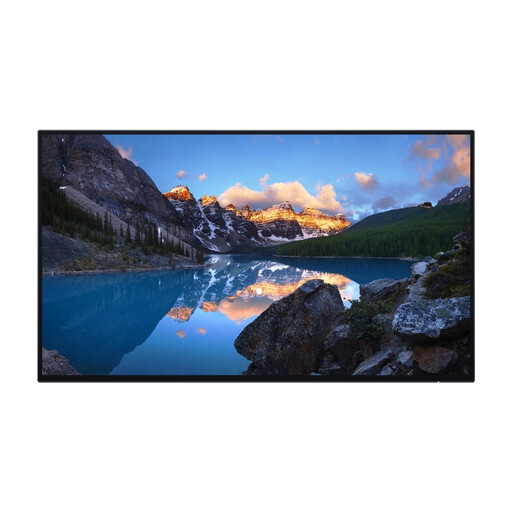
Dell UltraSharp U2424H monitor

Dell UltraSharp U2424H, 23.8-inch Full HD monitor

An option for a multi-screen workspace; check that your computer supports the setup you want.

23.8 inches; Full HD, 1920 × 1080 pixels.

View at Joybuy

Dell Pro Plus P2425DE monitor

Dell Pro Plus P2425DE, 24-inch QHD monitor

An option if you want to use an external monitor alongside your laptop screen; check the connection and compatibility with your laptop.

24 inches; QHD, 2560 × 1440 pixels. Dell lists USB-C with 90 W power delivery for this model.

View at Joybuy

Dell Pro Plus P2425D monitor

Dell Pro Plus P2425D, 24-inch QHD monitor

A QHD option for an extra screen. Check that the size and text scaling suit your desk and documents.

24 inches; QHD, 2560 × 1440 pixels.

View at Joybuy
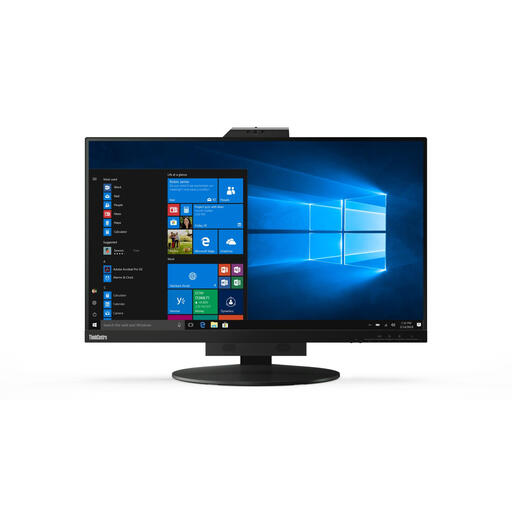
Lenovo ThinkCentre Tiny-In-One 27 monitor

Lenovo ThinkCentre Tiny-In-One 27, 27-inch QHD monitor

An option if you’re looking for a larger screen for documents and feedback; check that it will fit your workspace.

27 inches; QHD, 2560 × 1440 pixels. According to the product description, the power adapter must be purchased separately.

View at Joybuy

LG 34WR50QK-B ultrawide monitor

LG 34WR50QK-B, 34-inch Wide Quad HD monitor

Consider this model if you want to arrange pupils’ work and feedback side by side on one wide screen.

34 inches; 3440 × 1440 pixels.

View at Joybuy

Frequently asked questions

Can a USB-C monitor always connect two external screens to my laptop?

No. Check your exact laptop model, the number of external screens it supports and the connection setup. Apple Support says that, for a MacBook Air, this depends on the model and display settings; a hub or daisy-chain connection will not automatically increase the maximum.

Is a laptop screen with one external monitor enough for pupils’ work and feedback?

It may be enough if you want two separate work areas and can split pupils’ work and feedback between your laptop screen and the external monitor. If you want two external screens, first check that your computer supports this setup.

How do I arrange pupils’ work and feedback across two screens in Windows?

Use the Windows display settings to identify the screens and arrange them in the same order as they are on your desk. To use separate work areas, choose Extend mode rather than Duplicate.

What should you look for if you read a lot of long documents?

Compare the aspect ratio, resolution and any pivot function of the exact model, and check how text appears with your own documents. Dell lists a 16:10 aspect ratio for the P2425E; for other models, check the screen and adjustment options available on the specific version.

How should you position a monitor for extended periods of reading and writing?

Arboportaal advises positioning the screen directly in front of you and making sure your workspace is easy to adjust. Check that the stand or base of your chosen model suits your sitting and viewing position; a monitor feature alone will not prevent discomfort.
