
Household budget planner working with charts and transaction lists
Wants to view charts alongside figures and source entries, and starts by working out how many separate work areas are needed.


If your laptop screen is easy to read, one external monitor may be enough to view your charts or transaction list separately. If you want two external screens, first check that your computer supports both at your chosen resolutions. Microsoft Support and Apple Support explain that display layout and support depend on your computer. Then choose a setup based on the table space you need, the available connections and the room on your desk.
Wants to view charts alongside figures and source entries, and starts by working out how many separate work areas are needed.
Wants to add to their laptop screen or use two external screens, so checks the video outputs, screen limit and whether USB-C can also charge the laptop.
Wants to keep figures and labels easy to read without choosing a setup that will not fit on the desk. Screen size, resolution and adjustability all matter.
A good fit if: your laptop screen is easy to read and you mainly want a separate area for charts or transactions.
Bear in mind: the video output and cable must be compatible with both the laptop and monitor; USB-C video and charging are not guaranteed.
A good fit if: you want charts and large transaction tables on separate screens, and your computer supports both at your chosen resolutions.
Bear in mind: you will need more desk space and connections; a dock or daisy-chain setup does not automatically increase your computer’s screen limit.
A good fit if: you want to arrange windows side by side and do not necessarily need two separate screens.
Bear in mind: one wide screen is not the same as two separate monitors; compare its compact footprint with the window layout you want.
| What to consider | What should you check? | Who is this important for? |
|---|---|---|
| Charts and data at the same time | Decide which windows need to stay visible and check how many external screens your computer supports. | If I want to keep an eye on my charts and transactions side by side, I first choose how many work areas I need. Around 33% of consumers put having separate views first. |
| Laptop, cable and dock | Check the screen limit, video outputs and cable. If you want to charge your laptop, also compare the available power with its requirements. | If I want to connect two screens to my laptop, I check that the computer can support this setup. Around 25% of consumers give compatibility top priority. |
| Spreadsheet readability | Compare resolution and aspect ratio, and check how the text looks at a scale that is easy for you to read. Also consider height and swivel adjustment. | When figures and chart labels need to be easy to read, I compare the available screen space with my preferred text size. Around 25% of consumers put readability first. |
| Desk space and overall setup | Measure the available width and depth, including the stands, and check which cables or accessories are included with the model you choose. | If I have limited desk space or want to keep my overall setup compact, I start by measuring and comparing. Around 17% of consumers prioritise desk space and overall size. |
Port features vary. A data port with limited power is not automatically suitable for laptop video or able to provide enough power to charge a laptop.
Check video, data and power separately for the specific ports on both the monitor and computer.
Compare exact model numbers and port features: specifications for one version do not automatically apply to other monitors from the same brand.
Dell describes the P2425 as an approximately 24-inch 16:10 monitor with 1920 × 1200 pixels; the P2425D has QHD resolution on a 23.8-inch screen.
LG describes the 27BA65QB-B as a 27-inch QHD monitor with USB-C and daisy-chain support.
Philips describes the 27E1N1600AE/00 as a 27-inch QHD monitor with USB-C.
These Joybuy product options are worth comparing if you want to use one external screen alongside your laptop screen. Also check that your computer and connections are suitable for the setup you want.
 Image not available
An option to compare if you want an external workspace for charts and transactions.
27 inches; 2560 × 1440 pixels; 180 Hz; two HDMI 2.0 ports and one DisplayPort 1.4.
 Image not available
An option to compare if you want an external workspace for charts and transactions.
27 inches; 2560 × 1440 pixels; IPS panel; 120 Hz.
 Image not available
An option to compare if you want an external workspace for charts and transactions.
26.5 inches; 2560 × 1440 pixels; 16:9; QD-OLED; 240 Hz; two HDMI ports and USB Type-C.
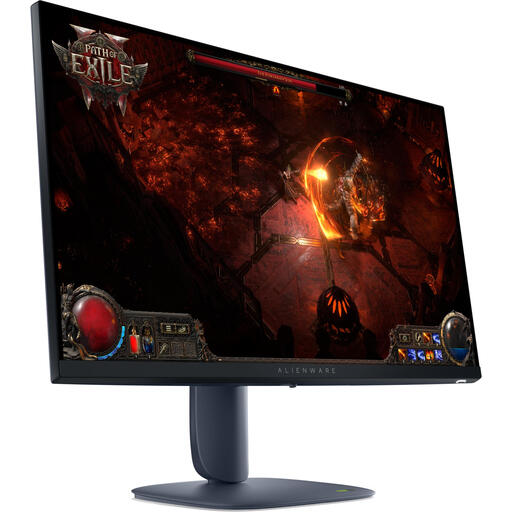 Image not available
An option to compare if you want an external workspace for charts and transactions.
27 inches; 2560 × 1440 pixels.
 Image not available
An option to compare if you want a QHD workspace that fits on a desk with limited space.
23.8 inches; 2560 × 1440 pixels.
No. If your laptop screen is one of the two work areas, one external monitor may be enough, provided your laptop supports the connection. If you want two external screens, check your computer model’s screen limit separately.
In Windows, you can use Display settings to identify the screens and arrange them to match your desk. On a Mac, you can arrange connected screens in System Settings. Apple Support notes that the number of supported screens depends on the Mac model and the resolution and refresh rate in use.
No. Check whether the specific model’s port sends video and power to your laptop, and compare its stated power output with your laptop’s charging requirements. According to Dell, the P2425’s USB-C port is a downstream data port with a maximum output of 15 W.
According to ACM ConsuWijzer, ordinary online consumer purchases generally come with a statutory cooling-off period of up to 14 days after delivery, with some exceptions. You are also covered by the statutory guarantee if, under normal use, the product does not meet what you could reasonably expect; in the Netherlands, there is no fixed general end date of two years. The retailer is your point of contact.
The obligations described by Arboportaal apply to employers and employees who work with display screens; they are not general legal purchasing requirements for private use. However, an adjustable workstation can be useful if you spend a long time in front of screens.