
Search interface tester
You want to compare filters, results and test notes clearly, and check how the interface works on other devices. The W3C Web Content Accessibility Guidelines cover use across different types of devices.


Choose a monitor based on what you want to see at the same time while testing, and how often colleagues switch computers. Screen space, connections and, if needed, KVM are key considerations. In a shared workspace, the screen should also be adjustable to suit different users; for relevant screen-based work, Arboportaal lists height adjustment and avoiding reflections among its recommendations.
You want to compare filters, results and test notes clearly, and check how the interface works on other devices. The W3C Web Content Accessibility Guidelines cover use across different types of devices.
You regularly switch computers and want to check that the connections are compatible. If your keyboard and mouse need to switch with you, KVM is worth considering; Lenovo and Dell describe connection and docking features for specific models.
You need to position the screen for different users and take applicable Dutch regulations into account. Arboportaal outlines requirements for screen-based work, including height adjustment and avoiding reflections.
First decide how much of the interface you want to see at once. Then consider how your computers and peripherals connect, and check that the screen can be adjusted for different users.
| What to consider | What to look for | Who should prioritise this? |
|---|---|---|
| Space for results and filters | Compare the screen size and resolution with your browser layout. Dell lists the P2725DE as a 27-inch QHD model; HP and Philips offer 27-inch models with 4K UHD. | If I want to assess results and filters at the same time, I look at how much fits in my window. Around 36% of consumers say screen space is their top priority. |
| Switching between computers | Check the video output, charging requirements, cables and whether you need KVM. Lenovo lists KVM for the ThinkVision P27h-30; Dell specifies USB-C power delivery up to 90 W and ethernet for the P2725DE. | If I share computers and peripherals with colleagues, I want to know whether the connections work with every computer. Around 29% of consumers put switching computers first. |
| Adjustability for users | Check the adjustability of the exact model and look out for reflections. For employees who work with screens for more than two hours a day, Arboportaal lists a height-adjustable screen and a non-reflective screen among its recommendations. | If different colleagues use the same workspace, I want to be able to adjust the screen to suit each person. Around 21% of consumers name adjustability as their top priority. |
| Features suited to your workspace | Check whether the computers you use need and support KVM or Thunderbolt 4; Philips lists both features for the 27B2U6903/00. | If I mainly want the connections my workspace will actually use, I don't want to choose features without a suitable use for them. Around 14% of consumers put the features they need first. |
A screen for everyday development work won't automatically show you how the search interface works on other devices or in narrower windows.
Alongside testing on the monitor, you can plan separate checks on the intended devices and at the target window widths.
Features vary by monitor model and depend on the connected computer.
Before you buy, note down each computer's video output, charging requirements, required cables and peripherals.
A fixed position may not suit everyone when several people use the screen. For relevant screen-based work, Arboportaal recommends height adjustment and avoiding reflections.
Check the adjustability of the exact model and consider its position in relation to windows and lighting.
According to the Dutch government, statutory rights are separate from the manufacturer's warranty and any additional cover.
Check what additional cover includes, and consider your statutory rights for the relevant consumer purchase separately.
The ThinkVision P27h-30 is a QHD model for a shared workspace with two computers and USB-C docking.
The Pro 27 Plus P2725DE is a 27-inch QHD monitor with USB-C hub features for the office.
The Business Monitor 27B2U6903/00 is a 27-inch 4K model with Thunderbolt 4 and Smart KVM.
The E27k G5 is a 27-inch 4K USB-C monitor with several adjustment options.
These monitors are suited to viewing search results and filters, sharing a workspace or assessing an interface across different window layouts.
 No image available
An option for viewing wide browser windows and test notes side by side.
34.1 inches, 21:9 and 3440 × 1440; the product description also lists USB-C power delivery up to 90 W, KVM and RJ45.
 No image available
An option if you want to assess interface elements on a 27-inch screen.
3840 × 2160 pixels, IPS panel, 60 Hz and a height-adjustable stand.
 No image available
An option for viewing search results and filters on a 27-inch screen.
2560 × 1440 pixels, IPS panel, 100 Hz and HDMI and DisplayPort connections.
 No image available
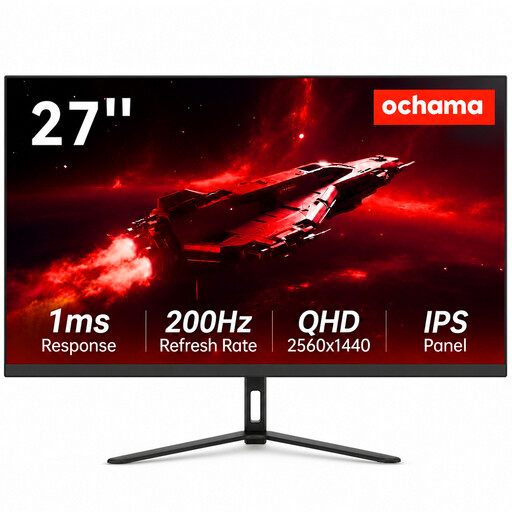
An option for viewing interface content on a 27-inch screen.
The product information lists a 2K resolution and a refresh rate of 200 Hz.
 No image available
An option for viewing results and filters on a 27-inch screen.
QHD resolution of 2560 × 1440 and an adjustable stand, according to the product information.
No, a 4K monitor on its own won't show you that. The W3C guidelines cover web content across different devices, so test on the intended devices and at the relevant window widths too.
Adjust the screen for each user and check for reflections and glare from lighting. For relevant screen-based workspaces, Arboportaal recommends height adjustment and a non-reflective screen.
Not necessarily. For each laptop, check whether the connection supports video, whether the charging feature is suitable and which peripherals you need. A USB-C connection alone doesn't guarantee compatibility.
For a consumer purchase in the Netherlands, the seller is your point of contact if the product is faulty, according to the Dutch government. For many distance purchases made online from a business, a 14-day cooling-off period applies; don't assume these consumer rights also apply to a business purchase made by an office organisation.
Buying a monitor alone doesn't make it mandatory. DigiToegankelijk outlines specific obligations for government websites and apps, so first establish which organisation and service the search filter belongs to.