Who is this choice relevant to?

Writer without a spare socket

Wants to view a script and notes alongside their laptop, for example, without plugging the screen into the mains separately. ASUS says the ZenScreen MB169CK uses a USB-C connection for power and video, provided the laptop supports DP Alt Mode.

Writer with one socket

Has a fixed writing space and wants to connect and charge their laptop through a powered monitor. This only works if the laptop and USB-C connection are compatible and the charging output is sufficient for the laptop; Dell and LG specify this for particular models.

Writer who reads lots of text side by side

Prioritises space for a script and other documents, and also considers how adjustable the setup is. Lenovo lists a compact 14-inch 16:10 screen for the ThinkVision M14d, while Dell and LG offer larger fixed monitors.

What should you look for?

Portable screen powered by your laptop

Choose this if: you don’t have a separate socket for the monitor and your laptop can output video and power the screen via USB-C.

Bear in mind: the screen uses power from your laptop. If it doesn’t support a suitable USB-C video mode, you may need a separate video connection and power supply.

Portable screen with a battery

Choose this if: you also want to preserve your laptop’s battery while writing.

Bear in mind: the screen’s battery will need recharging; its capacity alone doesn’t tell you how long the screen will run.

Fixed USB-C monitor

Choose this if: you have a socket and a permanent workspace, and want the monitor to power your laptop too.

Bear in mind: the monitor itself still needs mains power. Check that its video connection and charging output are suitable for your laptop.

Consideration What should you check? Who is this important for?
No spare socket Check whether your laptop port supports video via DP Alt Mode and whether the screen gets power through that connection. If I want to edit my script somewhere without a spare socket, the screen needs to work without its own mains supply. Around 46% of consumers prioritise this constraint.
Charging your laptop through the monitor Compare the stated Power Delivery output with your laptop’s charging requirements, and check that the port and cable support video. With just one socket at my regular writing space, I want to connect my laptop through the monitor, provided the charging output is sufficient. Around 27% of consumers prioritise powering their laptop this way.
Text and documents side by side Compare screen size, resolution, aspect ratio and the space available on your desk; check the adjustment options too. If I want to read a script and notes at the same time, screen space and a comfortable viewing position matter to me. Around 27% of consumers prioritise room for documents and the monitor setup.

Common buying mistakes

  • Assuming every USB-C port supports video, power and charging

    USB-C alone doesn’t guarantee that your laptop can send video to the monitor. The charging output also needs to be sufficient for your laptop.

    Check whether your laptop port supports DP Alt Mode or another compatible video mode, what features the monitor port offers and what Power Delivery output is specified.

    Some setups require a separate video connection or power cable.

  • Mistaking a fixed one-cable monitor for a screen that needs no socket

    One USB-C cable can carry video and power to your laptop, but a fixed monitor still needs mains power itself.

    If you don’t have a spare socket, look for a portable screen powered by your laptop or a model with its own battery.

  • Overlooking the power source during a writing session

    A screen powered by your laptop uses its battery; a screen with its own battery will need recharging later.

    Choose how to power the screen based on the sockets available, and think about where you can charge your laptop and the screen.

  • Confusing a manufacturer’s warranty with all your legal rights

    In the Netherlands, statutory warranty doesn’t have a fixed two-year term, according to ACM ConsuWijzer. The seller remains responsible if a product doesn’t meet what you could reasonably expect from it.

    Keep your purchase and product information, and contact the seller if a product is faulty. Consider any additional warranty separately.

Brands to compare

ASUS

For this type of setup, the ZenScreen range includes both a portable model powered by a laptop and a model with its own battery.

  • ASUS says the MB169CK receives power and video via USB-C when the laptop supports DP Alt Mode.
  • According to ASUS, the MB16AWP has a 7800 mAh battery and no height adjustment. Capacity alone doesn’t indicate how long it will run.

Dell

The Pro Plus P2425DE is a fixed 23,8-inch QHD USB-C hub monitor for a workspace with a socket.

  • Dell lists 90 W laptop charging and height adjustment for this model.
  • The monitor itself needs mains power; whether 90 W is sufficient depends on your laptop.

LG

The 27BA65QB-B is a fixed 27-inch QHD monitor with USB-C, designed for a workspace with a socket.

  • LG lists USB-C power delivery of up to 65 W and a stand with features including height adjustment and pivot.
  • This monitor isn’t a solution if you don’t have a socket; check whether 65 W is sufficient for your laptop.

Lenovo

The ThinkVision M14d is designed to give you more room for documents on the move, with a compact 14-inch 16:10 screen.

  • Lenovo lists a resolution of 2240 × 1400 pixels and two USB-C ports with power pass-through of up to 65 W.
  • Power pass-through isn’t the same as a built-in battery; check the power requirements of your own setup.

Philips

The 24E1N1300AE/00 is a fixed 23,8-inch Full HD monitor with USB-C for connecting to a compatible laptop.

  • Philips describes simultaneous transfer of video, data and power to a compatible device.
  • Check the power output and compatibility with your specific laptop.

Portable monitors at Joybuy

This selection focuses on portable extra screens for use with a laptop; the product descriptions specify USB-C for video and power. Check that your laptop’s USB-C port supports video.

TECLAST V16H portable monitor

TECLAST V16H 16-inch portable monitor

This portable model has a built-in kickstand and gives you an extra screen for your script and notes alongside your laptop.

16 inches, 16:10, FHD, 144 Hz and two USB-C ports. USB-C video requires a laptop port with DisplayPort Alt Mode or Thunderbolt.

View at Joybuy

TECLAST V16Q portable monitor

TECLAST V16Q 16-inch portable monitor

The 16-inch 16:10 screen with kickstand gives you extra space to view a script and notes side by side.

2560 × 1600 pixels, 144 Hz and two USB-C ports. USB-C video requires a laptop port with DisplayPort Alt Mode or Thunderbolt.

View at Joybuy

UPERFECT 16-inch portable monitor

UPERFECT 16-inch 2K portable monitor

This 16:10 model gives you a second screen for your script and notes; the product description specifies USB-C for video and power.

2560 × 1600 pixels and VESA compatibility. USB-C video requires a laptop port with DisplayPort Alt Mode or Thunderbolt.

View at Joybuy

UPERFECT 15.6-inch touchscreen monitor

UPERFECT 15.6-inch touchscreen monitor

This portable monitor has an adjustable smart-cover stand, giving you a flexible writing setup.

Full HD, 16:9 and USB-C for video and power. USB-C video requires a laptop port with DisplayPort Alt Mode or Thunderbolt.

View at Joybuy
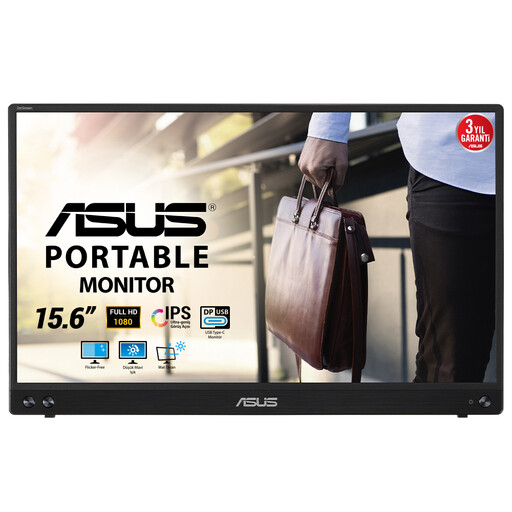
ASUS MB16ACV portable monitor

ASUS MB16ACV 15.6-inch portable monitor

The product description specifies use as a second screen, with a USB-C connection for power and video.

1920 × 1080 pixels, Full HD, 16:9 and a weight of 0,83 kg. USB-C video requires a laptop port with DisplayPort Alt Mode or Thunderbolt.

View at Joybuy

Frequently asked questions

Does one USB-C cable mean I don’t need a socket at all?

No, not with a fixed monitor. According to ASUS, the ASUS ZenScreen MB169CK can receive power and video from a laptop through a suitable USB-C connection. A fixed USB-C monitor can connect to and power your laptop, but it still needs mains power itself.

What should I check if my portable screen isn’t displaying an image?

First, check whether your laptop’s USB-C port supports DP Alt Mode for video. ASUS lists HDMI for video plus USB-C DC-IN for power as an alternative for the MB169CK if that USB-C video mode isn’t available.

How should I set up a monitor for long writing sessions?

Check that the height and viewing angle suit your workspace, and break up long periods of screen work with other tasks or a rest. The Dutch Arboportaal also sets out employers’ obligations, which aren’t automatically the same as a purchasing requirement for every individual writer.

What should I look for in power consumption and statutory warranty?

Compare the energy labels of monitors covered by the applicable EU rules, and check the details for the exact model. In the Netherlands, statutory warranty doesn’t have a fixed two-year term, according to ACM ConsuWijzer. If a product doesn’t meet what you could reasonably expect, the seller is responsible for providing an appropriate solution.

What product rules apply to monitors sold in the Netherlands?

Which harmonised EU rules on CE marking apply depends on the specific model. The European Commission also sets out ecodesign and energy-labelling rules for electronic displays within the applicable scope. CE marking is a manufacturer’s declaration, not a certificate issued by a central EU authority.
