If you mainly use speech or braille, choose a monitor to suit your workspace and any visual checks others may need to carry out: extra pixels won’t improve how a screen reader works. If you also use magnification or check booking steps visually, try the text scaling, screen space and positioning that work for you. For USB-C, also check that your laptop supports the video and charging features you need.
Who is this monitor advice for?
Screen reader developer working without sight
Builds and tests ticket booking steps mainly with speech, a keyboard and, if needed, braille. The W3C outlines considerations such as keyboard access, focus, form labels and error messages; NV Access documents speech and braille feedback in NVDA.
Developer who uses magnification
Uses magnification as well as a screen reader, adjusting reading distance, screen position and visible content to suit the way they see. EIZO emphasises that a large screen is not automatically the right choice for everyone with low vision.
Developer who also checks things visually
Tests non-visual interactions and also checks forms or booking steps on screen, for example. The W3C highlights keyboard operation, focus, labels and errors as important considerations; Arboportaal discusses adjustability and reflections when working with screens.
What should you look for in a monitor?
Basic work monitor for non-visual tasks
A good fit if: you do most of your development and testing with a screen reader, keyboard and, if needed, braille.
Trade-off: higher resolution won’t improve screen reader performance on its own; allow for any visual checks colleagues may need to carry out.
Adjustable QHD monitor for magnification and multiple windows
A good fit if: you use the screen visually, enlarge text or want to view code alongside a visual preview.
Trade-off: more screen space isn’t automatically more comfortable; viewing distance, field of vision and scaling settings all matter.
4K work monitor for checking visual details
A good fit if: you carry out lots of visual checks as well as screen reader testing.
Trade-off: extra pixels are no substitute for keyboard or screen reader testing; assess the usable space at the scaling level you choose.
| Consideration |
What to check before buying |
Who is this important for? |
| Screen reader use |
Work out who will use the screen and test ticket booking steps separately with a keyboard and screen reader. |
I mainly use speech, a keyboard and, if needed, braille. I’m looking for a suitable workspace, not a screen that will fix screen reader issues. Around 29% of consumers give a non-visual workflow top priority. |
| Magnification and readability |
Try your usual magnification, reading distance and screen position; don’t choose based on screen size alone. |
When I magnify the screen, I want to be able to follow text and controls at my usual viewing distance. Around 29% of consumers give magnification and their own viewing set-up top priority. |
| Space for visual checks |
Open your editor and preview site side by side at the scaling level you actually use; this isn’t an accessibility test. |
I want to be able to assess code and the visual presentation of booking steps side by side. Around 21% of consumers give visual checks top priority. |
| Laptop connection and set-up |
Compare the video and charging features of your laptop and monitor, the cables, and the adjustability of the exact model. |
For my laptop workspace, I want to know whether the monitor offers the video and charging features I need. Around 21% of consumers give the laptop connection top priority. |
Common buying mistakes
-
Taking an ‘Eye-Care’ label as proof of accessibility
A manufacturer’s comfort label doesn’t prove that a website is accessible or that a monitor is right for your vision.
Try your intended magnification and screen position, and test the website separately with a screen reader and keyboard.
-
Assuming every USB-C port supports video and provides enough power for a laptop
The models reviewed have different port features and charging capacities; a USB-C connection alone doesn’t tell you whether your set-up will work.
Compare the full specifications of the monitor and laptop, and check which cable is included.
-
Confusing an extra warranty with your statutory rights
According to the Dutch government, a manufacturer’s or additional warranty is on top of your statutory rights if a product doesn’t conform to the contract.
Check what the additional cover includes and what terms and conditions apply before choosing it.
Brands to compare
Dell
The Dutch-market Pro models P2725DE and P2725H offer different resolutions and USB-C features.
- According to Dell, the P2725DE has a 27-inch QHD screen, a USB-C hub and 90 W power delivery.
- The P2725H has Full HD; according to Dell, its USB-C downstream port is for data only. These specifications don’t tell you whether it will work well for your screen reader workflow.
Philips
The 27E1N1600AE/00 is a 27-inch QHD monitor with USB-C, for anyone looking for visual workspace and a laptop connection.
- Philips lists a resolution of 2560 × 1440 and USB-C with power delivery.
- Adjust scaling and laptop compatibility to suit the way you work; manufacturers’ claims about visual comfort aren’t an independent assessment of suitability for people with low vision.
BenQ
According to BenQ, the GW2790QT combines a 27-inch QHD screen with an adjustable stand and USB-C.
- BenQ specifies a matte screen, 110 mm height adjustment and USB-C with 65 W Power Delivery.
- Check that the stated charging capacity is right for your laptop. The Eye-Care label doesn’t prove that the model prevents eye strain or makes a website accessible.
EIZO
The FlexScan EV2740X is a 27-inch 4K office monitor with USB-C docking.
- EIZO specifies a resolution of 3840 × 2160 and 94 W Power Delivery.
- In its workplace guidance, EIZO notes that a large screen isn’t automatically the best solution for people with visual field loss. The product specifications don’t show how the model will work for your ticketing workflow.
Monitors on Joybuy
These Joybuy products include monitors for visual checks and laptop work, including portable models.
 No image available
LG UltraFine 27U711B-B 27-inch 4K IPS monitor
For checking visual details; resolution alone says nothing about how a screen reader works.
27 inch; 4K; IPS panel.
Joybuy
 No image available
TECLAST V16H 16-inch portable FHD IPS monitor
A portable screen for anyone who uses visuals as well as working on a laptop.
16 inch; FHD; IPS; 144 Hz; two USB-C ports and mini-HDMI.
Joybuy
 No image available
TECLAST V16Q portable 2.5K IPS monitor
For anyone who uses visuals as well as carrying out non-visual tests; resolution is no substitute for an accessibility test.
2.5K; IPS; 144 Hz; two USB-C ports and mini-HDMI.
Joybuy
 No image available
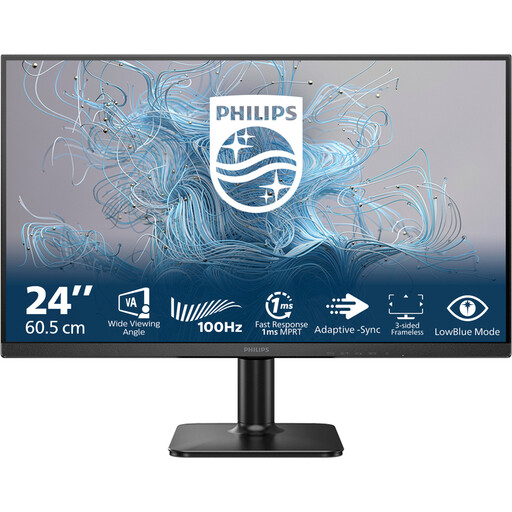
Philips 1000 Series 24E2N1100LB/00 24-inch Full HD monitor
A 24-inch option for a workspace where you use visuals; the screen size doesn’t make the website accessible by itself.
24 inch; Full HD; 100 Hz; VA panel.
Joybuy
 No image available
UPERFECT 15.6-inch portable Full HD touchscreen monitor
For anyone who wants to use a portable screen with a laptop.
15.6 inch; Full HD; touchscreen; USB-C; VESA mount.
Joybuy
Frequently asked questions
Will a 4K monitor make my theatre ticketing website easier to use with a screen reader?
No. Resolution alone doesn’t demonstrate that a site is easier to use with a screen reader. Test booking steps for keyboard operation, focus, field labels and error messages. The W3C describes these basic checks as an initial assessment, not a complete accessibility test.
How should I set up my screen if I use magnification as well as a screen reader?
Try your usual magnification and reading distance, then adjust the screen position to suit. EIZO points out that a larger screen isn’t automatically more comfortable for people with visual field loss; this is workplace guidance, not a one-size-fits-all measurement.
Should I check the cable and power supply for my laptop?
Yes. Compare your laptop’s video and charging features with the exact monitor model and cable. The Dell P2725DE and BenQ GW2790QT models reviewed have different stated USB-C charging capacities; Dell says the P2725H’s USB-C downstream port is for data only.
Which accessibility rules apply to a Dutch theatre ticketing website?
According to the Netherlands Authority for Consumers and Markets, websites where consumers can reserve or buy tickets may fall under e-commerce services. Accessibility rules have applied since 28 June 2025 to providers with 10 or more employees and/or annual turnover of more than € 2 million; whether they apply to a particular organisation depends on the relevant conditions. The rules cover the service, not the developer’s choice of monitor.
What can I expect when buying a monitor online in the Netherlands in terms of returns and warranty?
For a typical online consumer purchase from a business, a statutory 14-day cooling-off period applies in many cases; check the terms and any exceptions that apply to the transaction. According to the Dutch government, statutory rights are separate from a manufacturer’s or additional warranty; if a product is faulty, contact the seller.


