What should you look for when choosing?
First, decide whether you use the screen visually as well as using a screen reader. Then consider the window layout and connections that suit your computer and workspace.
| Consideration |
What should you check? |
Who is this important for? |
| Readability and positioning |
Try your preferred magnification, text size and viewing distance. Check whether the monitor can be positioned at your preferred height. |
If I look at enlarged text or focus indicators, I want to be able to position and read them comfortably at my workstation; around 36% of consumers prioritise visual readability and screen position. |
| Use with speech or braille |
Decide whether you need visual information and which basic video connection your computer requires. |
If you mainly use speech or braille, you won’t want to pay for display features you don’t use; around 29% of consumers prioritise speech or braille. |
| Reference material alongside input fields |
Test your preferred window layout with your own magnification and scaling; resolution alone doesn’t guarantee a more readable image. |
If I want to view reference material and workshop fields side by side while entering information, the layout needs to work with my scaling; around 21% of consumers prioritise having windows open at the same time. |
| Connecting a laptop and peripherals |
Check the video output, USB-C features, charging requirements and cable for the exact monitor model. |
If you use a laptop and want to connect the display and peripherals through the monitor, it needs to be compatible with your computer; around 14% of consumers prioritise laptop connectivity. |
Monitors on Joybuy
This selection focuses on computer monitors for anyone who also views reference information and input fields visually while putting the guide together. A monitor doesn’t replace a screen reader or braille display; check magnification, scaling and laptop connections for your own setup.
 No image available
MSI Pro MP275Q
A 27-inch QHD screen for viewing reference information and input fields side by side; the layout you can use also depends on your scaling settings.
27 inches; 2560 × 1440 pixels; Wide Quad HD; LED.
View on Joybuy
 No image available
MSI Modern MD272UPHG
For anyone who wants to view reference information and input fields side by side and connect a laptop via USB-C; check compatibility with your laptop.
27 inches; 3840 × 2160 pixels; 4K; USB-C with DP Alt Mode; up to 98 W power delivery; stand with height, tilt and swivel adjustment.
View on Joybuy
 No image available
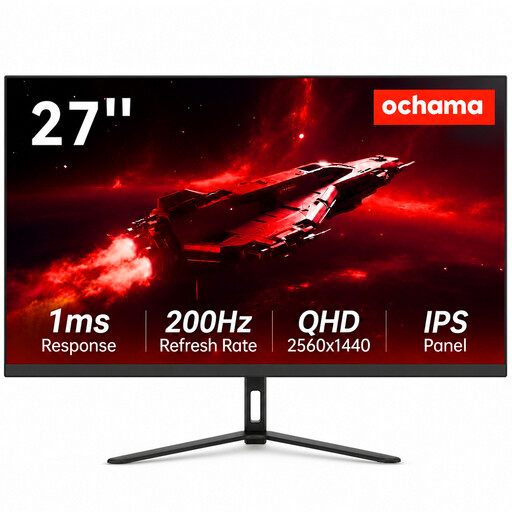
Ochama 27-inch monitor
An option to consider if you also work with information visually while putting the guide together; resolution alone doesn’t guarantee improved readability when using magnification.
27 inches; 2K resolution; 200 Hz refresh rate.
View on Joybuy
 No image available
LG Ultragear 27GX704A-B.AEU
A 27-inch QHD screen for anyone who also views information visually while entering data; the resolution alone doesn’t determine whether text will be readable at your preferred magnification.
OLED; 2560 × 1440 pixels; QHD; 240 Hz refresh rate.
View on Joybuy
 No image available
KTC H27D9
A QHD monitor to consider if you want to view reference information and input fields side by side; try the layout with your own scaling settings.
27 inches; 2560 × 1440 pixels; QHD; IPS panel; HDMI and DisplayPort inputs.
View on Joybuy
Frequently asked questions
Will a 4K monitor make my screen reader easier to understand?
No. Speech and braille output come from the screen reader and any connected assistive devices, not from the pixel resolution. Consider 4K separately if you also look at text or multiple windows on screen.
How should I set up a monitor if I also use Magnifier?
First set your preferred magnification and contrast, then assess the window layout. Microsoft describes different magnification options for Magnifier across multiple Windows displays; check which setting suits the way you work.
Can I connect any USB-C monitor with one cable for video and charging?
No, you can’t tell from the connection alone. Check your laptop’s video capabilities and charging requirements, the features and power output of the monitor port, and the cable you’ll use.
Am I automatically entitled to exactly two years’ statutory warranty on a monitor in the Netherlands?
No. The Dutch government states that there is no fixed statutory warranty period in the Netherlands: you’re entitled to a product that is fit for purpose, with factors such as its expected lifespan and the cause of a fault taken into account. A manufacturer’s guarantee is separate.
Does a monitor used in a workplace have to meet legal requirements?
For display screen work as an employee, the employer must manage health and safety risks and ensure the workstation is properly set up. This doesn’t mean every consumer has a general obligation to buy a particular screen size or resolution.


