If you mainly use speech or braille, don’t choose a monitor on the promise that it will improve your screen reader: Narrator and VoiceOver work through your computer and assistive software, as Microsoft Support and Apple explain. If you also use magnification or visual checks, consider how adjustable the screen is and where it can be positioned. For a laptop setup, check the connections and compatibility. Test the market stall guide itself with a keyboard and screen reader.
Who these monitor considerations are relevant to
Creator who mainly listens
You create the guide mainly using a keyboard and screen reader. Microsoft Support and Apple describe screen readers that work through your computer, so you don’t automatically need a new monitor for speech or braille navigation.
Creator who also uses magnification
As well as speech, you use your sight to check text, fields or the guide’s layout, and want to adjust the display to suit your needs. Microsoft Support explains the magnification and contrast settings available in Windows.
Creator with a laptop setup
You regularly connect your laptop to a dedicated workstation and want to know whether the monitor, video connection and any power supply are compatible with your laptop.
What should you look for when choosing a monitor?
When creating a market stall guide with a screen reader, your choice mainly depends on what you check visually and how you connect your computer.
| What to consider |
What to look for |
Who is this important for? |
| Don’t expect a screen reader feature |
Work out which steps you carry out visually and check which video connection you need. |
I don’t want to pay extra for a screen that won’t improve my screen reader; speech and braille come from the computer and assistive software. Around 36% of consumers put avoiding this supposed screen reader benefit first. |
| Readability when combining different ways of working |
Try your own text and input screens with the magnification, scaling and contrast settings you want to use. |
If I also use my eyes to check text or controls, I want to be able to adjust the display to suit my needs. Around 29% of consumers give visual readability the highest priority. |
| An adjustable workstation |
Check the adjustment options for the exact monitor and whether it can sit at the height you want on your desk. |
When doing input work for long periods, I want to position the screen to suit my workstation. Around 21% of consumers put screen positioning first. |
| Connecting a laptop and peripherals |
Compare your laptop’s video output and power requirements with the connections and power supply of the exact monitor. |
I want to connect my laptop and peripherals without running into unsuitable cables or power requirements. Around 14% of consumers give this laptop connection the highest priority. |
Common pitfalls
-
Assuming a higher resolution means a better screen reader
Screen readers handle navigation and spoken text through your computer; a monitor specification describes what you see on screen.
Choose a resolution based on what you or someone looking over your shoulder needs to read visually. Test the guide separately with your screen reader, too.
-
Assuming USB-C on both devices is all you need
A hub monitor’s power delivery doesn’t, by itself, tell you which video and power features your laptop’s USB-C port supports.
Before you buy, compare your laptop and monitor specifications and check which cables your setup requires.
-
Confusing an extended warranty with your statutory rights
Your statutory rights are separate from any manufacturer’s warranty or additional cover. If a product is faulty, the retailer remains your point of contact.
Before opting in, read what extra rights an additional warranty actually provides.
Brands to compare
Dell
Dell offers QHD office monitors in a range of configurations, including models with a USB-C hub.
- Dell specifies 90 W of power delivery via USB-C for the P2725DE.
- The P2725DE and P2725D are different models. These specifications don’t show that it works better with a screen reader.
HP
The HP Series 5 Pro 527pu is a 27-inch QHD office monitor with USB-C for a laptop setup.
- HP lists 100 W of power delivery via USB-C and adjustment options for the 527pu.
- Check that the connections and power supply suit your laptop, and that you find the display comfortable to read.
Philips
The Business Monitor 27B2U3601/00 is a QHD office monitor with USB-C and SmartErgoBase.
- Philips lists a 27-inch QHD screen and an ergonomic base.
- These features don’t prove that the monitor is suitable for every screen reader setup.
EIZO
The FlexScan EV2740X is a 27-inch 4K office monitor with USB-C docking.
- EIZO specifies a resolution of 3840 × 2160 pixels and up to 94 W of power delivery via USB-C.
- A higher resolution doesn’t automatically make screen reader content more accessible; assess it using the magnification and scaling you want to use.
Lenovo
The ThinkVision T27h-30 model 63A3GAT1EU is a 27-inch QHD office monitor with USB-C, ethernet and a USB hub.
- These connections give you useful points of comparison for a dedicated laptop workstation.
- The specifications apply to this model and don’t mean the monitor has a built-in screen reader.
Monitors at Joybuy
This Joybuy selection is for anyone who wants to use a visible display alongside a screen reader to check text or the guide’s layout; the models vary in size and connectivity.
 No image available
AOC Q27G42XNE 27-inch Quad HD monitor
A 27-inch screen for checking the guide alongside your screen reader.
27 inches; 2560 × 1440 pixels; HDMI and DisplayPort.
Buy via Joybuy
 No image available
LG UltraWide 34U601B-B WQHD VA monitor
An option for viewing on-screen information on an extra-large display; decide for yourself whether the size suits your workstation.
34 inches; WQHD; VA; 1800R curved; 120 Hz.
Buy via Joybuy
 No image available
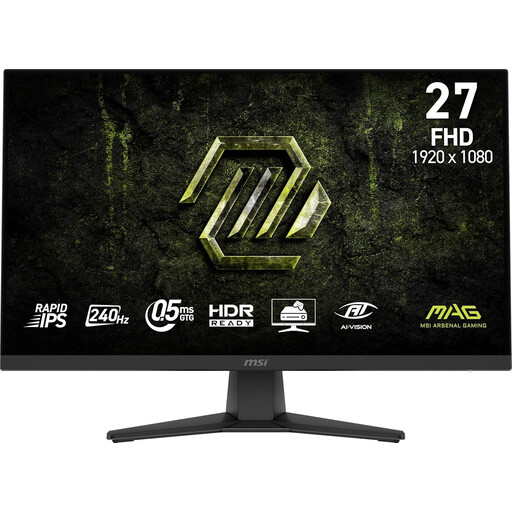
MSI MAG 272F X24 27-inch FHD monitor
A screen to use alongside a screen reader; check that its connections suit your computer.
27 inches; 1920 × 1080 pixels; HDMI and VGA; tilt-adjustable; VESA mounting.
Buy via Joybuy
 No image available
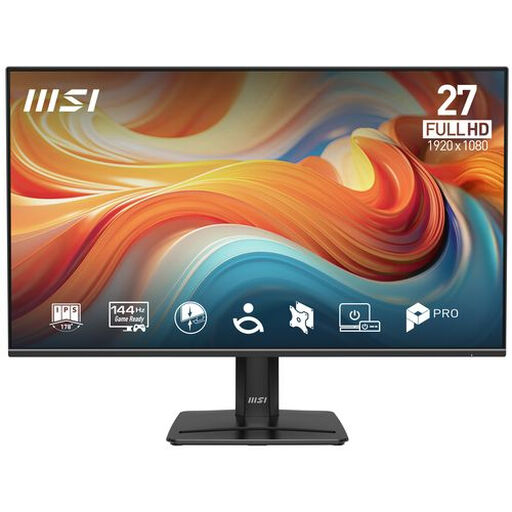
PRO MP271 E14A 27-inch FHD IPS monitor
An option for anyone who also wants to check text or the guide’s layout visually.
27 inches; 1920 × 1080 pixels; IPS; 144 Hz.
Buy via Joybuy
 No image available
TECLAST V16H 16-inch portable FHD monitor
A portable extra screen for a laptop; check that its connections suit your setup.
16 inches; FHD IPS; 16:10; 144 Hz; 2 USB-C ports and Mini HDMI; built-in stand.
Buy via Joybuy
Frequently asked questions
Will a monitor read my market stall guide aloud?
No. Narrator is a Windows screen reader that lets you read text and tables, among other things, using keyboard commands; Apple also describes VoiceOver as software that runs on your computer. A monitor provides the visible display.
How can I adjust the display if I use my sight as well as speech?
In Windows, you can use Magnifier to enlarge part or all of the screen and set contrast themes. Try these settings with the input screens in your own guide; they won’t automatically make an inaccessible application accessible.
Is one USB-C cable always enough to connect my laptop?
No, it depends on the laptop and the specific USB-C port. Check whether the laptop can output video through that port and how much power it needs. Dell lists 90 W of power delivery via USB-C for the P2725DE; that doesn’t confirm compatibility with every laptop.
What are my rights when I buy a monitor online?
According to the Dutch government, when you buy from a business online, you generally have a 14-day cooling-off period. You’re also entitled to a product that works properly; if there’s a problem, the retailer is your point of contact for your statutory rights. The Netherlands has no general fixed warranty period for this.


