If you mainly work with speech and a keyboard, choose a monitor to suit your workspace and connections: extra display specifications won’t make a booking form accessible. Test the labels, keyboard controls and error messages on the website itself, as the W3C recommends. If you also use magnification or check code and forms visually, compare scaling, reflections, screen space and positioning. For a laptop, you’ll also need to consider the video connection and whether USB-C can power it.
Who is this choice relevant to?
Screen-reader-first developers
If you build and test the repair booking site mainly using speech and a keyboard, a monitor that suits your workspace can be useful, but accessibility needs to be assessed on the website itself. The W3C explains how labels help screen-reader users identify form controls.
Developers who also use magnification
If you use the display for code or form checks as well as a screen reader, consider screen size, software scaling and reflections together. Royal Visio points out that a larger screen doesn’t automatically make text larger.
Developers who check things visually and use a laptop
If you view your development environment and booking site side by side, or work on a laptop, you may want to consider screen space, adjustability and suitable connections. Check that the laptop and monitor combination supports video and any power requirements.
What should you consider when choosing?
Start with the tasks you actually carry out on screen. A monitor can support your visual workspace, but the booking flow’s accessibility needs to be tested separately.
| What to consider |
What should you check? |
Who is this important for? |
| Screen-reader work |
Which tasks do you carry out visually, and which do you test with a keyboard and screen reader? Assess the booking flow separately. |
If I mainly work with speech and a keyboard, I don’t want to confuse display features with accessible field labels or error messages. Around 36% of consumers give screen-reader-focused work top priority. |
| Readability with magnification |
Try your preferred software scaling and contrast settings in your own workspace. Also consider reflections and screen position. |
If you magnify the display to check text or controls as well as using speech, you’ll want to know whether the scaling and reflections are comfortable. Around 29% of consumers prioritise visual readability. |
| Room for code and forms |
At your usual scaling, see how much code and how much of the booking flow remain visible at once. |
If I want to assess code and the visual state of a form side by side, I look at the usable screen space at my own scaling setting. Around 21% of consumers prioritise viewing both at once. |
| Laptop connection |
Check that your laptop supports video through the connection you want to use, and that the monitor’s power supply is suitable for your laptop. |
If you’re setting up a laptop workspace, you’ll need a connection and, where relevant, a power supply that work with your computer. Around 14% of consumers put this connection at the top of their list. |
Common buying mistakes
-
Assuming a larger 4K screen automatically means larger text
A larger screen doesn’t automatically make letters bigger. The combination of screen size and software scaling determines how much text and how many interface elements you can see.
Try your preferred scaling with your own code and booking form before choosing based on inches or pixels alone. Royal Visio also explains that magnification can affect how much of the screen you can see at once.
-
Assuming USB-C guarantees a one-cable connection
USB-C on a monitor doesn’t in itself guarantee that your laptop supports video through that connection or will receive enough power.
Check your laptop’s video capabilities and charging requirements, then compare them with the connections and stated power supply of the exact monitor variant.
If they aren’t compatible, you may need a different video connection or a separate laptop power supply.
-
Treating a screen mode or programming label as proof of accessibility
A monitor can’t fix missing form labels, unclear error messages or keyboard navigation issues; these are part of the website.
Assess the screen for the visual tasks you carry out, and test the complete booking flow separately with a keyboard and screen reader. The W3C cautions that a quick initial check isn’t a full accessibility assessment.
Brands worth comparing
BenQ
The RD280U is worth comparing if you’re looking for a taller 3:2 display and a matte finish for code and visual checks.
- BenQ lists a 28.2-inch display, 3840 × 2560 pixels, a matte coating, height adjustment and USB-C with 90 W Power Delivery for this model.
- These specifications don’t demonstrate any improvement to screen-reader use. Check that your preferred magnification still leaves you with enough of an overview.
Dell
The P2725QE is a 27-inch 4K model with a USB-C hub, worth comparing for a laptop workspace.
- Dell lists 3840 × 2160 at 100 Hz and USB-C power delivery up to 90 W.
- Check that the stated power delivery is suitable for your laptop. The specifications don’t tell you whether a booking form is accessible.
LG
The 27UP850K-W is worth comparing if you’re looking for a 27-inch 4K screen, USB-C and an adjustable stand.
- LG lists 3840 × 2160, height, tilt and pivot adjustment, and USB-C power delivery up to 96 W.
- The effect of display settings on readability varies from person to person. Also check the scaling settings and laptop compatibility.
Philips
The 27E1N1800AE/00 is a 27-inch 4K variant with height adjustment, worth comparing if USB-C docking isn’t a requirement.
- Philips lists IPS and 3840 × 2160; the product listing on Joybuy mentions HDMI and DisplayPort.
- Check the full model number and connections for the variant. Don’t confuse the 27E1N1800AE/00 with another model variant.
Monitors at Joybuy
These monitors are aimed at visual checks of code and booking forms. Compare the screen specifications listed and check that the connection is suitable for your computer.
 No image available
Philips 27E1N1800AE/00 27-inch 4K UHD IPS monitor
An option for visually checking code and forms; the height-adjustable stand lets you change the screen position.
3840 × 2160, 60Hz, 4ms, HDMI, DisplayPort and height-adjustable stand.
Joybuy
 No image available
INNOCN CB27U1 27-inch 4K UHD monitor
An option for viewing code and the booking flow visually; check the connection if you plan to use the monitor with a laptop.
3840 × 2160, IPS, 120Hz, USB-C 90W PD, HDMI, DP and adjustable stand.
Joybuy
 No image available
DELL Plus S2725QC 27-inch 4K monitor
A screen for visually checking code and forms; separately check that the laptop connection and power supply you need are compatible with this model.
3840 × 2160 pixels.
Joybuy
 No image available
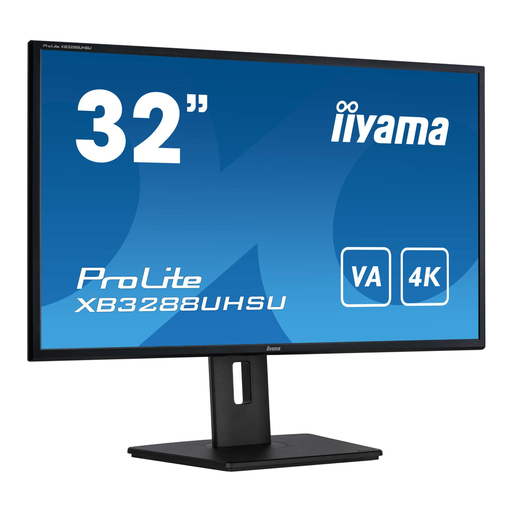
iiyama ProLite 32-inch VA monitor with 4K resolution
An option if you want to view code and the booking flow on a larger screen; adjust the scaling to suit how much you want to see at once.
32 inch, VA panel and 4K resolution.
Joybuy
 No image available
ASUS ProArt PA278CGV 27-inch QHD monitor
A QHD option for visually checking code and forms; compare the resolution with the amount of workspace you need at your preferred scaling setting.
2560 × 1440 pixels.
Joybuy
Frequently asked questions
Will a better monitor make my repair booking form accessible to screen-reader users?
No, a monitor can’t make a form accessible by itself. Check how field labels and instructions are connected, along with error messages and keyboard controls, on the website. The W3C stresses that a quick initial check isn’t a full accessibility assessment.
How should I set up a monitor if I use magnification as well as a screen reader?
Try your computer’s scaling settings with your own development tools and browser. Royal Visio explains scaling settings in Windows 11 and notes that magnification can move information off screen; also try positioning the monitor to minimise distracting reflections.
What should I check about monitor connections, warranty and buying online?
Check that the monitor input, computer output and any USB-C video capability are compatible, and that the laptop’s power supply is sufficient. According to the Dutch government, statutory guarantees apply to consumer purchases alongside any manufacturer’s warranty; the Netherlands has no fixed statutory guarantee period. When buying online from a business, you generally have 14 days to change your mind, subject to the applicable terms and exceptions.
Do European accessibility rules apply to my repair booking site?
It depends on the service and the business. The Dutch government refers to e-commerce services for consumers and a business threshold of more than 10 employees or annual turnover above € 2 million. A booking site where consumers buy a repair service may therefore fall under the rules, but whether they apply to a particular site depends, among other things, on the service, how the contract is concluded and the business itself. The rules have applied since 28 June 2025. In September 2026, DigiToegankelijk reported that the new version of EN 301 549, referring to WCAG 2.2, had not yet been harmonised.


