If you use your remaining vision to check lesson details, choose based on readable scaling options, screen positioning and how much workspace you need. If you mainly use speech or braille, a higher screen resolution won’t improve the screen reader; check your audio or braille setup and connections separately.
Who is this buying guide for?
For people who enlarge text
Uses remaining vision alongside a screen reader to check lesson details, input fields or page layout. Wants to adjust scaling, contrast and viewing distance to suit their needs. Koninklijke Visio explains how to change text size and other on-screen elements.
For people who use speech or braille
Mostly navigates without sight and wants to avoid confusing display specifications with screen reader functionality. Checks audio output and, if applicable, the braille display separately. Koninklijke Visio explains that screen reader software controls speech and a braille display.
For people working with lots of reference windows
Works with information about teachers and lessons alongside the timetable being edited. If these windows are used visually, they need suitable workspace and connections.
What should you look for?
First decide whether you use the screen visually and what scaling works for you. Then consider its position, the space you need for windows and the connections required by your computer and audio setup.
| Feature to consider |
What to check before buying |
Who is this important for? |
| Readability with remaining vision |
Try the scaling setting with your own input fields and reference pages. Compare screen size, resolution and any anti-glare features for each model. |
If I use my remaining vision, I want to be able to read text at my usual viewing distance without magnification taking up too much workspace. Around 36% of consumers put readability with remaining vision and magnification first when choosing. |
| Speech or braille |
Check the audio output and your preferred speakers or headphones separately. Test your screen reader, browser and, if applicable, braille display with the way you work. |
If I mainly work without sight, I want my computer to control speech or braille; a monitor specification cannot replace that functionality. Around 29% of consumers put non-visual controls and output first. |
| Screen positioning |
Check height adjustment, stand dimensions, reflections and how much desk space you have. |
If I enter data for long periods, I want to position the screen to suit my workspace. Around 21% of consumers prioritise workspace setup and adjustability. |
| Window space and connections |
Decide whether you really view windows side by side. Check the video connection and, if charging via USB-C, your laptop’s power requirements. |
If I work visually with reference pages alongside the lesson timetable, I want enough space and a suitable connection to my computer. Around 14% of consumers put window space and connections first. |
Common pitfalls when choosing
-
Assuming more pixels mean larger, automatically readable text
A higher resolution doesn’t automatically mean larger lettering. With magnification, you may actually see less information on screen at once.
Try your usual scaling setting with real input fields and reference pages before choosing based on resolution.
-
Assuming a monitor will fix screen reader or website problems
The screen reader runs on your computer and provides non-visual output; website accessibility needs to be assessed separately.
Check your computer, audio output or braille display, and test the timetable’s navigation and forms separately.
-
Choosing an ultrawide screen without considering how you work
Extra horizontal workspace is most useful if you view windows side by side. A wider screen may also take up more desk space.
Compare the physical setup and how you use windows with what you need from a narrower screen.
Brands to consider
Dell
The Dell S2725QC is a manufacturer example of a 27-inch 4K USB-C monitor to compare for visual checks and an adjustable workspace.
- Dell lists an IPS panel, height adjustment and built-in speakers for this model.
- These specifications don’t tell you how readable the screen is with magnification or how clear screen reader speech sounds.
BenQ
The RD270Q is a manufacturer example of a 27-inch QHD monitor for people who also work with the timetable visually.
- BenQ lists a matte finish, 130 mm height adjustment, speakers and USB-C with 65 W Power Delivery for this model.
- The manufacturer’s eye-comfort claims don’t prove that this screen will ease everyone’s visual discomfort.
Philips
The E Line 346E2CUAE/00 and 24E1N1100A/00 are separate examples of an ultrawide screen and a smaller Full HD screen, respectively.
- Philips lists a 34-inch screen with 3440 × 1440 pixels for the 346E2CUAE/00; for the 24E1N1100A/00, Philips lists 23.8 inches and 1920 × 1080 pixels.
- These screen sizes and resolutions don’t determine which model is better suited to non-visual use alone.
LG
The UltraFine 27U730A-B is a manufacturer example of a 27-inch 4K monitor with USB-C.
- LG lists an anti-glare finish and USB-C with 90 W Power Delivery for this model.
- Check that the charging power suits your laptop; the product specification isn’t a test of how it works with a screen reader.
Lenovo
The ThinkVision P27h-30 is a manufacturer example of a 27-inch QHD screen with docking capabilities.
- Lenovo lists USB-C, ethernet and a USB hub for this model.
- The docking features are only useful if your computer and way of working support them.
Monitors on Joybuy
These Joybuy monitors offer a range of screen sizes and resolutions to compare if you check lesson details visually; none of these display specifications adds screen reader functionality.
 No image available
MSI MAG 272QPF E20 27-inch QHD monitor
The 27-inch QHD screen offers a visual workspace for checking lesson details.
The product description lists a height-adjustable stand.
Joybuy
 No image available
Philips 32E1N1800LA 32-inch VA 4K UHD monitor
The 32-inch 4K screen is an option to compare if you also check lesson details visually.
Specifications in the product name: VA, 3840 × 2160 pixels, 60 Hz, 2 HDMI ports, DisplayPort and built-in speakers. The stand tilts.
Joybuy
 No image available
AOC Gaming Q27G42XNE 27-inch QHD monitor
The 27-inch QHD screen offers a visual workspace for checking lesson details.
The product name lists 2560 × 1440 pixels, 180 Hz, 1 ms, FreeSync Premium and HDR10.
Joybuy
 No image available
KTC H27T27 Office Monitor 27-inch QHD
The 27-inch QHD screen is designed for visual checks of data; the adjustable tilt stand can help you set the screen angle.
The product name lists 2560 × 1440 pixels, Fast IPS, 120 Hz OC, a tilt stand and 100 × 100 mm VESA mounting.
Joybuy
 No image available
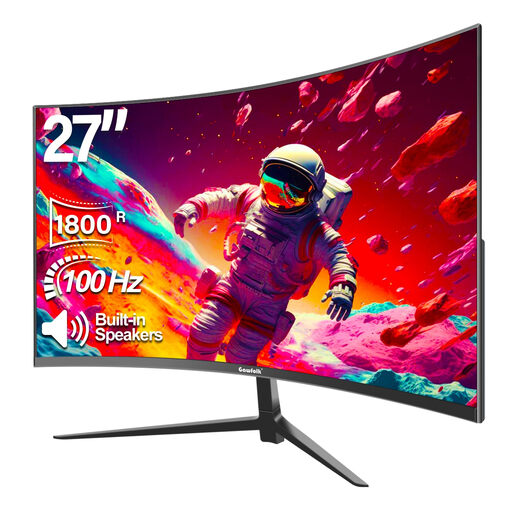
Gawfolk 27-inch curved Full HD monitor
This 27-inch Full HD screen is a visual option to compare; built-in speakers may offer audio output, but they don’t tell you how clearly screen reader speech will sound.
The product name lists Full HD 1080p, 100 Hz, a curved 1800R screen and built-in speakers.
Joybuy
Frequently asked questions
Does a 4K monitor make a screen reader or my lesson timetable more accessible?
No, not on its own. A screen reader is software on your computer; the timetable’s accessibility needs to be assessed and tested separately. If you use your remaining vision, compare 4K with your own magnification settings.
What should I check when connecting and using the monitor every day?
Check which video connection your computer supports and try your preferred scaling setting. If you want to charge a laptop via USB-C, compare the monitor’s stated power output with your laptop’s requirements. Also adjust the screen position and lighting to suit you.
What energy and purchasing information can I compare?
The European Commission states that electronic displays on the EU market carry an energy label with a scale from A to G; the label also shows screen size and resolution. According to the Dutch government, online purchases from a business by consumers often come with a 14-day cooling-off period. Check the terms of the specific purchase.
Does my music lesson timetable have to be legally accessible?
That depends on the provider and the website’s purpose. The ACM lists websites where consumers can order or book services as possible e-commerce services, and describes criteria including 10 or more employees or annual turnover of more than € 2 million. Separate accessibility requirements apply to government websites, as described by DigiToegankelijk. First establish which rules apply to the specific timetable; a monitor doesn’t prove compliance.


