
Diagram creator working with lots of detail
You create figures with fine lines, labels or several editing panels, and prioritise visible workspace and detail.


Start with the space available on your desk and decide how much of your diagram and editing windows you want to see at once. A compact Full HD screen takes up less room, while QHD and 4K offer more pixels. Then check whether the stand is adjustable and whether your laptop supports the video connection you need and, if applicable, USB-C power delivery. A stated colour gamut alone does not prove colour accuracy.
You create figures with fine lines, labels or several editing panels, and prioritise visible workspace and detail.
You need to fit a screen, laptop and study materials into a limited workspace, so you’ll need to weigh up screen size and adjustability.
You want to reduce the number of separate connections and are checking whether your laptop can receive video and, if applicable, power over USB-C.
Choose this if: you have limited desk space and usually work on one diagram at a time.
Bear in mind: Philips lists the 24E1N1100A/00 as having 1920 × 1080 pixels; the QHD and 4K examples mentioned offer more pixels.
Choose this if: you want to see your diagram, legend and editing windows together more often, and have room for a 27-inch screen.
Bear in mind: the LG and Dell QHD models mentioned specify 2560 × 1440 pixels; check separately that the stand will fit your workspace.
Choose this if: extra pixels for fine detail are a priority and your computer supports the resolution you need.
Bear in mind: LG specifies 3840 × 2160 pixels for the 27UP850K-W. Also check that text remains comfortable to read at your chosen display scaling.
| What to consider | What should you check? | Who should pay extra attention? |
|---|---|---|
| Detail and workspace | Compare the resolution and screen size of the exact model; check that your diagram software works comfortably at your preferred display scaling. | If I want to assess fine labels and lines alongside editing panels, I focus on detail and workspace. Around 36% of consumers say this combination is their main concern when buying. |
| Desk space and set-up | Measure the space available for the screen and stand; check the available height and tilt adjustment. | On a small desk, my screen needs to fit alongside my laptop and study materials. Around 29% of consumers prioritise available space and the set-up. |
| Laptop connection | Check whether your laptop’s port supports video, which cable you need and whether the power output is suitable for your laptop. | If I want to handle video and, if applicable, power through a single connection, my laptop needs to support the right features. Around 21% of consumers put this connection first. |
| Colour reproduction | Check the specifications of the exact monitor and find out whether your work requires calibrated colour reproduction. | When colours distinguish categories in my diagram, I want to know what colour requirements the work calls for. Around 14% of consumers consider colour reproduction their main concern. |
Capabilities vary between laptop ports and monitors. A USB-C connector alone does not confirm that your laptop can output video through that port.
Check the documentation for both devices to see whether your laptop supports DisplayPort Alt Mode or a suitable Thunderbolt connection. For charging, compare the power required with the power supplied, and check which cable you need.
You may need a different cable or adapter for the connection you choose.
A higher resolution does not automatically mean the screen will fit on your desk or that text will be comfortable to read at your chosen display scaling.
First measure the space available, then consider resolution, screen size and display scaling together.
LG lists a typical 99% sRGB for the 27BA65QB-B. This manufacturer’s specification is not a measurement of the colour accuracy of an individual screen.
Find out what colour requirements your work calls for and check that the exact monitor is suitable. If accurate colours are essential, you may need a separate calibration process.
A calibration process takes extra time and attention when setting up and checking the display.
The models mentioned range from a compact Full HD screen to a 27-inch QHD model with USB-C.
The models mentioned include a 27-inch QHD option and a 27-inch 4K option.
The Dell P2725DE is a 27-inch QHD model mentioned here, with connections for a laptop set-up.
This selection includes 27-inch screens for desks with enough space, with resolution labels that vary by model. Check the exact resolution and connections for the model you’re considering.
 No image available
An option if you’re looking for a 27-inch screen with Quad HD resolution and have enough space on your desk.
The product name lists 2560 × 1440 pixels, 2 HDMI 2.0 connections and 1 DisplayPort 1.4 connection.
 No image available
An option for working on diagrams on a 27-inch screen, if you have enough desk space.
The product name lists a resolution of 2560 × 1440 pixels.
 No image available
An option if you want extra pixels for diagram details and your computer supports the resolution you need.
The product name lists 3840 × 2160 pixels and 4K Ultra HD.
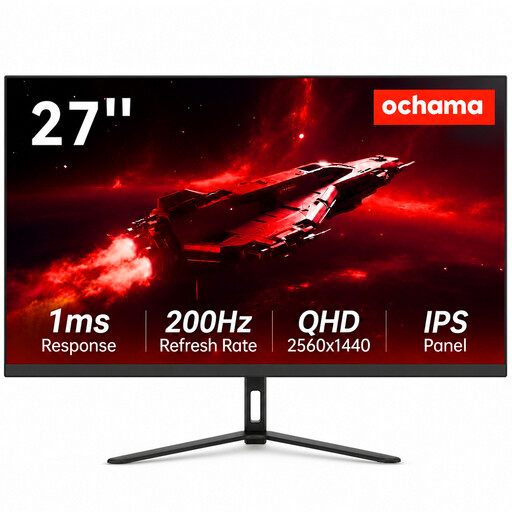 No image available
An option if you’re looking for a 27-inch screen and have enough desk space for it.
The product name lists 2K resolution and a 200 Hz refresh rate.
 No image available
An option for working on diagrams on a 27-inch QHD screen, if your desk can accommodate it.
The product name lists OLED, 2560 × 1440 pixels, 240 Hz, 2 HDMI 2.1 connections and 1 DisplayPort 1.4 connection.
No. Check your laptop documentation to see whether the port in question supports video over DisplayPort Alt Mode or a suitable Thunderbolt connection. For charging, also compare your laptop’s power requirements with the monitor’s power output.
Place the screen securely, adjust the available height and tilt to suit your working position, and reduce distracting reflections by adjusting the screen position and lighting. Arboportaal provides guidance for employees; this does not automatically constitute a legal purchase requirement for a student working privately.
According to ACM ConsuWijzer, the statutory cooling-off period for a product bought online ends 14 days after delivery. Check which exceptions apply and read the seller’s returns information.
No. ACM ConsuWijzer explains that your statutory guarantee rights apply alongside a seller’s or manufacturer’s warranty. If a product breaks sooner than you could reasonably expect under normal use, the seller must offer an appropriate free solution; there is no single fixed statutory time limit for every monitor.