
Teacher who reads a lot
Reads pupils’ work and writes detailed feedback. Readability, screen reflections and an adjustable workspace are all important.


Choose a screen that’s comfortable to read, fits your workspace without distracting reflections and offers plenty of adjustment. A compact screen may be enough if you work with one document at a time. If you want two windows side by side, a 27-inch QHD model is an option, provided it fits on your desk. USB-C is only useful if the monitor, laptop and cable support the video and charging features you need. Specifications don’t prove that a monitor is quiet.
Reads pupils’ work and writes detailed feedback. Readability, screen reflections and an adjustable workspace are all important.
Often wants to view pupils’ work and feedback side by side, so considers the resolution and available screen space, not just the diagonal measurement.
Connects a laptop in the study and checks that the monitor, cable and laptop support the video and charging features they need.
Start by considering which documents you want to see at the same time and how much space you have on your desk. Then check the monitor’s adjustability, reflections and connections for your workspace.
| What to consider | What should you check? | Who is this important for? |
|---|---|---|
| Text readability | Check the resolution, text scaling, anti-glare finish and lighting for the exact model. | If I read a lot of pupils’ work and write feedback, I want text to be comfortable to read and the screen to be easy to adjust to my workspace. Around 33% of consumers say readability is their top priority. |
| Two windows side by side | Compare resolutions, such as 2560 × 1440 and 1920 × 1080, and measure the space available for the screen and stand. | If I want to view pupils’ work and feedback at the same time, I consider both the resolution and the space available on my desk. Around 27% of consumers prioritise having enough room to work on both at once. |
| Posture and reflections | Check the height adjustment, tilt, screen finish and position in relation to windows. | If I need to adjust my screen to suit my sitting position and the lighting in the study, the adjustment options matter. Around 27% of consumers say workspace adjustability is their top priority. |
| Connecting a laptop | Check the video input, Power Delivery wattage, cable specifications and the required ports on both the laptop and monitor. | If I connect and disconnect my laptop frequently, I want to know whether the connection provides the features I need. Around 13% of consumers choose mainly on the basis of the laptop connection. |
USB-C ports can support different features. Dell lists a USB-C downstream data port on the P2425, with a maximum output of 15 W. BenQ specifies DisplayPort Alt Mode and 65 W Power Delivery for the GW2790QT.
Check the port features on both your laptop and the exact monitor model before relying on a single-cable connection.
A 27-inch diagonal measurement doesn’t tell you how many pixels are available. The ASUS VA27DQSB has a resolution of 1920 × 1080 pixels, while the BenQ GW2790QT has 2560 × 1440 pixels.
Compare the resolution and check that the text scaling and window layout suit the documents you use.
A manufacturer’s feature or claim doesn’t show how audible a monitor will be in a quiet study, or how the whole workspace will feel.
Check the adjustment options and lighting, and assess any audible noise in your own room.
This selection includes both a compact 24.07-inch model and a 27-inch QHD model from Dell.
According to BenQ, the GW2790QT combines a 27-inch QHD screen with an adjustable stand and USB-C features.
The VA27DQSB is a 27-inch Full HD model with an adjustable stand.
The Philips 27E1N5600AE/00 is a 27-inch QHD model with USB-C for a compatible notebook.
Lenovo positions the ThinkVision P27h-30 as a 27-inch QHD IPS model for professional use and docking.
These models are suited to reading and writing text, viewing multiple windows or fitting out a compact workspace.
 Image unavailable
One to consider if you want to view pupils’ work and feedback side by side.
27 inches; 2560 × 1440 pixels.
 Image unavailable
An option if you want to view lots of text or several windows on one screen.
27 inches; 3840 × 2160 pixels; 4K UHD.
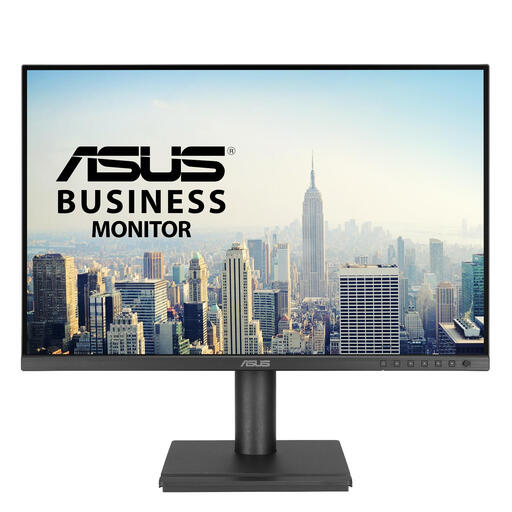 Image unavailable
A compact option to consider if you mainly work with one main window.
24.1 inches; 1920 × 1200 pixels; WUXGA.
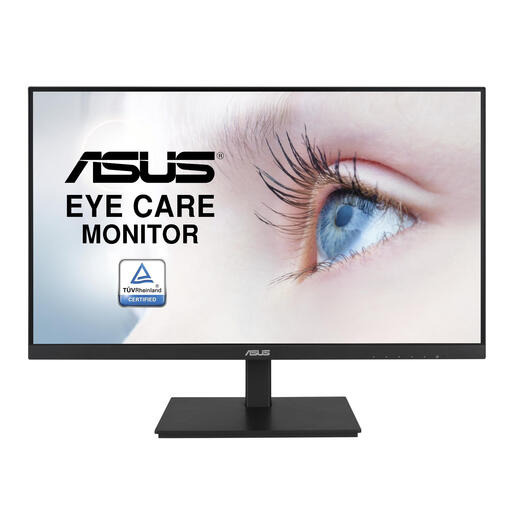 Image unavailable
A compact option if you mainly use one main window and want Full HD resolution.
23.8 inches; 1920 × 1080 pixels; Full HD.
 Image unavailable
One to consider if you want to view pupils’ work and feedback at the same time on a wide screen.
34 inches; 3440 × 1440 pixels; Wide Quad HD.
No. If you mainly work with one document, first compare whether a compact, adjustable screen suits your workspace. If you regularly want to view two windows at once, consider both the screen size and the resolution: 27-inch models, for example, can have resolutions of 1920 × 1080 or 2560 × 1440 pixels.
Adjust the screen, lighting and position to avoid distracting reflections while keeping the paper easy to read. Arboportaal mentions aids such as a document holder. Consider your whole workspace and take regular breaks from screen work.
Follow the instructions for the exact model. For normal cleaning of the LCD screen described, Philips recommends using a clean, dry cloth and warns against certain solvents. Check the manual before applying this advice to a monitor from another brand.
For a consumer purchase in the Netherlands, the seller must provide a solution, according to Rijksoverheid, if a product doesn’t meet expectations. For distance sales, you have 14 days to change your mind in many cases; check whether this applies to your purchase. An additional manufacturer’s or paid warranty doesn’t replace your statutory rights.
The rules described don’t set a general mandatory screen size or resolution for this purchase. However, Arboportaal outlines employers’ obligations regarding screen work. For example, if an employee works at a screen for more than 2 hours a day, their screen and keyboard must not be attached to each other. Check the rules for your specific working situation; they don’t automatically apply to every private buyer.