
Student with limited desk space
You want to view scans alongside your studies without the monitor taking over your desk. So measure more than just the screen: allow for the stand and its adjustment options too.


For retouching scans in a student room, choose a monitor whose size and resolution suit your desk and the way you zoom in on scans. A monitor won’t remove dust by itself: Adobe describes this as an edit made in image-editing software. Pay extra attention to colour coverage if you also correct colours, and check your laptop’s video connection and any charging capability separately.
You want to view scans alongside your studies without the monitor taking over your desk. So measure more than just the screen: allow for the stand and its adjustment options too.
You want to inspect small imperfections in enlarged scans while leaving room for editing panels. Adobe describes dust spots and scratches as details you correct in image-editing software.
You want to assess colour and tone as well as dust spots. Compare the stated colour specifications for the exact model; the manufacturer’s figures aren’t a measurement of your individual screen’s performance.
Best for: a small desk and scan work where you also assess colour. ASUS lists the PA248QV as having a 24.1-inch screen, 1920 × 1200 resolution and 100% sRGB coverage.
Bear in mind: it has fewer screen pixels than a 27-inch 4K screen; the colour figures come from the manufacturer.
Best for: a desk with plenty of room and work where you want to view an enlarged scan alongside your tools. Philips lists the 27E1N1800AE/00 as having a 27-inch screen and 3840 × 2160 pixels.
Bear in mind: a larger screen needs more space, and extra pixels won’t remove dust from the scan file.
Best for: studying and everyday computer use, with scan retouching as an additional task. Dell lists the U2424H as having a 23.8-inch screen and Full HD resolution.
Bear in mind: don’t assume that an IPS label alone guarantees a particular level of colour accuracy.
| What to consider | What to look for | Who should prioritise this? |
|---|---|---|
| Detail on screen | Compare the native resolution and consider how much room the editing interface takes up alongside an enlarged scan. | If I want to inspect small imperfections in scans, I focus on pixels and workspace. Around 36% of consumers put detail on screen first. |
| Size and workspace | Measure the available width and depth, and check the stand’s dimensions and adjustment options. | At a small desk, I want to leave enough room for my studies. Around 29% of consumers prioritise a size that suits their workspace. |
| Assessing colour | Check the colour space, colour modes and calibration details for the exact model; treat manufacturer figures as specifications, not independent measurements. | If I correct scan colours as well as dust spots, I want to know which colour settings the screen offers. Around 21% of consumers put colour assessment first. |
| Laptop connection | Compare your laptop’s video output with the monitor; if you need USB-C video and charging, check separately that both are supported. | I want to connect my laptop properly and, ideally, know whether it can charge through the same cable. Around 14% of consumers prioritise the laptop connection. |
Refresh rate doesn’t tell you how many screen pixels are available for viewing an enlarged scan.
For retouching, compare the screen size and native resolution first. Only consider motion features if you’ll use the monitor for that too.
Colour coverage and factory calibration are manufacturer specifications, not measurements of the individual screen in your room.
Check the specifications and colour settings for the exact model before relying on the screen to make colour corrections.
It’s not just the screen size that matters. The stand, adjustability and position in relation to incoming light all affect how the monitor fits on your desk.
Measure the available space and check the dimensions and adjustment options of the model you’re considering.
The ProArt PA248QV is a compact option to compare if you assess colour as well as retouching scans.
The 27E1N1800AE/00 is a larger 4K option; the 24E1N1300AE/01 is a separate, compact model with USB-C.
The UltraSharp U2424H is a compact everyday work monitor to compare with models that have colour-focused specifications.
The DesignVue PD2705Q is a 27-inch QHD option to compare if colour settings matter.
The ColorEdge CS and CG series are options for image editing where colour management is a higher priority.
This selection of Joybuy products includes high-resolution 27-inch models and more compact ASUS ProArt models. Compare the exact resolution and measure your available desk space before choosing a size.
 No image available
An option if you want to view an enlarged scan alongside editing panels on a larger screen.
27 inches; 3840 × 2160; IPS; HDMI and DisplayPort; height-adjustable stand.
 No image available
The 4K resolution could suit you if you want plenty of screen pixels for enlarged scans and editing panels; bear in mind the desk space you’ll need.
27 inches; 3840 × 2160 pixels; 4K Ultra HD.
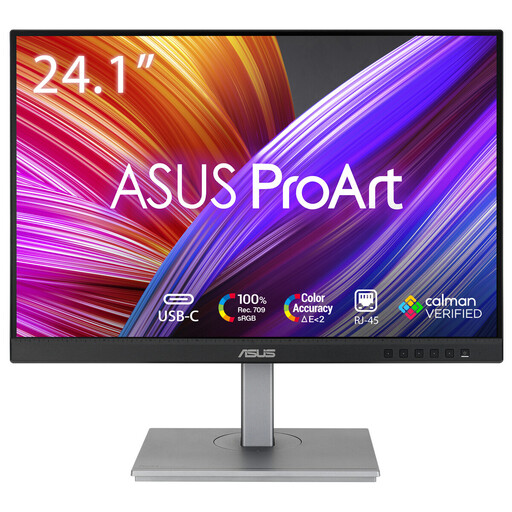 No image available
The stated size could suit a more compact workspace where you also want to view scans.
61.2 cm (24.1 inches); 1920 × 1200 pixels.
 No image available
A more compact option to compare if you’re weighing resolution against the desk space available.
60.5 cm (23.8 inches); 2560 × 1440 pixels.
 No image available
A 27-inch option to compare if you want more screen space and have room for the larger size.
2560 × 1440 pixels; Quad HD.
No. A monitor displays the image; dust retouching is done in editing software. Adobe describes correcting dust spots and scratches as an editing step. Choose a screen that lets you assess the edit clearly.
No. Check whether your laptop supports video over USB-C and whether its charging capability meets your needs. Philips states that the 24E1N1300AE/01 can connect to a compatible device using a single cable.
First measure the available space and the monitor stand. Check that you can adjust the screen to suit you and reduce distracting reflections. Arboportaal discusses height adjustment, lighting and reflections in employee workspaces; these employer requirements aren’t automatically legal requirements for a student’s private room.
According to ACM ConsuWijzer, online purchases generally come with a statutory cooling-off period of up to 14 days after delivery, subject to exceptions. This is separate from your statutory rights against the seller if a product doesn’t perform as you could reasonably expect when used normally; a manufacturer’s warranty doesn’t replace those rights.