What should you look for when choosing?
Start by considering how much room you need for code and a browser. Then decide whether colour reproduction, workspace comfort or a straightforward laptop connection matters most for the way you work.
| What to consider |
What should you check? |
Who will find this most important? |
| Room for code and a browser |
Compare screen size, resolution and desk space. Also check that text remains easy to read at your chosen scaling setting. |
If I want to see my code and browser at the same time, I look for a layout that suits my desk and software. Around 40% of consumers put usable workspace at the top of their purchasing priorities. |
| Visual design |
Check the stated coverage for the exact colour space, and don’t compare different colour spaces as if they were the same measurement. |
When I’m designing images, text and colour blocks, I want to know which colour specifications the manufacturer gives for this model. Around 30% of consumers give visual assessment their highest priority. |
| Workspace adjustability |
Check which adjustments the stand offers, and consider reflections and screen position in your intended workspace. |
For longer work sessions, I want to be able to adjust the monitor to suit my desk and sitting position. Around 20% of consumers make workspace comfort their top purchasing priority. |
| Connection and power |
Check that your laptop can output video through the port you plan to use, and that the stated power delivery is suitable for your laptop. |
If I want to connect my laptop easily, I check that the combination supports video and provides enough power. Around 10% of consumers prioritise ease of connection. |
Monitors at Joybuy
These desktop monitors let you view code, a browser and website images at your workspace. Before buying, check the connection to your computer, along with the CE marking and applicable documentation for the specific version on offer.
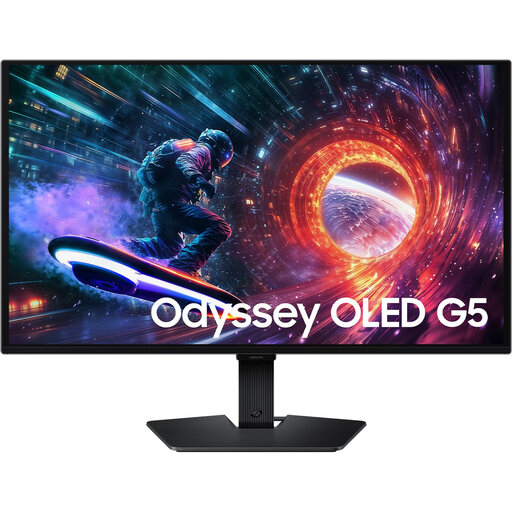 No image available
Samsung LS27FG500SUXEN 27-inch QHD OLED monitor
A 27-inch desktop monitor for viewing code and a browser side by side.
QHD, 2560 × 1440 pixels; OLED panel.
Joybuy
 No image available
AOC Gaming Q27G42XNE 27-inch QHD monitor
A 27-inch QHD screen for viewing website pages and work windows on a desktop monitor.
2560 × 1440 pixels; IPS panel; HDMI and DisplayPort.
Joybuy
 No image available
LG UltraFine 27U711B-B 27-inch 4K IPS monitor
A 27-inch 4K monitor for viewing website images and pages at high resolution.
3840 × 2160 pixels; IPS panel; HDR10.
Joybuy
 No image available
Dell Pro P3426WEV 34.1-inch curved WQHD monitor
The ultrawide format may suit a workspace where you keep code, a browser and design windows side by side.
3440 × 1440 pixels; 21:9 format; USB-C with DisplayPort Alt Mode and up to 90 W Power Delivery.
Joybuy
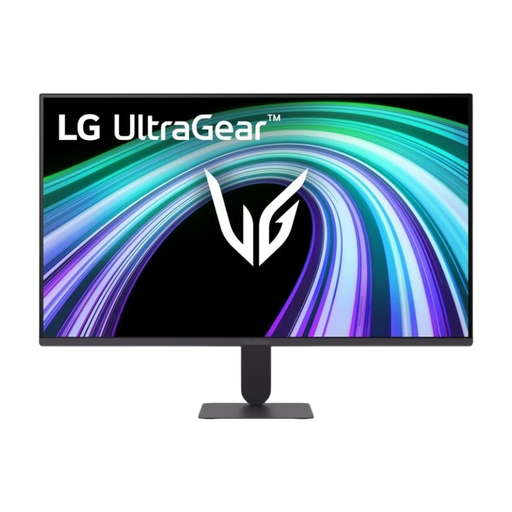 No image available
LG UltraGear 27G411B-B 27-inch Full HD IPS monitor
A 27-inch monitor for building and viewing website pages on an external screen.
Full HD, 1920 × 1080 pixels; IPS panel; viewing angle stated as 178°.
Joybuy
Frequently asked questions
Can I fully test a responsive choir website on one large monitor?
No, a large monitor can’t replace testing on different devices. Chrome DevTools can simulate different viewport widths, but Chrome for Developers describes this mode as an approximation. If you’re unsure, also check on a real mobile device that the navigation and rehearsal information remain easy to use.
What should I consider when setting up my workspace?
Adjust the screen position to suit your desk and sitting position, and watch out for distracting reflections. Arboportaal outlines specific requirements for employees who work at a screen for more than two hours a day; that threshold isn’t automatically a personal buying criterion for every hobbyist developer.
What can I do if a monitor bought online isn’t suitable or develops a fault?
For online consumer purchases, ACM ConsuWijzer says there is generally a statutory 14-day cooling-off period from delivery, with some exceptions. If a product doesn’t meet reasonable expectations under normal use, statutory consumer rights may also apply; this doesn’t automatically mean there is a fixed two-year guarantee period.
What product safety information should I check for a monitor in the Netherlands?
Check the CE marking and applicable documentation for the specific version actually on offer. The Dutch government describes CE marking as a requirement for electrical appliances placed on the EU market; a general statement from a brand or description of a related model doesn’t establish what applies to the version being offered.
Will a suitable monitor automatically make my website accessible?
No, you need to assess accessibility on the website itself, for example by checking that the content remains usable when enlarged and at narrower screen widths. Dutch information on statutory accessibility requirements relates to government websites; it doesn’t follow that every choir association has the same obligation.


