What should you look for?
First decide whether you just want to hear conversations or take part yourself. Then consider which display, workspace adjustments and laptop connection best suit the way you work.
| What to consider |
What to look for |
Who is it relevant for? |
| Report readability |
Compare QHD with 4K and check text size, scaling settings and your computer’s video output. |
If I read reports and small charts, I want to see the detail without the text becoming uncomfortably small. Around 40% of consumers say readability and detail are their top priority. |
| Video call features |
Check whether the exact model has speakers, a microphone and a webcam as separate features. |
If I follow or take part in conversations while reading, I want to know which audio and camera features I need. Around 30% of consumers say video call features are their top priority. |
| Adjustable workspace |
Check the adjustment options on the exact model and whether its stand suits your desk. |
For long reading sessions, I want to be able to position the monitor so I can set up my workspace comfortably. Around 20% of consumers say workspace adjustability is their top priority. |
| Laptop connection and power consumption |
Check video output, the required charging power and cable requirements. Only compare energy use under the same conditions. |
If I connect my laptop at a permanent workstation, I want to know whether video and charging will work over the connection I intend to use. Around 10% of consumers say connectivity and energy use are their top priority. |
Joybuy products for reports and video calls
This selection includes QHD and 4K monitors for working with reports, including models whose product names also mention a webcam or video conferencing feature.
 Image unavailable
Dell Pro P P2726DEV 27-inch QHD IPS monitor with webcam
An option for QHD document work if you also want a webcam; check that the connections suit your computer.
27-inch QHD IPS; 100 Hz; webcam.
View at Joybuy
 Image unavailable
Philips 27E1N1800AE/00 27-inch 4K UHD IPS monitor
An option for reports and charts with plenty of detail; check that your computer can output the resolution you want, and adjust the text scaling to suit you.
3840 × 2160 pixels; 60 Hz; 4 ms.
View at Joybuy
 Image unavailable
MSI Modern MD272UPHG 27-inch 4K monitor
A 4K option for viewing details in research reports; check your computer’s resolution output and the connection you want to use.
3840 × 2160 pixels; 4K UHD.
View at Joybuy
 Image unavailable
INNOCN CB27U1 27-inch 4K UHD monitor
A 4K option for reports and charts with plenty of detail; check that the resolution and USB-C connection suit your computer.
3840 × 2160 pixels; IPS; 120 Hz; USB-C with 90 W Power Delivery.
View at Joybuy
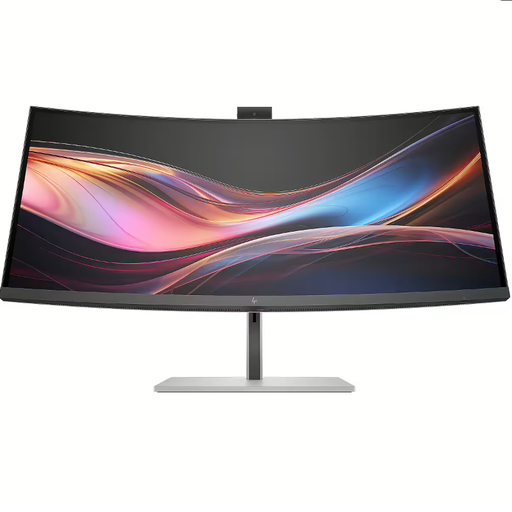 Image unavailable
HP Series 7 Pro 734pm 34-inch WQHD video conferencing monitor
An option if you want to use documents alongside video calls. Check which camera and audio features come with the exact version, and whether you already have the laptop power supply you need.
34-inch WQHD video conferencing monitor.
The product description states that the charger isn’t included as standard and must be purchased separately.
View at Joybuy
Frequently asked questions
Do I need a 4K monitor to read research reports?
No. Both QHD and 4K are suitable options. Consider how much detail and how many windows you want to see at once, check your computer’s video output and set the text size so it remains comfortable to read.
Can I take part in a conversation using built-in speakers?
Speakers play sound; you’ll also need a microphone to speak. BenQ lists both speakers and a microphone for the GW2790QT. Once connected, check which speaker and microphone are selected in your video conferencing app.
What should I check before using a USB-C monitor with my laptop?
Check whether your laptop can output video through the USB-C connection you’ve chosen, how much charging power is required, and which cable and ports the exact monitor model needs. A USB-C port alone doesn’t confirm that all these features will work.
How do I compare a monitor’s power consumption and running costs?
Compare the EU energy label for the exact model and power consumption figures measured under the same conditions. Your annual electricity costs also depend on how many hours you use the monitor and your tariff. For statutory guarantees on faulty products, the Dutch government advises contacting the retailer to find a solution.
What are the Dutch rules for working with display screens?
For employees, Arboportaal states that if you work with a display screen for more than 2 hours a day, the screen and keyboard must not be attached to each other. This isn’t a universal product specification for every private buyer. The European Commission includes computer monitors in its information about energy labels for electronic displays.


