What should you look for?
First, find out which colour space your source material uses. Then check that the monitor suits your shared workspace and connected computers, and works for any comparisons with printed materials.
| What to consider |
What to look for |
Who should prioritise it |
| Colours suited to your source material |
Find out whether your images use sRGB, Rec.709, P3 or Adobe RGB; also check the colour settings on each computer. |
If I want to assess the colour of reference images, I prioritise the colour space used by my files over a wider gamut that they don’t use. Around 36% of consumers prioritise accurate colour reproduction. |
| Viewing together and readjusting the setup |
Measure your desk and check typical viewing positions, as well as the model’s height, swivel and tilt adjustments. |
When colleagues share the screen or take turns using it, I want to be able to adjust it easily to suit the viewing position. Around 29% of consumers prioritise shared viewing and adjustability. |
| Switching between computers |
Check each laptop’s video output and charging requirements, then compare them with the monitor’s connections, USB-C video support and stated power delivery. |
If I regularly connect a different laptop, I want to know whether the chosen connection supports video and, if needed, charging. Around 21% of consumers prioritise connections and switching between computers. |
| Comparing the screen with printed materials |
Check whether you need calibration, which measuring device it requires and what lighting you’ll use to view the screen and proof print. |
If I want to compare a screen with a proof print, calibration, profiles and lighting matter alongside colour space. Around 14% of consumers prioritise this print workflow. |
Joybuy products
This selection includes monitors for viewing reference images at a shared desk. Compare the stated colour space, resolution, connections and adjustment options with your own needs.
 No image available
INNOCN CB27U1 27-inch 4K UHD monitor
An option to compare if you want to view reference images on a 27-inch screen.
The product name lists 3840 × 2160, IPS, 120 Hz and USB-C 90W PD. Check that the connections and power delivery suit the computers in your workspace.
View at Joybuy
 No image available
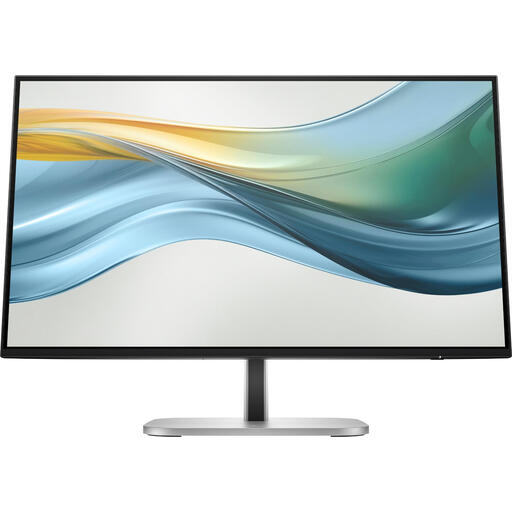
HP Series 5 Pro 524pu 23.8-inch FHD USB-C monitor
An option to compare if a 23.8-inch FHD screen suits your available space and reference work.
The product name lists USB-C. According to the product information, a charger isn’t included as standard; also check that the connection is compatible with your laptop.
View at Joybuy
 No image available
ASUS ProArt PA328QV 31.5-inch monitor
An option to compare if you’re looking for a larger screen to view images together and have room for it.
The product name lists 2560 × 1440 pixels and Quad HD. Measure your available desk space first.
View at Joybuy
 No image available
Dell UltraSharp U2725QE 27-inch 4K monitor
An option to compare if you want to view reference images on a 27-inch 4K screen.
The product name lists 3840 × 2160 pixels. Check which video and USB connections are compatible with the computers you use.
View at Joybuy
 No image available
ASUS ProArt PA278CGV 27-inch Quad HD monitor
An option to compare if you’re looking for a 27-inch Quad HD screen for a shared workspace.
The product name lists 2560 × 1440 pixels. Check that the resolution suits the level of detail you need for your reference images.
View at Joybuy
Frequently asked questions
Is a wide colour gamut always better for reference images?
No. Match the colour space to your files and the software you use. According to Adobe, calibration, a suitable profile and lighting also matter for a reliable comparison with printed materials.
What should you readjust when someone else uses the shared desk?
Reposition the screen to suit the user and adjust the viewing height and tilt. Arboportaal recommends readjusting the workstation; if colour comparison is important, also check the colour settings on the connected computer.
Can every laptop be charged through a monitor’s USB-C connection?
No. Check that the laptop can output video through that connection and how much power it needs. The manufacturer specifications for the models mentioned vary, including 60 W for the EIZO CS2740, 65 W for the BenQ PD2705U and 96 W for the ASUS PA279CRV.
Do I need extra cover for a monitor in the Netherlands?
Statutory consumer protection applies when you buy a consumer product. According to the Government of the Netherlands, the seller must provide a solution if a product is faulty; separately consider whether paid-for extra cover would benefit you.
What rules apply to working with screens in a Dutch workplace?
Employers have obligations relating to safe screen-based work. Arboportaal notes, among other things, that screen work must be alternated at set intervals with other work or a break. This isn’t a general requirement for consumers to choose a specific monitor model. EU rules also apply to electronic displays, including ecodesign requirements and energy label information.


