If you often work in different places and don’t want to use an extra socket for your screen, look for a portable monitor that receives video and power through a suitable laptop connection. For a fixed workstation, a USB-C desktop monitor may be more practical if you want more room to read and the model can charge your compatible laptop sufficiently; the monitor itself will still need mains power. In either case, check the capabilities of your laptop port, the cable and the charging power required.
Who is this buying guide for?
Someone preparing work with few sockets available
You want to open reading passages and exercises side by side without automatically using an extra socket for your screen. Whether you can charge your laptop through the monitor depends on your workstation and the ports on your devices. Dell and ASUS describe different USB-C solutions for this setup.
Reader at a fixed desk
You regularly prepare longer reading passages and are mainly looking for enough screen space and an adjustable setup. Dell and LG describe fixed monitors for desk use; check which adjustment options suit your workstation.
Someone preparing work at different locations
You take a second screen with you between workspaces. Check in advance whether your laptop supports the necessary video and power functions; Lenovo and ASUS describe portable monitors with different connection options.
What should you look for when choosing?
For reading practice when sockets are in short supply, your choice mainly comes down to the power connection, available reading space, adjustability and how often you move the screen.
Portable screen powered by your laptop
Suitable if: you often change workspaces and don’t want to use a separate mains socket for the monitor.
Bear in mind: the screen draws power from your laptop, so check that the laptop port supports the required functions.
Fixed USB-C desktop monitor
Suitable if: you usually work at one desk and want a larger screen or a different layout.
Bear in mind: the monitor needs mains power; charging your laptop via USB-C will only work if the connection and power output are suitable for your laptop.
Portable screen with power pass-through
Suitable if: you’re looking for a compact screen and want to be able to power a connected laptop through the monitor too.
Bear in mind: power pass-through isn’t a built-in battery; check separately how both the screen and laptop will be powered in your setup.
| What to consider |
What should you check? |
Who should prioritise this? |
| Sockets and power connection |
Check whether the monitor itself needs mains power and whether it can charge your laptop via USB-C. Dell lists up to 90 W for the P2425E; LG lists up to 65 W for the 27BA65QB-B. |
If I mainly want to avoid using an extra socket for the monitor, I first check where the screen and laptop will get their power from. Around 36% of consumers in this reading scenario prioritise the power connection. |
| Room for reading passages |
Compare screen size, resolution and aspect ratio, and consider whether the text remains comfortably readable at your preferred size. |
When I want to view source material and exercises side by side, I mainly consider the available screen space and text size. Around 29% of consumers prioritise this reading space. |
| Adjustability |
Check whether the stand is height-adjustable and can tilt or swivel; also consider how much room you have on your desk. |
If I work at a desk for long periods, I want to be able to position the screen to suit my workspace. Around 21% of consumers put adjustability first. |
| Portability and connections |
Check the exact ports on your laptop and monitor, the cable, and whether USB-C video or another connection option specified for the model is supported. |
If I move between workspaces, I want to know in advance whether my laptop can run the portable screen. Around 14% of consumers prioritise this mobile connection. |
Common pitfalls when choosing
-
Assuming every USB-C port supports both video and charging
A USB-C port may not support all functions. The shape of the connector alone doesn’t tell you whether your laptop can send video to the monitor or charge through that connection.
Check the specifications for the exact laptop port, monitor port and cable, and compare the charging power with what your laptop needs.
-
Assuming a portable screen means you can work without any plugs
A screen that draws power from your laptop still uses power. With power pass-through, you also need to know how both the monitor and laptop will be powered.
Before you buy, work out how your laptop, monitor and any power supply will be powered at the place where you plan to use the screen.
-
Choosing a larger screen without considering your workspace
More screen space doesn’t automatically mean a suitable setup; a desktop monitor and a portable screen need different amounts of space and must be positioned differently.
Compare the dimensions and resolution with your desk, and check the stand’s adjustment options.
Brands to compare
Dell
The Dell P2425E is a fixed 24-inch 16:10 USB-C hub monitor for anyone who wants to combine reading space and laptop charging at one desk.
- Dell lists up to 90 W of USB-C power delivery for this model.
- The monitor itself needs mains power. Check that its power output and USB-C functions are suitable for your laptop.
LG
According to LG, the LG 27BA65QB-B combines a 27-inch QHD screen with USB-C and an adjustable stand.
- LG lists up to 65 W of power delivery via USB-C for this model.
- Check whether this power output meets your laptop’s charging needs; a larger fixed screen is less suitable for taking with you.
Lenovo
The ThinkVision M14d is a portable 14-inch 16:10 screen with two USB-C ports and power pass-through.
- Lenovo lists a resolution of 2240 × 1400 pixels and power pass-through of up to 65 W.
- Power pass-through isn’t a built-in battery. Check separately how the screen and laptop will be powered in your setup.
ASUS
The ZenScreen MB16ACE is a portable option for which ASUS describes video and power through a single USB connection.
- With a compatible host device, the described connection can provide both video and power.
- The USB-A connection described requires a DisplayLink driver. For USB-C, check that the ports support video.
Philips
The Philips 27E1N5600HE/00 is a fixed 27-inch QHD monitor with USB-C and a built-in webcam.
- Philips describes video, data transfer and power for a compatible device through a single USB-C cable.
- Check that the charging power is suitable for your laptop; the product description doesn’t confirm that it will be sufficient for every laptop.
Portable monitors for changing workspaces
These Joybuy products are portable monitors for preparing reading exercises in different workspaces. Before buying, check that your laptop’s ports support the necessary video and power functions.
 No image available
TECLAST V16Q portable monitor
Could suit mobile reading if you’d like extra vertical screen space.
16 inch, 2.5K resolution, 16:10 aspect ratio and 144 Hz IPS screen.
The product description lists two USB-C ports and Mini HDMI; check that your laptop supports video through the connection you choose.
View at Joybuy
 No image available
Lenovo L16 portable monitor
Could suit mobile reading if you’re looking for a portable 16-inch screen with a 16:10 aspect ratio.
WUXGA IPS screen and USB-C with up to 65 W Power Delivery, according to the product name.
The description lists video and laptop power through a single USB-C cable; check that your laptop port supports this and that the power output is sufficient.
View at Joybuy
 No image available
ASUS ZenScreen MB166CR
Could suit preparing exercises on the move if you’re looking for a portable Full HD screen.
15.6-inch IPS screen with a resolution of 1920 × 1080 pixels.
The description lists a single USB-C cable for video and power with a compatible connection, plus a 360° stand.
View at Joybuy
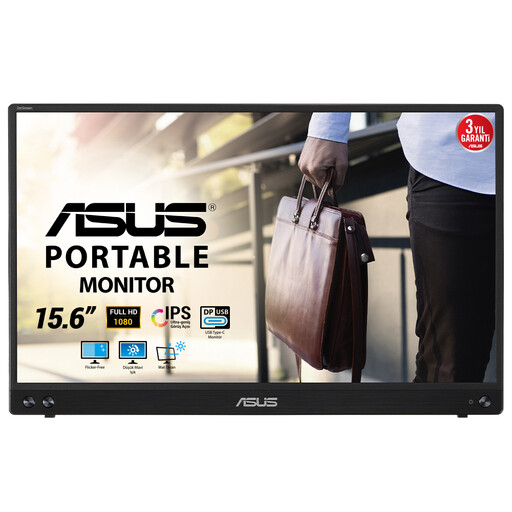 No image available
ASUS MB16ACV
Could suit mobile reading if you’re looking for a portable screen with a stated weight of 0.83 kg.
15.6-inch IPS screen with a resolution of 1920 × 1080 pixels.
The description lists a single USB-C cable for video and power with a suitable connection. A driver is required for the USB Type-A connection described.
View at Joybuy
 No image available
UPERFECT portable monitor
Could suit mobile preparation if you want to view source material and exercises on a second screen.
15.6-inch IPS screen with 1920 × 1080 pixels, USB-C and Mini HDMI, according to the product name and description.
The description lists video and power through a single USB-C cable; check that the host device supports the required functions.
View at Joybuy
Frequently asked questions
Does every USB-C port on your laptop send video to a portable monitor?
No. USB-C ports can support different functions. Check that the laptop port and monitor support the required video mode; some portable models also describe a USB-A connection that requires a driver.
Can you leave out your laptop charger when using a USB-C desktop monitor?
Only if your laptop can charge through the port you’re using and the monitor’s power output is sufficient for that laptop. Dell lists up to 90 W for the P2425E and LG lists up to 65 W for the 27BA65QB-B; the monitor itself still needs mains power.
What should you check when spending long periods working at a screen in an employee’s workstation?
Arboportaal states that requirements apply to employees who work at a screen for more than two hours a day, including that the screen and keyboard must not be attached to each other. Consult the guidance on setting up a workstation; this is not necessarily a uniform purchasing requirement for every personal user.
How do you compare energy consumption, and what can you do if the monitor is faulty?
Compare the EU energy label and model information for the monitors you’re considering; the European Commission covers electronic displays under EU energy labelling. If a product is faulty in the Netherlands, the retailer is your point of contact for your statutory guarantee. The Dutch government states that there is no fixed statutory guarantee period of two years.


