If you want to view quiz questions and source materials at the same time, an adjustable 27-inch QHD monitor is a practical starting point, provided your desk has enough room. If you usually work in one window or space is limited, a more compact screen may be a better fit. An ultrawide or larger screen is worthwhile mainly if you’ll make good use of the extra window space. Also check for reflections, available desk space and whether the connections are compatible with your laptop.
Who this monitor question is relevant to
Quiz creator working with source material
You want to write questions while keeping teaching materials or answers visible alongside them. RTINGS.com discusses 27 inches as a size suited to multitasking. Samsung Netherlands notes that a larger screen shows more, but also takes up more space.
Long-session text editor
You read and proofread for extended periods at the same workstation, and want to assess text size, screen position and reflections. Arboportaal advises paying attention to readability and light sources in your field of view.
Shared-desk user
You switch between laptops or workstations and want the monitor, connections and any shared peripherals to suit your setup. Check the layout and connection requirements for the equipment you actually use.
What to consider when choosing
| What to consider |
What should you check? |
Who is this important for? |
| Room for the quiz and source material |
View both windows at once with a readable text size; compare the screen size and resolution. |
If I want to read questions and source material side by side, the text needs to remain comfortable to read from my viewing distance. Around 36% of consumers mainly need space for multiple windows. |
| Reading comfort and adjustability |
Check the height adjustment, reflections and readability at your usual viewing distance and in your usual lighting. |
When working with text for long periods, I want to be able to adjust the screen position and assess any distracting reflections. Around 29% of consumers prioritise reading comfort and adjustability. |
| Connecting a laptop and peripherals |
Compare the laptop, monitor port and cable for display, power and the USB features you need. |
If I regularly connect a different laptop at a shared workstation, I want to know which features will actually work together. Around 21% of consumers make connecting and switching devices their top priority. |
| Desk space and sightlines |
Measure the available space, including the monitor stand, and consider who can see the screen from nearby workstations. |
At a small or shared desk where the screen is visible to others, I want to leave enough room and avoid unintentionally exposing confidential information. Around 14% of consumers mainly consider desk space and visibility to others. |
Common pitfalls
-
Choosing based on screen size alone
A larger screen doesn’t automatically make quiz questions and source text easier to read. Resolution, text size, viewing distance and desk space all matter too.
Open a representative quiz and source document side by side. Measure the available space, including the monitor stand, and check the text at the scale you plan to use.
-
Assuming USB-C always means one-cable docking
Your laptop, monitor and cable all need to support the display, charging and USB features you require. The presence of a USB-C port alone doesn’t guarantee that they’ll work together.
Before buying, compare your laptop’s specifications with those of the exact monitor model and the cable, checking for the features you need.
-
Confusing a wide viewing angle with privacy protection
A monitor feature designed to improve viewing angles won’t necessarily prevent someone at a nearby workstation from seeing quiz answers or personal data.
Consider the sightlines in your workspace and follow your organisation’s guidance on confidential information.
-
Assuming the manufacturer’s warranty covers all your statutory rights
For a consumer purchase in the Netherlands, any manufacturer’s warranty is in addition to your statutory rights against the seller. The Dutch government explains that there is no fixed statutory warranty period.
Check what any additional warranty covers and keep your proof of purchase. If a product is faulty, you can contact the seller; the remedy you’re entitled to depends on the circumstances.
Brands to compare
Lenovo
The ThinkVision T27h-30 is a 27-inch QHD option with USB-C docking and Ethernet.
- Lenovo lists an adjustable stand and USB hub for this model.
- USB-C alone doesn’t guarantee that an unspecified laptop will support display and all the features you want through a single cable.
Dell
The UltraSharp U2724DE is a 27-inch QHD monitor with Thunderbolt hub features.
- For this model, Dell lists a resolution of 2560 × 1440 pixels, 120 Hz, height adjustment and Thunderbolt 4.
- You don’t need the extra connectivity features just to work with quiz text; check that your laptop is compatible with them.
Philips
The Curved Business 34B2U3600C/00 offers an ultrawide option for working with multiple windows.
- For this model, Philips lists a 34-inch screen, 3440 × 1440 pixels, Smart KVM and USB-C to RJ45.
- Check that your desk is wide enough and that you need the extra features. The manufacturer’s description isn’t an independent test of how well it works for creating quizzes.
HP
The E27u G5 is a 27-inch QHD USB-C option with a range of adjustment features.
- HP lists an anti-glare screen, with height, tilt, swivel and pivot adjustment.
- Specifications alone can’t tell you how readable the screen will be in your well-lit workspace.
ASUS
The ProArt Display 6K PA32QCV is a larger screen for those who also do detailed work alongside creating quizzes.
- For this model, ASUS lists a 31.5-inch screen, 6016 × 3384 pixels, height adjustment and KVM.
- The extra resolution and features aren’t necessarily needed for a straightforward quiz. Also check that your computer and connection support the resolution you want.
Monitors at Joybuy
This selection includes monitors for viewing quiz questions alongside source material, with several 27-inch options and an ultrawide model. Compare the size, listed connections and features with your own workspace and laptop.
 No image available
MSI MAG 272QPF E20 27-inch WQHD monitor
A 27-inch WQHD screen for viewing quiz questions and source material side by side, if your desk has enough room.
The product title lists Rapid IPS, 200 Hz, HDMI 2.0 and DisplayPort 1.4.
View at Joybuy
 No image available
AOC Gaming Q27G42XNE 27-inch Quad HD monitor
The 27-inch Quad HD screen may suit you if you want to view a quiz and source material on the same screen. Check that the text is the right size for your viewing distance.
The product title lists 2560 × 1440 pixels, 180 Hz, 1 ms, FreeSync Premium, HDR10, two HDMI 2.0 ports and one DisplayPort 1.4 port.
View at Joybuy
 No image available
Dell Pro P3426WEV 34.1-inch curved WQHD monitor
An ultrawide screen for those who work with lots of windows side by side and have enough desk width.
The product title lists IPS, a USB-C hub, webcam, 100 Hz and 90 W Power Delivery. The product information also mentions 3440 × 1440 pixels, KVM, a USB hub and RJ45; check which connection features work with your laptop.
View at Joybuy
 No image available
Philips 27E1N1800AE/00 27-inch 4K UHD IPS monitor
A 27-inch option for viewing quizzes and source material on the same screen. Check for yourself whether the text remains comfortable to read at your chosen screen scaling.
The product title lists 3840 × 2160 pixels, 60 Hz, 4 ms, HDMI, DisplayPort and a height-adjustable stand. The product description also mentions an anti-glare screen.
View at Joybuy
 No image available
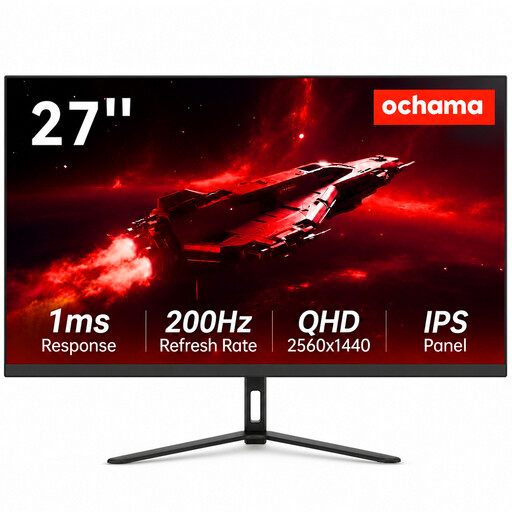
Ochama 27-inch 2K gaming and office monitor
The listed 27-inch size may suit you for viewing quiz questions alongside source material; check that the screen scaling works well for your text-based tasks.
The product title lists 2K, a 200 Hz refresh rate and a slim bezel.
View at Joybuy
Frequently asked questions
Is a larger screen always better for creating quizzes?
No. If you usually work in one window or have limited desk space, a more compact screen may be more practical. If you use multiple windows, compare how readable they are from your viewing distance with the space the screen and stand take up.
How should you set up a monitor at a shared workstation?
Adjust the screen and furniture to suit you, choose a readable text size, and avoid reflections and light sources in your field of view. Readjust the workstation after someone else has used it. Arboportaal offers practical advice; the requirements for employers depend on the working situation.
Can your laptop use one USB-C cable for display, peripherals and power?
The presence of a USB-C port alone doesn’t guarantee this. Check separately whether the exact laptop model, monitor port and cable support display, power and the USB features you need.
Who can help if the monitor develops a fault after purchase?
For a consumer purchase in the Netherlands, you can contact the seller about a faulty product, in addition to any manufacturer’s or seller’s warranty. According to the Dutch government, there is no fixed statutory warranty period; the remedy you’re entitled to depends on the cause and what you could reasonably expect from the product. Different contractual terms may apply to business purchases.
Are there Dutch rules covering screen work or quiz data?
According to Arboportaal, employers must limit the health risks of screen work for employees. Under the rule described there, if employees work with a screen for more than two hours a day, the screen and keyboard must not be attached to each other. If an organisation collects or uses personal data in a quiz, the GDPR may apply; the monitor itself doesn’t demonstrate compliance with the rules. This specific data processing may not apply to quizzes that don’t use personal data.


