Start by checking how much desk space you have, then decide whether you’ll mainly be laying out text and grids or reviewing illustrations too. For a compact workspace, an adjustable screen of around 24–25 inches could be a good fit: Dell Nederland lists the P2425 as 24.07 inches with rotation, while BenQ specifies a 25-inch QHD display for the PD2506Q. If printed colours need to match closely, set the colour profile to suit your printer and paper, and check a proof print if necessary; Adobe explains that this combination affects the colours in the print. If you’re using USB-C, check video output and charging power separately.
Who is this guide for?
Puzzle maker with a small desk
You mainly create text and grid pages, and want enough room to read them without a large screen and stand taking over your desk. Arboportaal highlights readability and the effect of ambient light as factors to consider when working with a screen.
Illustrated puzzle creator
You also work with images and want to assess digital colours with the intended print process in mind. Adobe explains that printer and paper profiles affect the colours in the print.
Student with a USB-C laptop
You want to connect your screen easily and perhaps use fewer cables, provided your laptop supports the required video and charging functions over USB-C.
What should you look for when choosing?
First measure the space on your desk, then decide whether readable pages, colour checking or a USB-C connection is your main priority.
| What to consider |
What to check before buying |
Who should pay particular attention? |
| Size and setup |
Measure the desk’s width and depth, as well as the monitor stand. Check whether height adjustment or rotation would be useful. |
If my desk also needs to fit a keyboard and pages, I’m looking for a screen that fits well and can be adjusted. Around 33% of consumers put size and setup first. |
| Readability and detail |
Compare the resolution with the screen size, and view a page at the text size you plan to use in your layout software. |
When I’m checking text and puzzle grids, I want to see the details without constantly switching between the page and a high zoom level. Around 27% of consumers make readable layouts their top priority. |
| Colour and print |
Check the colour gamut of the exact model. For colour-critical work, match the profile to your printer and paper, and check a proof print if needed. |
If I’m creating illustrations for print, I want to assess colours with the final print process in mind. Around 20% of consumers put colour checking first. |
| USB-C and laptop |
Check that your laptop can output video through the connection, and compare its charging requirements with the monitor’s power output. |
If I want to connect my laptop using as few cables as possible, I check that both video and charging work over USB-C. For around 20% of consumers, having the right connection is the main concern. |
Common mistakes
-
Assuming every USB-C port works as a laptop dock
A USB-C connection may be intended for data, without supporting laptop video or enough charging power. Dell Nederland lists the P2425’s downstream data port as supporting up to 15 W; BenQ specifies video via DisplayPort Alt Mode and 65 W Power Delivery for the PD2506Q.
Compare the features of the port on the exact monitor model with your laptop’s video output and charging requirements.
Depending on the combination, you may need a separate video connection or laptop charger.
-
Assuming a wide colour gamut guarantees accurate prints
A monitor’s colour specification doesn’t guarantee that the printer, paper and file will produce the same colours. Adobe explains that the printer profile determines which colours can be printed with specific ink and paper combinations.
First decide whether colour accuracy is critical for your puzzle book. If it is, prepare the file using the intended print profile and check a proof print if necessary.
-
Measuring only the screen diagonal
The stand takes up space too. BenQ lists the PD2506Q as having a depth of 256,9 mm with its stand.
Measure the available width and depth of your desk, leaving room for your keyboard and pages.
Brands to consider
Dell
The P2425 we reviewed is an adjustable 24.07-inch 16:10 monitor for laying out pages in a limited workspace.
- Dell Nederland specifies 1920 × 1200 resolution and a stand with rotation.
- According to Dell Nederland, USB-C on the P2425 is only a downstream data port with a maximum of 15 W. Don’t assume you can connect your laptop for video using a single cable.
BenQ
The PD2506Q we reviewed combines a 25-inch screen with QHD resolution and specified colour features for anyone who also edits illustrations.
- BenQ lists 100% sRGB, 95% P3 and USB-C with 65 W Power Delivery for this model.
- The colour specifications don’t replace checking results against your intended print process. BenQ lists the stand as having a depth of 256,9 mm.
Philips
The 24E1N1300AE/00 we reviewed is a 23.8-inch Full HD option for anyone wanting to connect a compatible laptop via USB-C.
- Philips describes video, data transfer and power delivery over a single cable for compatible devices.
- Check that the exact model’s charging power meets your laptop’s requirements.
LG
According to LG, the 27UP850K-W we reviewed offers a larger 27-inch 4K workspace, provided you have enough room for it.
- LG specifies 3840 × 2160 resolution, an adjustable stand and USB-C charging up to 96 W.
- Measure the space for both the screen and stand before choosing this larger size. The listed specifications aren’t an independent comparison of print results.
Monitors at Joybuy
This selection includes compact QHD and Full HD monitors, as well as larger QHD models for anyone who wants more room to work with page details or illustrations.
 Image unavailable
DELL Pro Plus P2425DE 24-inch QHD monitor
The 24-inch QHD version suits anyone laying out text and puzzle grids in a limited workspace.
24 inches; 2560 × 1440; QHD LCD; black.
View at Joybuy
 Image unavailable
DELL Pro Plus P2425D 24-inch QHD monitor
This compact QHD model is an option for anyone who wants to view text and fine details on a smaller screen.
24 inches; 2560 × 1440; QHD LCD; black and silver.
View at Joybuy
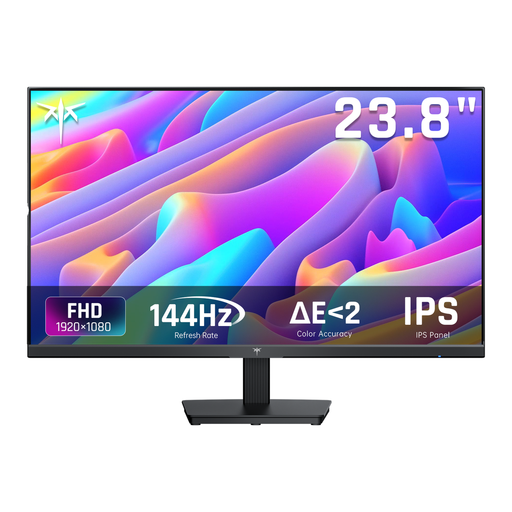 Image unavailable
KTC H24B9S 24-inch Full HD IPS monitor
The 24-inch size suits anyone looking for a compact screen for a desk with limited space.
24 inches; 1920 × 1080; Full HD; IPS; 144 Hz; 1500:1 contrast; 116% sRGB.
View at Joybuy
 Image unavailable
INNOCN 2751S PLUS 27-inch QHD Mini LED monitor
This larger QHD model suits anyone looking for more room to work with illustrations and page details; check that it will fit on your desk first.
27 inches; QHD 2K; Mini LED; 275 Hz; 1 ms; IPS; 99% Adobe RGB; 99% sRGB.
View at Joybuy
 Image unavailable
ASUS ProArt PA278CGV 27-inch QHD monitor
This 27-inch QHD model is an option for anyone who wants to review illustrations and page details on a larger screen; make sure you have enough desk space.
27 inches; 2560 × 1440; QHD LCD; black.
View at Joybuy
Frequently asked questions
Do I need 4K to lay out a puzzle book?
No, 4K isn’t automatically necessary. First check that text, grids and pages are readable at your chosen screen size; your software settings and available desk space also matter.
How can I stop illustration colours printing differently?
Prepare the file using the print profile for your intended printer and paper. Adobe explains that this combination affects the colours in the print; a proof print can help if colour accuracy matters.
Am I legally required to have a height-adjustable monitor as a student?
Not simply because you’re a student. The regulations described by Arboportaal apply to employers and employees, and include requirements for screen work lasting more than two hours a day. A well-adjusted, non-reflective workspace can still be useful.
Which consumer rights and energy information are relevant in the Netherlands?
For a standard online consumer purchase, you generally have 14 days from delivery to change your mind; ACM ConsuWijzer explains this period and the applicable exceptions. Your statutory guarantee applies alongside any manufacturer’s guarantee. EU energy labelling rules also cover computer monitors, so check the information for the exact model.


