What should you look for when choosing?
First, choose the resolution and screen space that suit your design work. Then check whether the monitor can be readjusted at the shared desk and whether its connections support your computer.
| What to consider |
What should you check? |
Who is this important for? |
| Workspace and detail |
Compare QHD and 4K at the screen size you’re considering, and check which resolution your computer can support. |
If you want to view the level, references and tools side by side, prioritise detail and workspace. Around 33% of consumers focus mainly on these design details. |
| A shared desk |
Check the monitor’s inputs and stand dimensions, and whether a KVM function is explicitly listed; multiple video inputs are not the same as a KVM. |
If you work with different users or computers, you’ll want to be able to switch connections and settings easily. Around 27% of consumers make this flexibility their top priority. |
| Screen position |
Check which adjustments the specific monitor stand offers and how much desk space it takes up. |
If different people use the same screen, you’ll want to be able to adjust the viewing position. Around 20% of consumers put adjustability first. |
| A single USB-C cable |
Check whether the laptop port supports video output, the charging power required and whether a specific cable is needed. |
If you want to connect a compatible laptop with as few separate connections as possible, check whether video and power work through the same port. Around 20% of consumers prioritise this single-cable setup. |
Joybuy products
These Joybuy models offer different options for screen space, QHD detail and shared desks. Compare the listed connections and adjustability with your computer and the space available.
 No image available
Philips 6000 Series 34B2U6603CH/00
An ultrawide option for viewing level designs alongside other windows.
34 inches and 3440 × 1440 pixels. The product description lists Thunderbolt 4, Smart KVM and height adjustment of up to 18 cm.
Joybuy
 No image available
MSI MAG 272QP QD-OLED X24
A QHD model for viewing level details and adjusting the screen position at a shared desk.
26,5 inches, QD-OLED and WQHD resolution of 2560 × 1440. The product description lists height, tilt, swivel and pivot adjustment.
Joybuy
 No image available
ASUS ProArt PA278CV
A 27-inch QHD option for design work where you need to be able to readjust the screen position.
2560 × 1440 pixels, 100% sRGB and factory calibration according to ASUS. ASUS lists USB-C power delivery of up to 65 W and height adjustment of 0–150 mm.
Joybuy
 No image available
ASUS ProArt PA278CGV
A QHD option with an adjustable stand for a shared workspace.
27 inches and 2560 × 1440 pixels. The product description lists USB-C power delivery of up to 90 W, 100% sRGB and 95% DCI-P3, plus height, tilt and swivel adjustment.
Joybuy
 No image available
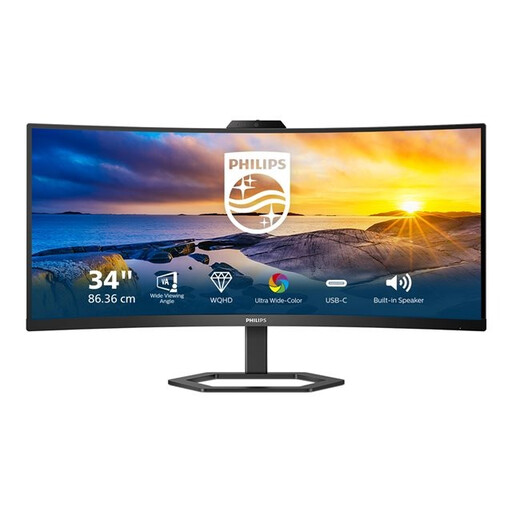
Philips 34E1C5600HE/00
An ultrawide model for viewing a level and references side by side.
34 inches, 3440 × 1440 pixels and a 21:9 aspect ratio. The product description lists tilt adjustment.
Joybuy
Frequently asked questions
Does a monitor at a shared workstation need to be height-adjustable?
For employees in the Netherlands who work with a display screen for more than 2 hours a day, Arboportaal specifies a height-adjustable screen under the applicable workplace regulations. This is not a general legal purchase requirement for every private user; the employer assesses the workplace requirements that apply.
Can I connect any USB-C laptop to a monitor with a single cable?
No, the connector shape alone isn’t enough to confirm this. Check whether the laptop supports video via the USB-C port you’ll be using, how much power it needs and which cable the monitor requires; charging capacity varies by model.
How do I set up a monitor for the next person using the desk?
Adjust the height and position if the monitor stand allows it, and also consider lighting and reflections. Arboportaal recommends avoiding reflections; an adjustable monitor won’t automatically solve problems caused by poor lighting.
What are my rights when I buy a monitor online as a consumer?
According to ACM ConsuWijzer, online consumer purchases come with a 14-day cooling-off period after delivery, subject to legal exceptions. Your statutory guarantee is separate from any manufacturer’s or seller’s guarantee: if the product doesn’t meet what you could reasonably expect under normal use, the seller is your point of contact.
How do I compare the energy use of monitors?
Compare the energy label and product information for the specific models. EU rules on energy labelling and product information apply to electronic displays. To calculate electricity costs, you’ll also need comparable consumption figures, usage hours and your own electricity tariff.


