Start with how you’ll use your images: if they’re mainly for online product photography, compare QHD monitors with a stated sRGB coverage; a 27-inch 4K screen gives you more pixels, while an Adobe RGB model may be relevant for print. Then measure the space on your desk and check that the monitor’s connections and power delivery are suitable for your laptop. The colour and resolution figures quoted are manufacturer specifications for specific models, not independent measurements of your own unit.
Which monitor is right for you?
Student posting product photos online
If you mainly edit images for the web, look at sRGB coverage and colour management rather than automatically choosing a monitor for a wide Adobe RGB workflow. Adobe describes sRGB as a relatively small colour space used by many web browsers.
Student with a laptop and a small desk
If you’re short on workspace, remember to measure the stand and allow for the cables. Also check whether your laptop can output video over USB-C and whether the monitor’s power delivery is suitable for your laptop.
Student who also prepares work for print
For a print workflow, you may need to consider colour space, monitor and printer profiles, and calibration. Adobe explains how colour profiles help align colour across devices.
What should you look for?
Start by deciding whether your photos will mainly appear online or also be printed; this will help you work out which colour space is relevant. Then measure the available space and check your laptop’s connections.
| What to consider |
What should you check? |
Who should prioritise this? |
| Colour for online photos |
Compare the stated sRGB coverage and colour modes. Distinguish between manufacturer specifications and measurements of your own screen. |
If I mainly post product photos online, I want to know which colours my screen can display as part of my workflow. Around 28% of consumers say online colour is their top priority. |
| Desk space |
Measure the available width and depth, and compare them with the monitor’s dimensions, including the stand. |
If my desk is small, I want to be sure the monitor and stand will fit without making my study space unusable. Around 22% of consumers prioritise having a suitable amount of desk space. |
| Connecting to your laptop |
Check whether your laptop can output video through the relevant USB-C port and whether the power delivery is sufficient. |
If I want to connect my laptop to the monitor, I want to know whether video and, if needed, charging will work through the port I choose. Around 17% of consumers say laptop compatibility is their top priority. |
| Features within your budget |
Set your own budget and compare it with the features and any accessories your workflow requires. |
If I want to keep my spending within a set limit, I mainly want to pay for features I actually need for my work. Around 22% of consumers prioritise their total spending. |
| Colour management for print |
Check which colour space your output requires and whether your workflow uses monitor and printer profiles and calibration. |
If I also print my product photos, I want my choice to suit the colour space and profiles used in my print workflow. Around 11% of consumers say print colour is their top priority. |
How to avoid common buying mistakes
-
Assuming a wide colour gamut guarantees accurate product colours
A wide gamut alone doesn’t guarantee that a chosen colour will look the same on other devices or in print. Colour management and suitable profiles still matter.
Choose a colour space that suits your output and include colour management in your workflow.
-
Assuming any USB-C monitor will connect to and charge your laptop with a single cable
A USB-C port on a monitor doesn’t prove that your laptop can output video through that port or charge using the available power.
Compare the exact specifications of your laptop and monitor, including video output and charging requirements.
-
Comparing screen size alone
The diagonal measurement doesn’t tell you how much desk space the stand will take up or how much room you’ll have left on a small desk.
Measure your desk and compare the monitor’s dimensions, including the stand.
-
Treating the manufacturer’s warranty as your full statutory guarantee
ACM ConsuWijzer distinguishes between a manufacturer’s or seller’s warranty and the statutory guarantee that a product will meet reasonable expectations when used normally.
Keep your purchase and product details, and contact the seller if something goes wrong.
Brands worth comparing
ASUS
The ProArt PA278CV is a QHD and sRGB option to compare for digital photo work with a laptop.
- ASUS specifies a 27-inch screen, 2560 × 1440 resolution, 100% sRGB and USB-C with 65 W power delivery for the PA278CV. ASUS also states that it is factory-calibrated to ΔE < 2.
- These are manufacturer specifications, not measurements of your own unit. Check that your laptop supports video over USB-C and that 65 W meets its charging requirements. Don’t confuse the PA278CV with the PA278QV or PA278QGV.
BenQ
The Creative Pro PD2705U is a 27-inch 4K model to compare if you’re looking for more pixels and an sRGB mode.
- BenQ specifies 3840 × 2160 resolution, 99% sRGB and USB-C with 65 W power delivery for the PD2705U.
- BenQ states an average ΔE of no more than 3; this isn’t an independent measurement of a screen you receive. Check the desk dimensions and laptop compatibility.
LG
The UltraFine 27UP850K-W is a 27-inch 4K alternative with a DCI-P3 gamut specified by LG.
- LG lists a 3840 × 2160 resolution, typically 95% DCI-P3, USB-C and an adjustable stand for this model.
- A DCI-P3 specification doesn’t establish sRGB colour accuracy. Also check the exact regional version.
EIZO
The ColorEdge CS2400S is a smaller, colour-management-focused option to compare if you also prepare work for print.
- EIZO specifies a 24.1-inch screen, 1920 × 1200 resolution and more than 99% Adobe RGB. EIZO describes hardware calibration using ColorNavigator.
- Its resolution is lower than that of the QHD and 4K models mentioned here. For predictable print results, a suitable monitor and printer profile and colour management are still important.
Dell
The UltraSharp U2724D is a QHD alternative to compare if adjustability and general screen use matter alongside photo work.
- Dell specifies a 27-inch screen, 2560 × 1440 resolution and an IPS Black panel for the U2724D.
- Check the connections on the exact U2724D model; features of other monitor variants don’t necessarily apply to this one.
Monitors at Joybuy
This Joybuy selection includes 4K monitors and portable screens. Compare the stated resolution, colour space and connections with your photo work, desk and laptop.
 No image available
LG UltraFine 27U711B-B 27-inch 4K IPS monitor
The product description lists photo editing as a use.
According to the product title: 27 inches, 4K and IPS.
View at Joybuy
 No image available
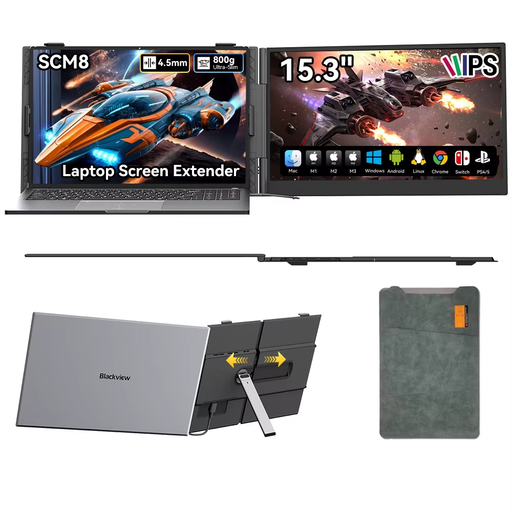
Blackview SCM8 portable monitor, 15.3 inches
The product description mentions using it as an external screen with a laptop.
The description lists USB-C, built-in speakers, a 180° adjustable stand and a protective case.
View at Joybuy
 No image available
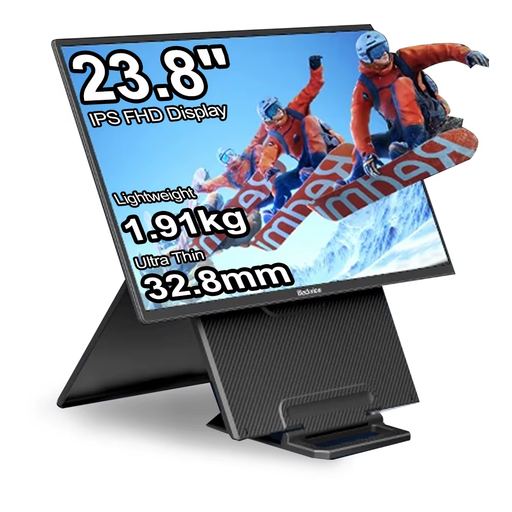
Blackview HDR LCD monitor, 23.8 inches
The product information mentions online image work and portable use.
The description lists 1920 × 1200, IPS and 100% sRGB; the title specifies 100 Hz.
View at Joybuy
 No image available
Lenovo L16 portable monitor, 16 inches
The product description mentions laptop use; check that the ports are compatible with your laptop.
The specifications list WUXGA, 1920 × 1200, IPS, 45% NTSC, USB-C DisplayPort Alt Mode and up to 65 W USB Power Delivery.
View at Joybuy
 No image available
UPERFECT portable touchscreen monitor, 15.6 inches
The product information describes this as a portable external screen for uses including working with a laptop.
The title specifies 1080P; the description lists 1920 × 1080, USB-C and mini-HDMI. The product title also mentions VESA mounting.
View at Joybuy
Frequently asked questions
Do I need 4K for product photos I post online?
No, not based on resolution alone. Weigh the screen space and level of detail you want against colour reproduction and the room available on your desk. Adobe explains how profiles help align colour across devices.
Should I recalibrate a factory-calibrated monitor?
A factory specification isn’t a measurement of your own setup. For colour-critical work with Lightroom Classic, Adobe recommends calibrating your monitor before you start; check which equipment and software are compatible with your chosen monitor.
What are my rights around returns and guarantees when buying online in the Netherlands?
According to ACM ConsuWijzer, when you buy a standard product online, you generally have a statutory cooling-off period of up to 14 days after delivery, with some exceptions. You’re also covered by a statutory guarantee that a product will meet your reasonable expectations when used normally; this isn’t automatically limited to a fixed period of two years. Before buying, check the applicable returns policy and who the seller is.
Does a monitor sold in the Netherlands need an energy label?
The European Commission states that energy labelling rules also cover computer monitors and that the label uses a scale from A to G. Use the label or model information in EPREL to compare the stated energy consumption of similar screens; check the energy class for the specific model version you’re considering.


