What should you look for when buying?
Start by checking how much space you have on your desk, then decide how you’ll use the photos. This helps you compare screen features in the context of your workspace and the finished result.
| What to consider |
What should you look for? |
Who is this important for? |
| Will the screen and stand fit on your desk? |
Measure the usable width and depth, then compare them with the dimensions including the stand. Leave room for cables, too. |
If I want to keep my small desk clear, I look at the complete setup rather than just the diagonal. Desk space is the main buying concern for around 33% of consumers. |
| Is the colour reproduction suitable for online images? |
Check the stated sRGB coverage and colour mode. If needed, allow for a suitable monitor profile or calibration as part of your editing workflow. |
When my product photos are mainly for online use, I want the sRGB display to suit that purpose. Around 27% of consumers put online colour assessment first. |
| Do you need extra detail or a wider colour gamut for print? |
Compare the native resolution, stated Adobe RGB coverage and calibration options. For print, use the profile for the intended print combination. |
If I also have product images printed, I take detail and colour management into account when choosing. Printed images are the main requirement for around 20% of consumers. |
| Are the connections compatible with your computer? |
Check that your computer can output video through the connection you plan to use. For USB-C, also check for DisplayPort Alt Mode and the power delivery required. |
When I want to get the cables and connections right for a small workspace, I check the capabilities of both my computer and monitor. Connections and workflow are the main buying concern for around 20% of consumers. |
The figures quoted show which consideration comes first for consumers in this breakdown. Manufacturer specifications can help you compare models, but they are not independent measurements of individual units.
Joybuy products for this use
This Joybuy selection includes monitors for compact workspaces and image editing, with a range of screen sizes, resolutions and connection options. Compare the listed features with the space you have and how you’ll use your photos.
 No image available
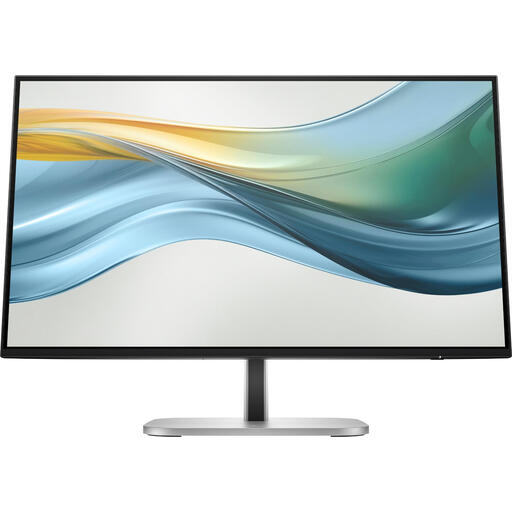
HP Series 5 Pro 524pu 23.8-inch monitor
The compact screen size and stated sRGB coverage may suit a small workspace for online product images.
23.8 inches; Full HD; 100% sRGB; USB-C with video output and up to 100 W power delivery; height-adjustable stand.
The product description states that a power adapter or charger is not included.
View at Joybuy
 No image available
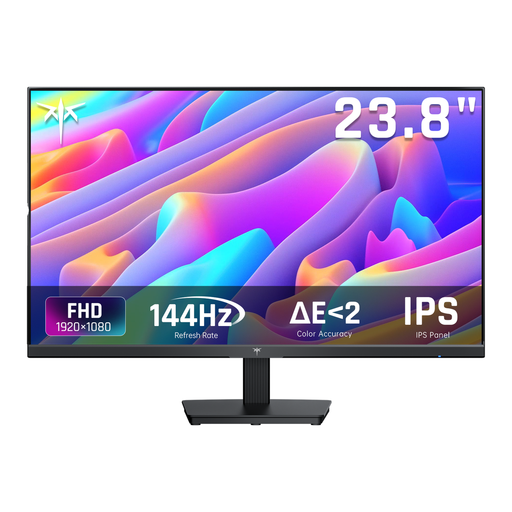
KTC H24B9S 24-inch Full HD monitor
The 24-inch screen size suits anyone looking for a compact desktop monitor. If colour assessment matters, also check the stated colour specifications.
24 inches; Full HD 1080p; IPS panel; 144 Hz; tilting stand; HDMI and DisplayPort. The product title claims a 116% sRGB gamut, which on its own doesn’t demonstrate colour accuracy.
View at Joybuy
 No image available
ARZOPA Z1RC 16-inch portable monitor
A 16-inch portable screen may be worth considering if you want extra screen space on a small desk, but check that the size suits the way you work.
2560 × 1600 pixels; 16:10; IPS; 810 g; built-in stand; USB-C and HDMI. The product description claims a 123% sRGB gamut; this is not a measurement of colour accuracy.
View at Joybuy
 No image available
ASUS ProArt PA278CV 27-inch monitor
This model may suit you if you want more screen space for detailed work; its 27-inch diagonal needs careful consideration on a small desk.
2560 × 1440 pixels; 100% sRGB; factory calibrated; USB-C with 65 W Power Delivery; height-adjustable stand.
View at Joybuy
 No image available
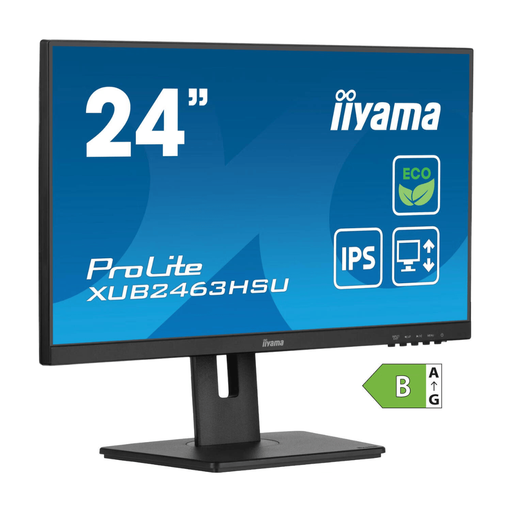
iiyama ProLite 24-inch IPS Full HD monitor
The 24-inch diagonal is a compact desktop size; for colour-critical online work, bear the stated sRGB coverage in mind.
IPS panel; Full HD; less than 99% sRGB coverage; 150 mm height adjustment.
View at Joybuy
Frequently asked questions
Do I need an Adobe RGB monitor for online product photos?
Not just for online use. Start by looking at sRGB display and a suitable monitor profile; a wider colour gamut becomes more relevant if you also prepare images for print. It won’t make images look identical on every other screen.
How do I set up a monitor for product photos that will be printed?
Use colour management and calibrate or profile your monitor. Adobe describes soft proofing using the profile for the intended printer and paper combination; a stated Adobe RGB percentage alone can’t predict the print result.
Can a single USB-C cable charge my laptop too?
Only if your laptop’s USB-C port can output video and the power delivery is suitable. BenQ lists up to 90 W for the SW242Q, while EIZO lists up to 70 W for the CS2400S; also check your own laptop’s requirements.
What are my rights when buying a monitor online in the Netherlands?
According to the Dutch government, you usually have a 14-day cancellation period when buying at a distance. If a product doesn’t meet the legal requirements, the seller is responsible for providing a suitable solution at no cost. ACM ConsuWijzer explains that the legal guarantee doesn’t have a fixed two-year duration.
What should I do with my old monitor, and does it have an energy label?
The European Commission states that computer monitors are covered by energy labelling rules for electronic displays, so compare the label for the model you’re considering. According to the Dutch government, when you buy a new appliance, you can hand an old, similar electrical appliance back to the retailer. Local council collection points are another option.


