Choose a monitor that’s easy to read and works well with your desk and computer. For working with a single document, an adjustable 24-inch 16:10 screen could be a good fit. If you want to view several windows side by side while revising, you could also consider a 27-inch QHD screen. For USB-C docking, your laptop’s video output and charging requirements are key. Changes are tracked in your document software, not on the monitor.
Who this guide is for
Writers working through revisions
If you’re writing a printer installation manual and checking comments or changes from other people, a layout that keeps the text and revision information easy to read can help. Microsoft Support explains how Word displays tracked changes and revisions.
People who spend long hours working on documents
During long writing sessions, it’s important to position your screen comfortably and reduce distracting glare. The Arboportaal offers advice on screen positioning and adjustability.
Laptop users with peripherals
If you switch between using your laptop on the go and working at a desk, consider the video connection, whether it can power your laptop and how it connects to your peripherals. Check that the monitor’s features match your laptop’s ports and charging requirements.
What to consider when choosing
Start with the windows you want to read at the same time and the space available on your desk. Then compare the screen adjustments and connections you actually need.
| What to consider |
What to look for |
Who this matters to |
| Space for text and revisions |
Compare 1920 × 1200 with 2560 × 1440 in your document software, using a text size that’s comfortable to read. |
If I want to view comments or references alongside the manual while writing, I look for useful window space; around 33% of consumers put this need first. |
| Adjustability and reflections |
Check the height adjustment, tilt and screen finish. Also consider how the screen is positioned in relation to windows. |
If you write for long periods and want to position the screen comfortably, you can weigh up the stand and the light in your room; around 27% of consumers prioritise screen positioning. |
| Connecting your laptop |
Check for USB-C video, DisplayPort Alt Mode and the charging power your laptop needs. |
If I want to connect a compatible laptop with a single cable, I check that it supports both video and power; around 20% of consumers prioritise laptop connectivity. |
| Features and running costs |
Compare the features you need and check the energy label for the specific model. |
If you don’t want to pay for features you won’t use, you can weigh up resolution, docking and energy information against your own setup; around 20% of consumers put this first. |
Common mistakes
-
Assuming every USB-C port is a full laptop dock
A USB-C connection may support data only; video and laptop charging are separate features. Check the port specifications and charging power before relying on a single cable.
Depending on the connections available, you may still need a separate video cable, charger or dock.
Compare the monitor’s port features with your laptop’s video output and charging requirements.
-
Expecting the monitor to track changes
Tracked changes are a feature of document software. A larger screen or higher resolution may change the layout, but it won’t do the revision work for you.
Check that your text, comments and any references fit your window layout at a readable size.
-
Confusing a manufacturer’s warranty with all your legal rights
According to ACM ConsuWijzer, your statutory rights apply alongside any retailer’s or manufacturer’s warranty. An additional warranty is therefore not the same as your existing legal rights.
Check what the retailer is responsible for putting right before considering additional warranty cover.
Brands to consider
Dell
The P2425 is an adjustable 24-inch 16:10 monitor for a compact document workspace.
- Dell lists a resolution of 1920 × 1200 pixels and an anti-glare finish for this model.
- The USB-C port is a downstream data port rated at up to 15 W, so don’t assume it will support laptop video and charging.
BenQ
The GW2790QT combines a 27-inch QHD screen with an adjustable stand and USB-C connection.
- BenQ specifies a resolution of 2560 × 1440 pixels, USB-C video and data, and 65 W Power Delivery.
- Check that the screen fits on your desk and that its charging power is suitable for your laptop.
Philips
The 24B2G5301/00 is a 23.8-inch Full HD monitor with a built-in USB-C dock.
- Philips lists a resolution of 1920 × 1080 pixels and energy-saving features.
- Philips says PowerSensor 2 only works with Windows 11, so don’t expect the same feature on other systems.
HP
The E27k G5 is a 27-inch USB-C docking monitor with 4K resolution.
- HP lists a resolution of 3840 × 2160 pixels and HDMI, DisplayPort and USB-C connections.
- Whether 4K gives you more useful window space depends on your display scaling settings. This resolution isn’t essential for revision work.
Monitors at Joybuy
These monitor options are suited to writing and revision work, with screens for viewing multiple windows and models offering different connections.
 No image available
Philips Evnia 3000 34M2C3500L, 34 in
A 34-inch ultrawide screen could suit you if you want to arrange your document alongside other windows.
WQHD resolution of 3440 × 1440 pixels. The product name lists DisplayPort up to 180 Hz and HDMI up to 100 Hz.
View at Joybuy
 No image available
INNOCN CB27U1 27-inch 4K UHD monitor
This model could suit you if you’re looking for a 27-inch screen and your laptop supports the stated USB-C power delivery.
3840 × 2160 pixels, 120 Hz and USB-C with 90 W Power Delivery, according to the product name.
View at Joybuy
 No image available
INNOCN 2751S PLUS QHD monitor
A 27-inch QHD model could suit you if you want to view document text and other windows on one screen.
The product name lists QHD 2K and 275 Hz. Choose based on the screen space and settings that matter for your writing work.
View at Joybuy
 No image available
LG 34WR50QK-B 34-inch monitor
A wide screen layout could suit you if you want to open extra windows alongside the manual while writing.
The product name lists a resolution of 3440 × 1440 pixels.
View at Joybuy
 No image available
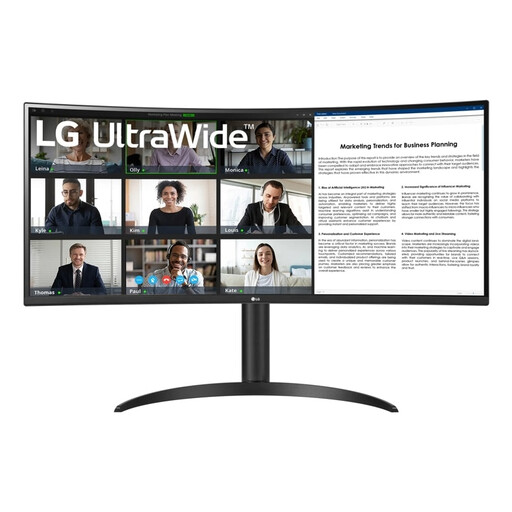
LG 34WR55QK-B 34-inch monitor
This wide monitor could suit you if you want to arrange your document and revision information side by side.
The product name lists a resolution of 3440 × 1440 pixels. Check the connections on the model on offer and your computer before choosing how to connect them.
View at Joybuy
Frequently asked questions
Can a monitor track or accept changes by itself?
No. Word tracks and displays changes through its software; the monitor shows the computer’s image. Choose a monitor for readability and screen space, and set up revision marks in your document software.
Will every USB-C monitor charge my laptop?
No. Dell specifies a USB-C downstream data port on the P2425, while BenQ lists USB-C with DisplayPort Alt Mode and 65 W Power Delivery for the GW2790QT. Check both the video capabilities and the charging power your laptop needs.
How should I position a screen for long writing sessions?
The Arboportaal advises placing the screen directly in front of you, with the top just below eye level, so you look slightly down at it. Adjust the height, tilt, lighting and any reflections to suit your workspace. This advice isn’t a guarantee that a monitor will prevent discomfort.
What are my rights when buying a monitor online in the Netherlands?
ACM ConsuWijzer says that online purchases generally come with a statutory cooling-off period of up to 14 days after delivery; check which exceptions apply. You also have statutory rights if the product doesn’t do what you could reasonably expect under normal use. A manufacturer’s or additional warranty doesn’t replace those rights.
How do I compare monitors’ energy classes?
Check the current EU energy label for the specific monitor model. The European Commission describes an A to G scale for electronic displays; don’t infer the energy class from the brand name alone.


