What should you look for in a monitor for presentations?
First, check whether you have a plug socket for the monitor at your workstation. Then compare the screen space, portability and connections your laptop needs.
| What to consider |
What to look for |
Who should pay particular attention? |
| Plug sockets and USB-C compatibility |
Check whether the laptop port supports video and how the screen gets power; ASUS lists DP Alt Mode for the ZenScreen MB16ACV. |
If I don’t have a spare plug socket, I want to know whether my laptop can send video via USB-C and power the screen. Around 36% of consumers prioritise plug socket requirements and compatibility. |
| Workspace for slides and notes |
Compare the size, aspect ratio and resolution; Lenovo lists 14 inches and 16:10 for the M14d, while the fixed Dell P2425DE is 23.8 inches QHD. |
I want to view slides alongside notes or source material, so I choose based on the available screen space. Around 29% of consumers prioritise being able to see several things at once. |
| Portability |
Compare the size and connections of the exact model; also check that your laptop supports the video and power features you need. |
If I give presentations in different places, a second screen needs to be practical to carry and connect wherever I go. Around 21% of consumers put portability between workstations first. |
| Running and service costs |
Compare the energy labels of the exact models on the same basis, and check which cables or power supplies your setup needs. Read any additional service terms separately. |
I want to know about power consumption and possible costs after purchase in advance, without confusing them with the number of plug sockets I need. Around 14% of consumers prioritise running and service costs. |
Joybuy monitors for fixed and mobile workstations
These Joybuy products suit two different needs: a fixed USB-C docking monitor with its own plug socket, or a portable second screen for a compact or flexible workstation. For portable models, check that your laptop and the port you’re using support video and power.
 Image unavailable
Dell Pro P3426WEV 34.1-inch curved WQHD USB-C hub monitor
Suitable for a fixed workstation where you need to view slides and notes side by side; the monitor needs its own plug socket.
The product title lists a 34.1-inch curved WQHD IPS screen, a USB-C hub, webcam and 90 W Power Delivery. Check that the charging power suits your laptop.
View at Joybuy
 Image unavailable
TECLAST V16H 16-inch portable monitor
A portable second-screen option for anyone who wants to view slides alongside other material; check your laptop’s video and power support beforehand.
The product title lists Full HD, 16:10, 144 Hz, two USB-C ports and Mini HDMI.
View at Joybuy
 Image unavailable
TECLAST V16Q 16-inch portable 2.5K monitor
A good fit if you’re looking for a portable second screen with a 16:10 aspect ratio for slides or notes; check the connections and power requirements for your laptop.
The product title lists a 2.5K IPS screen with 144 Hz, 16:10, two USB-C ports and Mini HDMI.
View at Joybuy
 Image unavailable
PM14R 14-inch portable monitor
A compact second screen for flexible workstations; check that the connection you choose supports video and how the monitor will get power in your setup.
The product title lists an IPS screen with 1920 × 1200 pixels and a 16:10 aspect ratio, with Type-C and Mini HDMI.
View at Joybuy
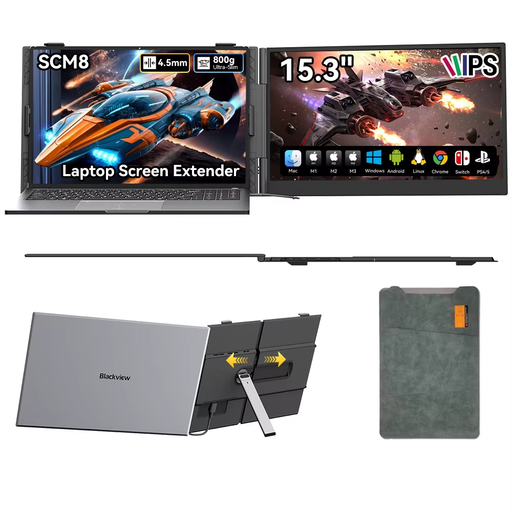 Image unavailable
Blackview SCM8 15.3-inch portable monitor
A portable screen for anyone who wants to take a second workspace between locations. Check that your device supports the video and power features you need over USB-C.
The product title lists USB-C, a built-in speaker and an adjustable stand; the product information mentions a protective case. It also specifies a minimum distance of 15 cm from medical implants.
View at Joybuy
Frequently asked questions
Does every laptop USB-C port send video to a portable monitor?
No, not every USB-C port supports video. Check the specifications for both your laptop and monitor, including the port you plan to use; a USB-C connector on its own doesn’t guarantee compatibility. Some DisplayLink solutions may require a driver.
Can I use a single USB-C cable and do away with the mains lead for a fixed monitor?
No. The USB-C cable connects the laptop to the monitor, but a fixed monitor needs its own power. Also check that the USB-C power output of the exact model is suitable for your laptop.
What should I check before connecting a portable monitor?
First, check that your laptop port supports video and how the monitor gets power. Use a cable suitable for the functions you need and follow the connection instructions for your specific model, including if a driver is required.
How do I compare the power consumption of two monitors?
Compare the kWh per 1,000 hours figures on the energy labels for the exact models. The European Commission uses an A to G energy label scale for electronic displays. To work out your own costs, you’ll also need your usage hours and electricity tariff.
Am I only entitled to a two-year statutory warranty on a monitor in the Netherlands?
No. According to the Government of the Netherlands, there is no fixed statutory warranty period in the Netherlands; you’re entitled to a product that meets what you could reasonably expect from it. If a product is faulty, contact the seller. A manufacturer’s warranty or extended warranty is in addition to these statutory rights.
Do computer monitors in the Netherlands need an EU energy label?
According to the European Commission, computer monitors are covered by the energy labelling rules for electronic displays. The label uses a scale from A to G. This applies to the information provided when the products are offered for sale; it doesn’t mean you have to choose a particular energy class as a buyer.


