What should you look for when buying?
First, measure the space for the monitor and stand. Then decide whether your work calls mainly for colour management, more visible pixels or a straightforward laptop connection.
| What to consider |
What should you check? |
Who is this most important for? |
| Desk space |
Measure the available width and depth, then compare them with the external dimensions including the stand. If you’re using an arm, also check the monitor’s mounting points and whether the arm and desk are suitable. |
If I also need to fit input devices or proof prints on the same desk, I start with the footprint rather than just the screen size. Around 36% of consumers rank their desk set-up as their main reason for buying. |
| Colour for print work |
Ask the printer for the output profile for the intended print condition. Check whether your software supports soft proofing and what calibration options are available on the exact monitor. |
When I’m assessing posters for a specific printer and paper type, suitable colour management matters more than a wide colour gamut alone. Around 29% of consumers give checking print colours their highest priority. |
| Room for detail |
Compare both the resolution and the external dimensions of the exact model. Decide whether the extra vertical space of a 16:10 screen or a higher resolution better suits your workflow. |
When I want to check small text, lines and document tools at the same time, I compare the visible pixels before choosing a compact screen. Around 21% of consumers prioritise space for detail. |
| Laptop connection |
Check whether your laptop’s USB-C port supports video. Also compare the power delivery your laptop needs with what the exact monitor model provides. |
If I’d rather connect my laptop with a single compatible cable, I check both video and charging rather than just looking at the port. Around 14% of consumers cite the laptop connection as their main reason for buying. |
Relevant brands
The features mentioned apply to the specific models and product ranges below; they are not a general assessment of an entire brand.
BenQ
The DesignVue PD2506Q combines a 25-inch QHD screen with colour modes and USB-C, for anyone weighing up extra detail space against a compact laptop set-up.
- BenQ lists 2560 × 1440, 100% sRGB, 95% P3 and USB-C with 65 W power delivery.
- The stated stand depth is 256,9 mm. Measure your available desk depth; these are manufacturer specifications, not an independent colour measurement.
EIZO
The ColorEdge CS2400S is a 24,1-inch 16:10 model for colour-managed graphic design work.
- EIZO lists 1920 × 1200, hardware calibration and more than 99% AdobeRGB.
- Check that the stand and viewing distance will work on your desk, and find out which output profile the printer requires. The coverage and performance figures are manufacturer claims.
ASUS
The ProArt PA248QFV is a 24,1-inch 16:10 option for sRGB-focused design, with an adjustable set-up.
- ASUS lists 1920 × 1200, 100% sRGB, factory calibration and height adjustment.
- The PA248QFV is a different model from the older PA248QV. Check the specifications and any accessories for the exact version.
Dell
The UltraSharp U2424H is a 23,8-inch option for a mix of design and office work.
- Dell lists Full HD and a height-adjustable stand.
- Don’t judge its suitability for critical print work solely by the UltraSharp name or IPS panel.
Philips
The 24E1N1300AE/01 offers a 23,8-inch Full HD screen with USB-C for a laptop set-up.
- Philips lists video and power delivery via a compatible USB-C connection.
- That connection alone doesn’t confirm that the monitor is suitable as a replacement for a colour-managed print monitor.
Monitors on Joybuy
These monitors are suited to poster design in a compact workspace, from portable screens to models for checking fine detail. Also compare the external dimensions and check whether the listed features suit your colour management needs and laptop.
 No image available
TECLAST V16Q portable monitor
A portable option if you’re looking for a compact set-up and extra room for detail.
The product title lists 2.5K, 144Hz, IPS, 100% sRGB, 10-bit and 16:10.
Joybuy
 No image available
ASUS ProArt PA278CV
An option to compare if you’re looking for QHD resolution for poster details; also measure the space needed for the monitor and stand.
The product title lists 27 inches and 2560 × 1440 pixels.
Joybuy
 No image available
ASUS ProArt Display PA24ACRV
A more compact screen size with QHD resolution may suit anyone checking poster details; assess the footprint separately.
The product title lists 23,8 inches and 2560 × 1440 pixels.
Joybuy
 No image available
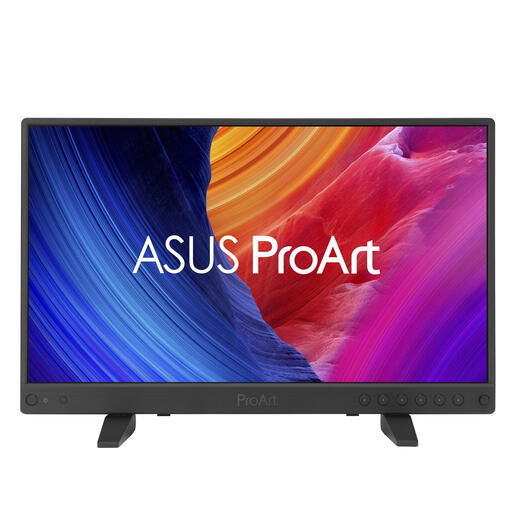
ASUS ProArt PA16USV
A portable screen to compare if you want plenty of pixels on a smaller screen.
The product title lists 15,6 inches and 3840 × 2160 pixels (4K). For the best display, the connected source must support 4K output.
Joybuy
 No image available
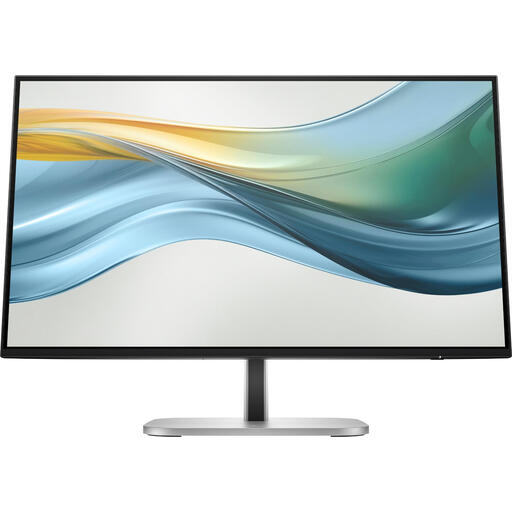
HP Series 5 Pro 524pu
An option for mixed use if you’re looking for a 23,8-inch monitor with USB-C; check whether Full HD gives you enough room for detail in your work.
The product title lists Full HD and USB-C.
Joybuy
Frequently asked questions
Is a wide colour gamut enough to predict how my poster will look when printed?
No, a wide colour gamut alone can’t predict how a print will look. Use suitable colour profiles and a soft proof for the intended output condition; calibration and ambient light affect what you see on screen.
How can I make a small workspace work well?
Measure the available depth and compare it with the dimensions including the stand. If you’re using a monitor arm, check that the monitor mounting points, arm and desk are all suitable; for example, BenQ lists VESA 100 × 100 mm for the PD2506Q.
What should I do after set-up if I’m assessing posters for print?
Use a suitable monitor profile and the output profile for the intended print condition, and calibrate the screen for your working environment. Adobe stresses that calibration, ambient light and paper quality, together with colour management, all affect how you assess a print.
What rights do I have in the Netherlands when I buy a monitor online?
As a consumer, you generally have up to 14 days after delivery to change your mind about an online purchase, subject to legal exceptions. ACM ConsuWijzer also states that statutory guarantees apply if a product does not perform as you could reasonably expect under normal use; this is not the same as a fixed warranty period for every monitor. Check separately for any additional manufacturer’s warranty.
Do Dutch workplace rules apply to everyone with a small desk?
No. Arboportaal outlines employers’ obligations for display screen work, including workplace requirements. These are not general product specifications or uniform requirements for every personal purchase.


