What should you look for?
First decide whether you’ll be assessing prints critically or publishing mainly online. Then consider detail, the lighting in your workspace and how your laptop connects.
| What to consider |
What to look for |
Who is this important for? |
| Colour for printing |
Check the stated colour gamut, calibration options and whether a measuring sensor is included. Also match your colour profile and working environment to your print workflow. |
If I assess portraits for printing too, I want to match colour management, calibration and workspace lighting. Around 33% of consumers put print colour first. |
| Portrait detail |
Compare screen size and native resolution, as well as the colour and calibration features. |
When I want to assess small retouches accurately and still have room for the image and editing tools, I look at how clearly details are displayed. Around 25% of consumers prioritise portrait detail. |
| Reflections and lighting |
Check the screen finish and its position in relation to windows and lights. Make sure a hood is included with the exact version. |
If the lighting in my home workspace varies, I want to be able to minimise reflections and assess my images under similar conditions. Around 25% of consumers prioritise controlling light. |
| Connecting a laptop |
Compare the video support of your laptop’s port and its power requirements with the specifications of the exact monitor. Also check which accessories are included. |
When I use my laptop at the same desk every day, I want to know whether the chosen connection can handle both the picture and power. Around 17% of consumers prioritise laptop connectivity. |
Joybuy monitors for portrait retouching
The Joybuy picks below are suited to portrait retouching at home, with an emphasis on 4K detail and, where specified, connectivity or reducing reflections.
 No image available
Philips 32E1N1800LA 32-inch 4K UHD monitor
A 32-inch screen for assessing portrait detail across a large 4K display.
VA panel; 3840 × 2160 pixels; 60 Hz.
2× HDMI and DisplayPort; tilt-adjustable stand and speakers.
Joybuy
 No image available
CRUA CR320QB 32-inch curved 4K monitor
This 32-inch 4K model offers a large screen for digital portrait retouching; the title also states 100% sRGB.
VA panel; 3000R curvature; 3840 × 2160 pixels; HDR10.
Check whether the curved screen and stated colour gamut suit the way you work.
Joybuy
 No image available
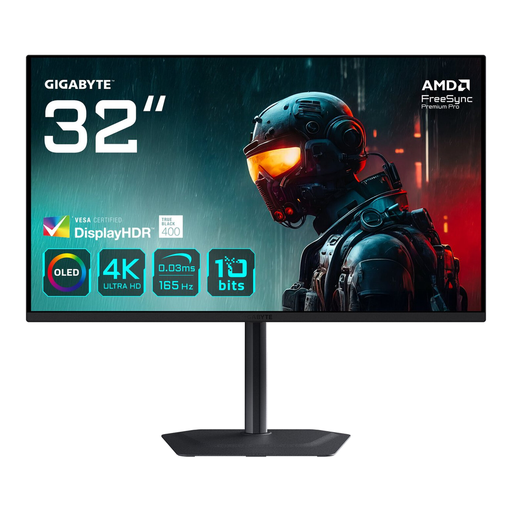
GIGABYTE MO32U 31.5-inch 4K OLED monitor
A 31.5-inch 4K screen for viewing fine portrait detail across a large display.
OLED; 3840 × 2160 pixels.
The stated panel technology and resolution alone don’t tell you how the monitor will display colour-critical prints. Check the colour and calibration specifications that suit your workflow.
Joybuy
 No image available
BenQ PD3225U 32-inch 4K monitor
A 32-inch 4K monitor for anyone who wants to assess portrait detail on a generous screen.
IPS panel; Thunderbolt 3; power delivery up to 85 W.
BenQ states that this model has Pantone SkinTone validation. Check how the connections and colour workflow suit your laptop and editing software.
Joybuy
 No image available
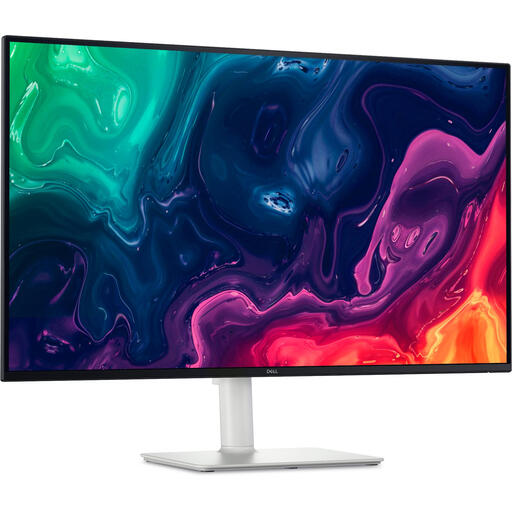
Dell Plus S3225QS 31.5-inch 4K monitor
A 31.5-inch 4K screen for portrait retouching across a large workspace.
3840 × 2160 pixels; matte anti-reflective finish.
The product description lists a height-adjustable stand; check the monitor position and light in your workspace.
Joybuy
Frequently asked questions
Is 99% Adobe RGB enough to assess portrait prints accurately?
No, a stated coverage of 99% Adobe RGB isn’t enough on its own. Calibration, colour profiles, ambient light and paper also play a part in assessing prints.
How should I set up my monitor at home for colour-critical work?
Reduce distracting reflections, keep the lighting as consistent as possible, and calibrate and profile your monitor to suit your workflow. Adobe identifies the monitor, ambient light and paper together as elements of a predictable print workflow.
Can a single USB-C cable always provide picture and power for my laptop?
No, it depends on your laptop and the exact monitor. Check whether your laptop supports video through that USB-C port, and compare its power requirements with the monitor’s stated output.
What are my rights in the Netherlands if an online monitor purchase doesn’t suit me or is faulty?
When you buy online from a business, you generally have a 14-day cooling-off period from delivery, as explained by the Netherlands Enterprise Agency and ACM ConsuWijzer; check the terms and any applicable exceptions. If the monitor is faulty, contact the seller to arrange a solution. The cooling-off period and your rights when a product is faulty are separate matters.
Where can I compare the energy use of monitors?
Compare the energy label for the exact version and, where available, check the details in the European EPREL database. The European Union uses an efficiency scale from A to G for electronic displays.


