
Portrait editor with a small desk
You want to review photos without the screen and stand taking over your work surface. So compare the complete setup, not just the screen size.


First, measure the available width and depth of your desk, including the monitor stand. Then choose based on what you’ll use the images for: a suitable sRGB workflow is a sensible starting point for digital portraits, while printing also calls for attention to Adobe RGB, calibration and output profiles. A 24.1-inch model takes up less desk space, while 27-inch 4K offers more pixels but needs a larger setup. The quoted colour figures are manufacturer specifications, not measurements of the individual monitor you receive.
You want to review photos without the screen and stand taking over your work surface. So compare the complete setup, not just the screen size.
You prepare colour-critical prints and want to consider calibration and the profiles for your print process, as well as a suitable monitor.
You assess skin detail and use editing panels. You want to weigh up whether the extra pixels are worth the larger physical screen size.
First measure the complete setup, then decide which colour space suits your output, and finally compare resolution and laptop connections.
| What to consider | What should you check? | Who should prioritise this? |
|---|---|---|
| Will the whole setup fit? | Measure the available width and depth, then compare them with the dimensions including the stand. BenQ lists the SW242Q as 533.2 mm wide and 262.6 mm deep with the stand; ASUS lists the PA279CRV as 61.22 cm wide and 21.50 cm deep. | With limited desk space, I want to know whether the stand will fit too, not just whether the screen looks narrow enough. Around 33% of consumers put desk fit first. |
| Does the colour reproduction suit my output? | Decide whether you mainly publish digitally or print, then check the quoted sRGB or Adobe RGB coverage and calibration options. Adobe recommends sRGB for web compatibility, among other uses, and Adobe RGB for certain print workflows. | If I print portraits, I want the screen, document and output profiles to suit my workflow. Around 27% of consumers put colour management first. |
| Are there enough pixels for fine detail? | Compare the native resolution and screen size with the space you want for photos and editing panels. EIZO lists 1920 × 1200 for the CS2400S, BenQ lists 2560 × 1600 for the SW242Q, and ASUS lists 3840 × 2160 for the PA279CRV. | If I want to view skin detail and panels at the same time, I weigh the extra pixels against the space a larger screen takes up. Around 27% of consumers put room for detail first. |
| Will the laptop connection work? | Check that the laptop supports video through the chosen port, that the cable fits and that the monitor supplies the charging power your laptop needs. BenQ lists 90 W for the SW242Q and ASUS lists 96 W for the PA279CRV. | If I want to connect my laptop with as few cables as possible, I check that both the computer and monitor support the combination I need. Around 13% of consumers put laptop connectivity first. |
The stand and any additional components take up space too. A screen may fit across the desk but still get in the way on a limited work surface.
Compare the dimensions with the stand against the free space on your desk. If you’re using a monitor arm, check the mounting requirements and that the arm suits your setup.
A monitor arm may give you more flexibility over placement, but you’ll need a suitable mounting point and extra time to install it.
Adobe describes document, monitor and output profiles as separate parts of colour management. A quoted screen gamut doesn’t replace these steps.
First decide what your output will be, then check how you can profile the screen. Adobe recommends using measuring equipment for colour-critical work.
Profiling can take time and may require suitable measuring equipment.
The monitor, laptop port and cable must all support the video connection and charging capacity you need.
Check the specifications for both devices and the cable before relying on a single-cable setup.
Depending on the combination, you may need a suitable alternative cable or a separate laptop power supply.
The SW242Q is a 24.1-inch option to consider if a compact setup and a wide quoted colour gamut are important to you.
The ColorEdge CS2400S is a 24.1-inch option for photo and print workflows where calibration matters.
The ProArt PA279CRV is a 27-inch 4K option for anyone who wants more screen space and has room for a larger setup.
The UltraFine 27UP850K-W is a 27-inch 4K option to compare if detail space and laptop connectivity matter to you.
The UltraSharp U2725QE is a 27-inch 4K hub option for anyone combining portrait editing with a laptop workstation.
The options below range from portable 15.6- and 16-inch screens to desktop monitors around 24 inches. Compare their resolution, connections and product details with your desk space and portrait workflow.
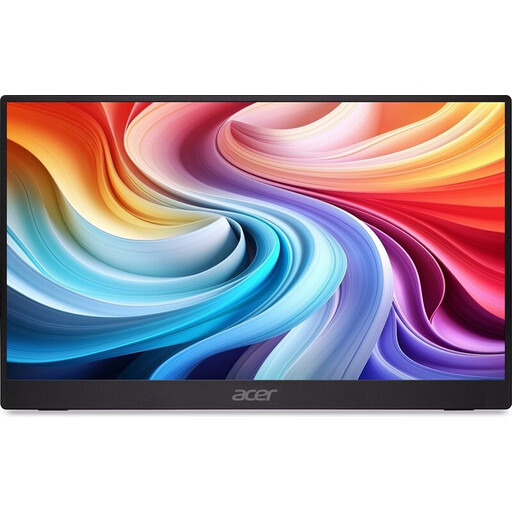 No image available
The portable size may suit a small work surface; the product information lists HDMI and USB-C connections.
The product name specifies 15.6 inches and 60 Hz. According to the product information, a charger isn’t included as standard.
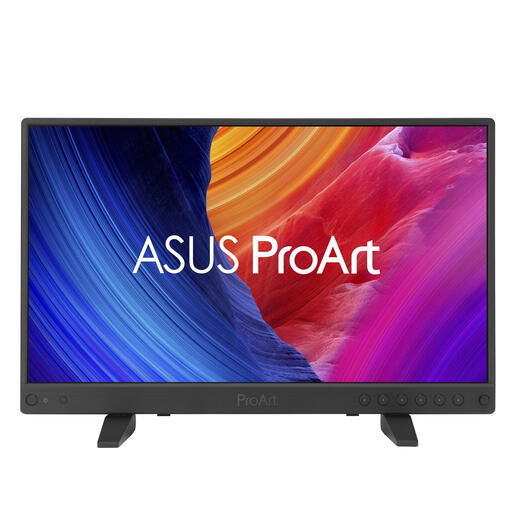 No image available
This portable model may be worth considering if you’re looking for a small screen for image editing. The description also mentions positioning options with a dual stand and tripod mount.
The product information lists 3840 × 2160, 100% sRGB, factory calibration and USB-C with DisplayPort Alt Mode.
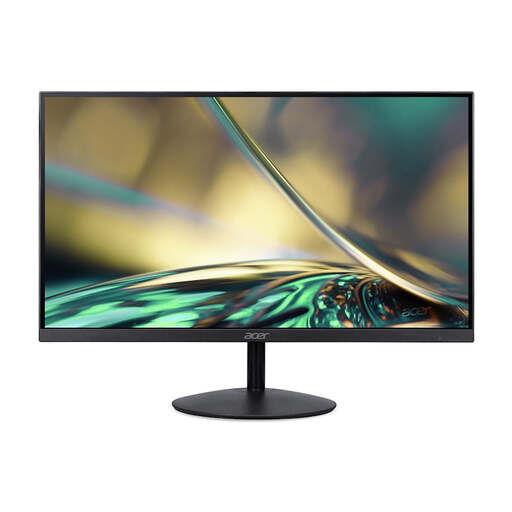 No image available
This desktop monitor is one to compare if you’re looking for a screen around 24 inches for a limited workspace.
The product information lists a 23.8-inch diagonal, 1920 × 1080 resolution and a VA panel. According to the product description, a charger isn’t included as standard.
 No image available
The portable size and built-in stand may suit a compact or mobile workspace.
The product information lists 2560 × 1600, an IPS screen, 100% sRGB, USB-C and Mini HDMI.
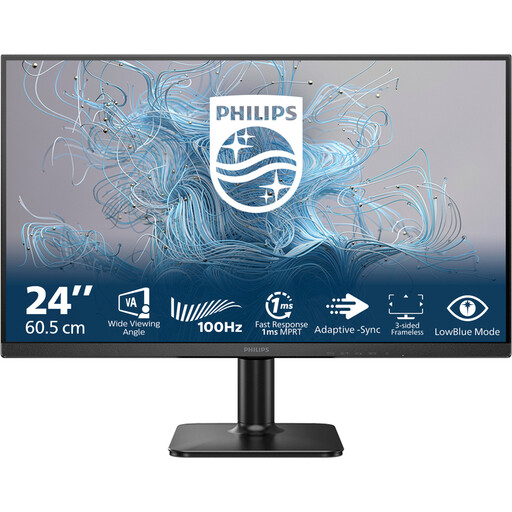 No image available
A desktop monitor around 24 inches to consider if you’re short on desk space.
The product name lists Full HD, 100 Hz and a VA panel.
Not just because you publish digitally. Adobe recommends sRGB for web compatibility, among other uses, and Adobe RGB for certain print workflows. Check the document and monitor profiles for your needs too, rather than looking only at a gamut percentage.
Use a monitor profile that suits your workflow. For printing, also consider the profile for the output combination you’re using. Adobe recommends measuring equipment for colour-critical work and suggests monthly recalibration to account for ageing display components.
No. Don’t assume accessories are included just because a monitor is described as supporting hardware calibration. LG states that Calibration Studio software isn’t included with the 27UP850K-W. Check what software, cables and measuring equipment come with your chosen model and package.
For an eligible online purchase from a business, the Dutch government generally provides a 14-day cooling-off period, subject to exceptions. This arrangement doesn’t apply to purchases from a private individual. The product must also conform to the contract. The Dutch government states that the Netherlands has no fixed statutory guarantee period, and that you should contact the seller if a product is faulty.
Compare the EU energy information for the exact model and the same operating conditions. The European EPREL database includes information such as energy class and power consumption for SDR. Don’t compare these figures directly with a maximum power consumption or HDR figure.