What should you look for?
First decide which screen you’ll use to make final colour judgements and whether your portrait is mainly for print or on-screen publication. Then choose the connections and workspace you need for your second screen.
| Consideration |
What should you check? |
Most relevant for |
| Colour assessment |
Compare sRGB coverage and, for print work, Adobe RGB coverage. Also check which calibration features and tools are included with the exact model. |
If I’m assessing portraits for print, I want the colour gamut and calibration to suit my output. Colour assessment for print is the top priority for around 36% of consumers. |
| Two screens |
Check the video outputs on your computer or dock, the monitor inputs, the space available on your desk and your preferred screen position. |
If I want to assess the photo on one screen and keep image selection or tools on the other, I look at the connections and layout. A convenient two-screen setup is the top priority for around 29% of consumers. |
| Detail and workspace |
Compare screen size, resolution and adjustability. Also check whether you can set the scaling for each screen to suit your needs. |
When I do a lot of retouching, I want to see the details without making text and controls impractical on my desk. Detail and workspace are the top priority for around 21% of consumers. |
| Total cost of ownership |
Check what’s included with the model and compare the EU energy label for screens of a similar size. |
If I’m only paying for features I use in my workflow, I also want to know which cables or tools I’ll still need. Total cost of ownership is the top priority for around 14% of consumers. |
Joybuy products
These Joybuy models are 4K screens for portrait editing and a multi-window workspace. Their strengths vary, from Adobe RGB to connections and workspace.
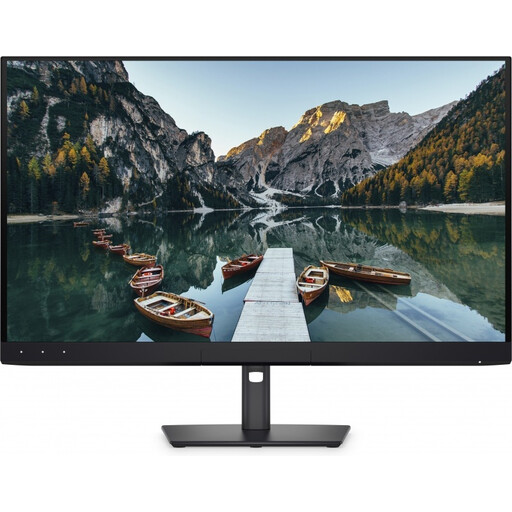 Image unavailable
Dell UltraSharp U3226Q 32-inch 4K UHD 120Hz QD-OLED monitor
Suited to anyone looking to pair a large primary screen for colour-critical work with features for using multiple devices and windows.
The product information lists 32 inches, 4K UHD, 120 Hz and QD-OLED. It also mentions 94% Adobe RGB, an integrated colorimeter, Auto-KVM, Picture-by-Picture and Picture-in-Picture.
View at Joybuy
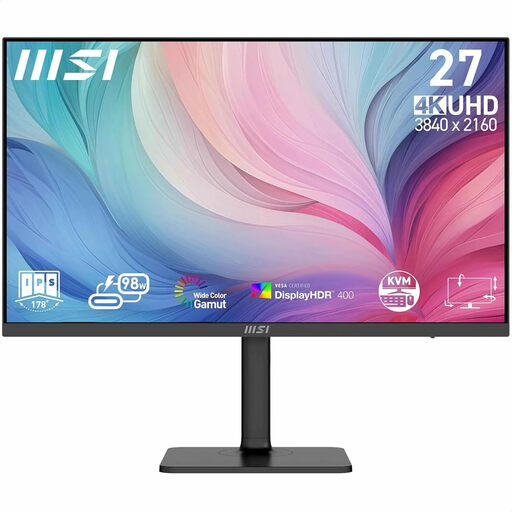 Image unavailable
MSI Modern MD272UPHG 27-inch 4K UHD monitor
Suited to anyone looking for a 4K screen for photo and video editing who wants to compare features for switching between sources.
The product information lists 27 inches, 3840 × 2160 pixels, 94% Adobe RGB, USB-C with 98 W Power Delivery, factory calibration, KVM and PIP/PBP.
View at Joybuy
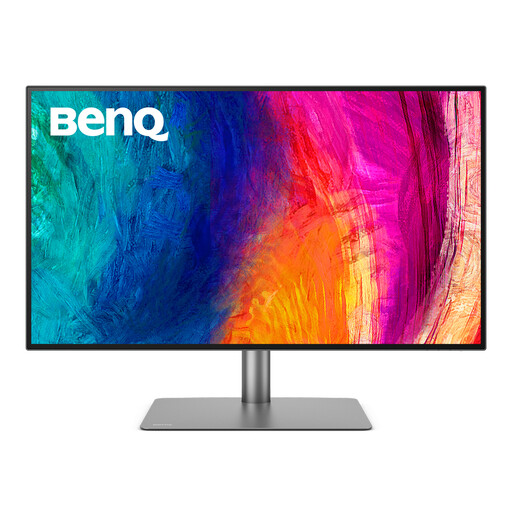 Image unavailable
BenQ PD3225U 32-inch 4K UHD monitor
Suited to anyone who values extra screen space and connection options for a multi-device workspace.
The product information lists 32 inches and 3840 × 2160 pixels. It also mentions Thunderbolt 3 with 85 W Power Delivery, daisy-chaining and a KVM switch.
View at Joybuy
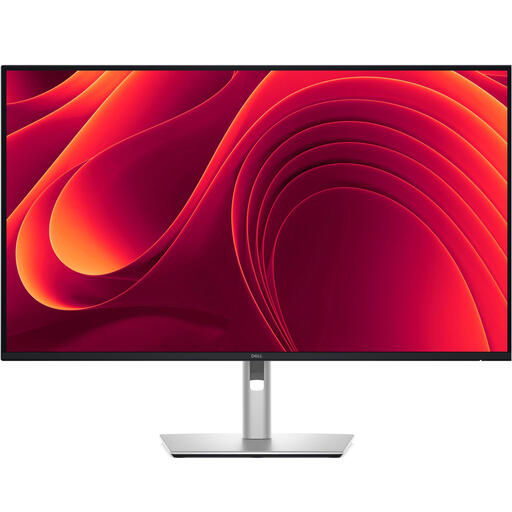 Image unavailable
Dell Pro Plus P3225QE 31.5-inch 4K UHD monitor
Suited to anyone looking to combine a spacious 4K screen for retouching and multiple work windows with laptop connectivity.
The product information lists 31.5 inches, 3840 × 2160 pixels, 100 Hz, USB-C with 90 W Power Delivery and an RJ45 network port. An adjustable stand is also mentioned.
View at Joybuy
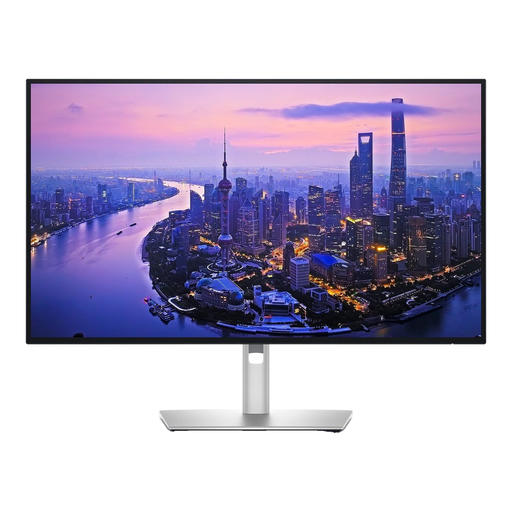 Image unavailable
Dell UltraSharp U2725QE 27-inch 4K UHD monitor
Suited to anyone looking to compare a more compact 4K screen with hub features for a workspace with a second monitor.
The product information lists 27 inches, 3840 × 2160 pixels, 120 Hz and 99% DCI-P3. Dell also lists IPS Black, adjustability and a Thunderbolt hub for this model.
View at Joybuy
Frequently asked questions
Do both screens need to show the same colours?
Not necessarily, if you use one screen for final colour assessment. Set up both screens carefully; different models can display a photo noticeably differently.
How do I set up the second screen?
First check whether your computer or dock can connect to both screens. Microsoft Support explains how to configure detected screens individually and arrange their positions in Windows; Adobe explains how Lightroom Classic can display a second window on a connected monitor.
Does a factory calibration report replace later calibration?
Not if you need accurate, consistent colour display. Profiling describes how a screen displays colour, while calibration adjusts that display; check which tools your model and software require.
What are my rights if a monitor bought online is faulty?
According to the Dutch government, products sold in the Netherlands must be of satisfactory quality, and the seller must resolve any problems. There’s no fixed statutory guarantee period; what you can expect depends on factors including the product and how long you’ve used it. For distance purchases from a business, you’ll often have a 14-day cooling-off period.
What safety and energy information should I check?
Check for the CE marking on a monitor sold in the EU; the Dutch government also highlights this when buying from outside the EU. The European Commission describes an A-to-G energy label for electronic displays. That label alone tells you nothing about colour display.


