What should you look for?
For shoppers choosing a monitor to assess a poetry cover and multiple versions, the main considerations are where the design will end up, how much workspace you need and which connections are available.
| What to consider |
What should you check? |
Who is this important for? |
| Colour for print |
Check the colour modes of the exact model and ask your printer for the appropriate ICC profile. If needed, review a proof on the intended paper. |
If I’m having the cover printed, I want to assess colours in relation to the print profile and paper. Around 31% of shoppers choosing a monitor for this purpose prioritise print colour. |
| Comparing versions |
Check whether your preferred windows fit side by side, and review the screen size, resolution and scaling settings. |
I want to see cover or size variations side by side without constantly switching windows. Around 31% of shoppers prioritise comparing versions. |
| Small typography |
Check the resolution of the exact model and view sample material using your font sizes at a normal working distance. |
For a text-focused cover, I want to assess small lettering and fine details without losing sight of the overall composition. Around 23% of shoppers prioritise typographic detail. |
| Connections and workspace |
Check the video output, USB-C mode and any charging requirements against your computer and cable. Also check the stand’s dimensions and adjustability. |
I want the monitor to suit my computer and desk, especially if I’ll be working at it for long periods. Around 15% of shoppers prioritise connections and workspace. |
Joybuy monitor options for cover design
These monitor options are suited to designing and comparing cover versions, with a range of screen sizes and 4K resolution. Check that each model’s connections and listed features suit your computer and colour workflow.
 Image unavailable
Dell UltraSharp U3226Q 32-inch 4K UHD 120Hz QD-OLED monitor
An option for assessing cover details and multiple versions on a large screen.
32 inches, 4K UHD, 120Hz and QD-OLED.
View at Joybuy
 Image unavailable
MSI Modern MD272UPHG 27-inch 4K monitor
A 27-inch option for viewing small typography and cover details; assess text from your usual viewing distance.
27 inches, 3840 × 2160 pixels and 4K Ultra HD.
View at Joybuy
 Image unavailable
BenQ PD3225U 32-inch 4K Ultra HD monitor
The 32-inch size may suit you if you want to view multiple cover variations or design windows side by side.
32 inches and 3840 × 2160 pixels.
View at Joybuy
 Image unavailable
BenQ PD3205U 31.5-inch 4K Ultra HD monitor
A larger screen for assessing cover variations and details side by side.
31.5 inches and 3840 × 2160 pixels.
View at Joybuy
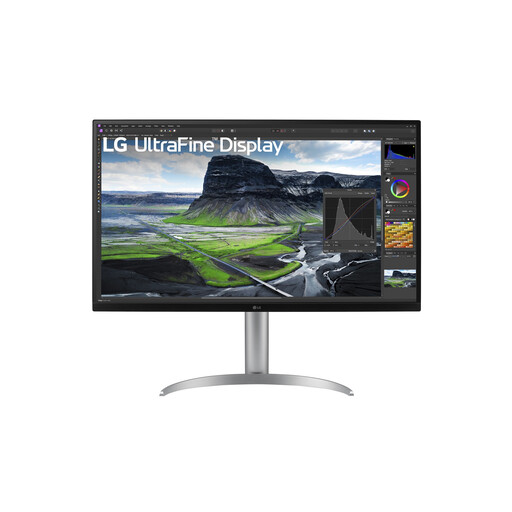 Image unavailable
LG 32UQ850V-W 31.5-inch 4K Ultra HD monitor
The 31.5-inch screen may give you room to view several cover versions or design windows at once.
31.5 inches and 3840 × 2160 pixels.
View at Joybuy
Frequently asked questions
Will a monitor with 99% Adobe RGB automatically make my printed cover colour-accurate?
No. The percentage describes the screen’s stated colour gamut, not the result on a particular type of paper. Where possible, use your printer’s ICC profile for a soft proof, and review a suitable physical proof before making a final decision.
Do I need a second monitor to work on multiple cover versions?
Not necessarily. A larger screen can give you room for windows side by side, but you manage versions in your design software. Adobe, for example, explains how to create alternate layouts in InDesign for different sizes or orientations within a single document.
What should I check when connecting and setting up a monitor?
Check the video connection and any USB-C power delivery on the exact model against your computer and cable. Then adjust the screen height and colour mode to suit your workspace and workflow. For colour-critical print work, regular calibration may be part of the process.
How can I compare energy use, and what can I do if the monitor develops a fault?
The European Commission describes an energy label from A to G for electronic displays. According to the Dutch government, the Netherlands has no fixed statutory guarantee period: you’re entitled to a product that works properly and can contact the retailer if there’s a fault; a manufacturer’s warranty is additional.
Do Dutch workplace requirements apply if I spend long periods working on a cover?
For employees who work with display screens for more than two hours a day, Arboportaal sets out workplace requirements, including that the screen and keyboard must not be attached to each other. This requirement applies to the work situation described and isn’t a universal product specification for every private buyer.


