
Writers who want to see their script and source side by side
If you want to read dialogue and reference material while writing, weigh up screen size and resolution against your preferred text size.


A compact Full HD screen is a good choice if you mainly write your script and only open reference material occasionally. A 27-inch QHD screen gives you more room to place text alongside a source. A 34-inch ultrawide screen suits anyone who wants to view several windows at once, as long as it fits on the desk. Whichever option you choose, check that the text is readable at your preferred display scaling and that the connections are compatible with your computer.
If you want to read dialogue and reference material while writing, weigh up screen size and resolution against your preferred text size.
If you have limited space to work with, switching between windows may be more practical than fitting a wide screen on your desk.
An adjustable workstation and readable text are important considerations. Arboportaal lists factors such as symbols that are too small and screen reflections, which can reduce readability.
First decide what matters most for your work: viewing several windows at once, readability during long sessions, desk space or your laptop connection.
| Consideration | What to look for | Who is this important for? |
|---|---|---|
| Script and reference material at the same time | Open both windows at your preferred text size and consider both the resolution and the physical width of the screen. | I want to read my script and source material at the same time while writing, without constantly switching between windows. Around 36% of consumers give the highest priority to windows that can be read simultaneously. |
| Readability during long sessions | Check the display scaling, text size, adjustability and the position of light sources in relation to the screen. | When I write for long periods, I want to read text at a suitable size and adjust the screen to my workspace. Around 29% of consumers prioritise readability during long sessions. |
| Size to suit your desk | Measure the available width and depth, including space for the stand, keyboard and your viewing position. | At a small desk, I want to leave enough room to work and avoid the monitor setup getting in the way. For around 21% of consumers, limited desk space is the top priority. |
| Connecting and charging a laptop | Compare your laptop’s video output and charging requirements with the monitor port and the cable you need. | I’d prefer to connect my laptop through the monitor and, if the combination supports it, charge it too. Around 14% of consumers give laptop connectivity and potential charging the highest priority. |
The screens reviewed also differ in resolution and physical dimensions. A larger diagonal measurement doesn’t tell you how much room your script and reference material will take up at your preferred text size.
Try the window layout you actually use and measure your desk before choosing a size.
The combination of display and charging you need depends on the laptop, monitor and cable you use.
Check your laptop’s video support and charging requirements, then compare them with the ports and charging power of the exact monitor you’re considering.
If the combination doesn’t meet your charging requirements, you may need a separate power supply.
There is no fixed statutory warranty period in the Netherlands. According to the Dutch government, your statutory rights depend on what you could reasonably expect from the product.
Keep your proof of purchase and contact the seller if something goes wrong. Read the terms and conditions before taking out additional cover.
The Pro Plus P2725DE is a 27-inch QHD hub monitor for anyone looking for laptop connectivity as well as room to write.
The 34WR55QC-B is an ultrawide model for anyone who wants to arrange a script, notes and source material side by side.
The 243S1/00 offers a more compact 23.8-inch Full HD option with a USB-C dock.
The ViewFinity S6 S60UD LS27D600UAUXEN is a 27-inch QHD option to consider for working with multiple windows.
The GW2790QT is a 27-inch QHD model to consider if you’re comparing adjustable setups and USB-C connectivity.
This selection includes compact Full HD and QHD monitors, a 27-inch 4K model and an ultrawide screen to suit different ways of working with a script and reference material.
 No image available
The ultrawide format may suit you if you want to arrange your script and reference material side by side; check that the screen fits on your desk first.
The product name lists an IPS screen, USB-C hub, webcam, 100 Hz and 90 W Power Delivery.
 No image available
The 27-inch model may suit you if you want to place your script and source material side by side; check how the text looks at your usual display scaling.
The product name lists 3840 × 2160 pixels, 60 Hz, 4 ms, HDMI, DisplayPort and a height-adjustable stand.
 No image available
This more compact size may suit you if you want to view your script and reference material side by side without installing an ultrawide screen.
The product name lists 2560 × 1440 pixels.
 No image available
The 27-inch QHD model may suit you if you usually work with a script and one reference window at the same time.
The product name lists 2560 × 1440 pixels.
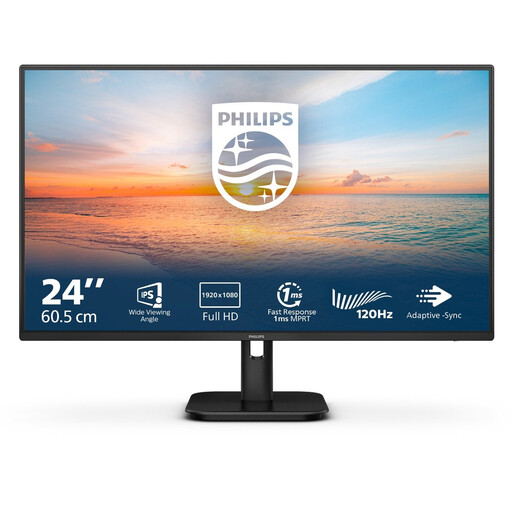 No image available
This compact Full HD option may suit you if you usually write in one document and open your reference material as needed.
The product name lists 1920 × 1080 pixels, 100 Hz and built-in speakers. This resolution offers fewer horizontal pixels than QHD for viewing two large text windows.
No. Start by checking how two windows look at your preferred text size. The options described range from compact Full HD to 27-inch QHD and ultrawide; also measure your desk to see whether a larger screen will fit.
Check that the text is readable at your chosen display scaling and that you can adjust the screen position and lighting to suit your workspace. Arboportaal lists small symbols and reflections as factors that can reduce readability.
Not always. LG describes OnScreen Control as software that includes a screen-splitting feature; check whether the software and operating system are supported for the exact monitor. You can also arrange windows using your computer’s built-in features.
That depends on the laptop and monitor combination. Check whether the laptop can output video through the connection and compare its charging requirements with the power supplied by the monitor. Also check which cable you need.
The rules on working with display screens relate to the workplace and employers’ responsibilities. Arboportaal explains that screen work should be alternated at set intervals with other work or a break; this is not automatically a purchasing requirement for every home user.