
Level designer with lots of editor windows
As you build, you switch between code, the level editor, documentation and a game preview. Readability, layout and screen position are all important when choosing a monitor.


If you mainly work in an editor with code and documentation, start with a clear workspace and an easily adjustable setup. If you regularly review moving playtests, factor in the stated refresh rate, but also consider what your computer and connection can handle. Resolution and USB-C may matter more if you need plenty of visual detail or want to connect a laptop. No monitor specification can replace testing your level on the aspect ratios and devices you’re designing for.
As you build, you switch between code, the level editor, documentation and a game preview. Readability, layout and screen position are all important when choosing a monitor.
You regularly test jumps, scrolling scenes and animations. Check the stated refresh rate, but don’t confuse it with the number of frames your computer actually renders.
You spend long periods at the same desk or connect a laptop to your monitor. Adjustability and the specific capabilities of the ports may therefore be important factors.
| What to consider | What to look for | Who is it most relevant to? |
|---|---|---|
| Workspace and readability | Compare screen size and resolution, and check that code and windows remain easy to read at your preferred scaling setting. | If I want to view the editor, code and game preview side by side, I prioritise a clear workspace. Around 31% of consumers say workspace is their top buying priority. |
| Movement in playtests | Check the stated refresh rate, and whether your computer, port and cable support the picture mode you want. | If I regularly assess jumps or scrolling scenes, I want to know what the screen and my computer can display together. Around 25% of consumers prioritise movement during playtests. |
| Adjustable workspace | Check that the stand offers the height and tilt adjustments you want and fits on your desk. | For long work sessions, I want to be able to adjust the screen to suit my workspace. Around 19% of consumers rank an adjustable setup above other buying priorities. |
| Colour, detail and contrast | Check the stated colour and picture settings, and weigh up the panel type for your use, including static editor windows. | If I’m assessing sprites, backgrounds or dark scenes, picture quality matters more. Around 13% of consumers prioritise visual assessment. |
| Connecting to your computer | Compare your computer’s video outputs with the monitor’s inputs. For USB-C, also check the required charging support and cable. | If I want to connect my existing laptop or PC, I want to know in advance which connections will actually work. Around 12% of consumers make connectivity their top buying priority. |
The monitor can only display what your computer and chosen connection provide. A high stated refresh rate doesn’t, by itself, tell you how many frames your game renders.
Check your computer, cable and selected picture mode separately from the monitor’s specifications.
With long periods of use and mostly static windows, permanent image retention is a relevant consideration. This is different from viewing changing game images.
Compare OLED with a suitable LCD option, and read the information for the exact panel and model.
A USB-C port doesn’t automatically mean your laptop can output video through it or receive the required charging power.
Check the video capabilities of both devices, the charging power and the cable for the complete setup.
Dell offers various monitors for work-focused setups, as well as models with higher stated refresh rates.
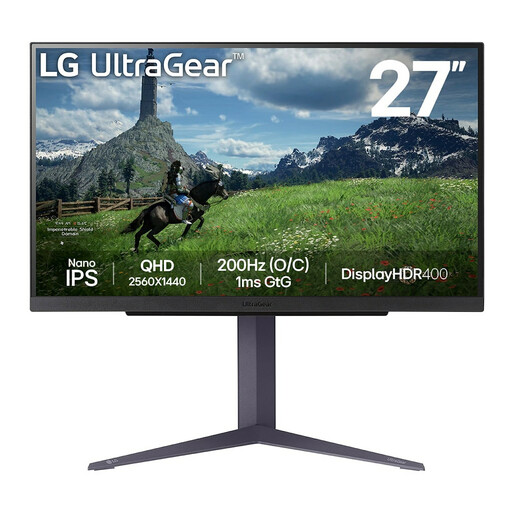
The LG UltraGear 27GR93U-B is worth considering if you want to assess 4K detail alongside a high stated refresh rate.
The Evnia 27M2N5500/01 is a QHD model to consider if you regularly run playtests.
This selection includes monitors for switching between editor work and playtests, with QHD and 4K options and a range of stated refresh rates.
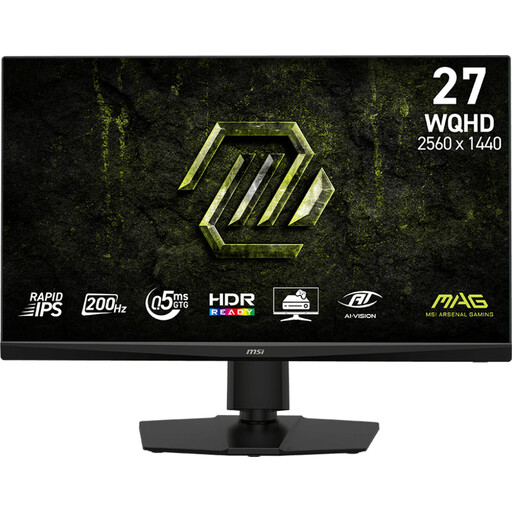 No image available
A QHD option for switching between editor work and playtests with plenty of movement.
27 inches; 2K WQHD; 200 Hz; Rapid IPS.
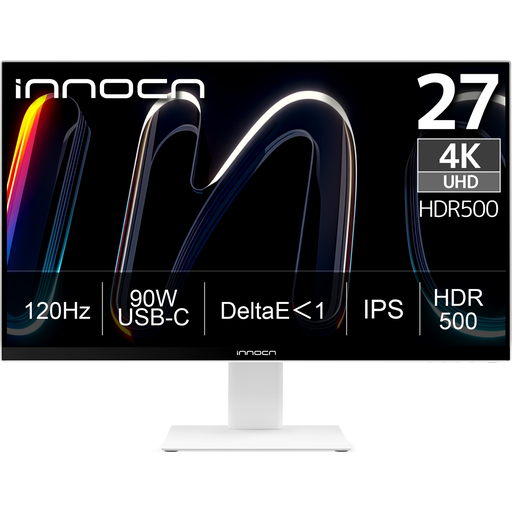 No image available
A 4K option for assessing fine visual detail and considering a laptop connection.
3840 × 2160; IPS; HDR500; FreeSync; USB-C with 90 W PD; PIP and PBP.
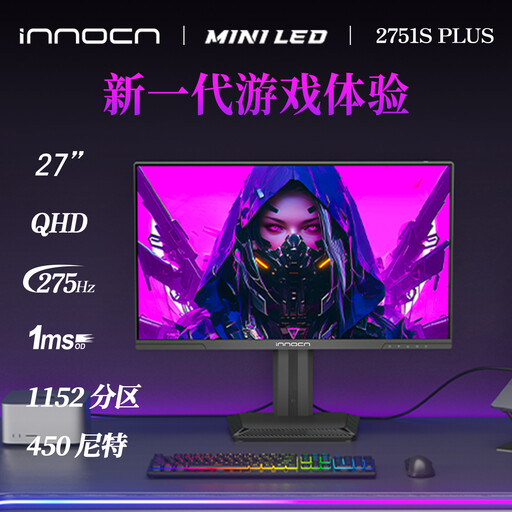 No image available
A QHD option for anyone looking for a monitor for both editor work and frequent playtests.
27 inches; QHD 2K; 275 Hz; 1152 zones; IPS; FreeSync.
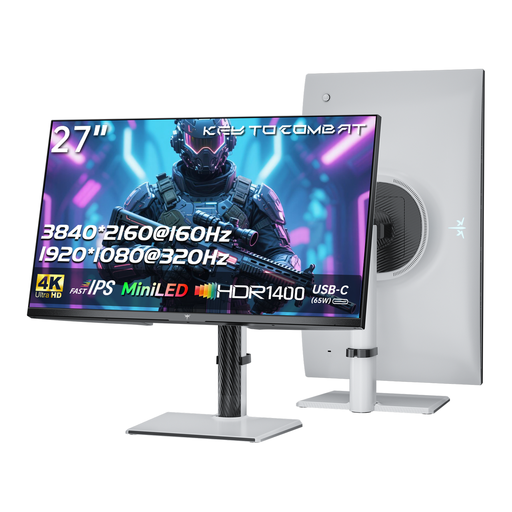 No image available
A 4K option for combining detail with playtests and comparing the available picture modes.
4K at 160 Hz or FHD at 320 Hz; HDR1400; Fast IPS; Type-C 65 W; height, tilt and swivel adjustment.
 No image available
A QHD option for anyone looking for a screen for editor work and viewing game previews.
2560 × 1440; Quad HD LCD.
Not necessarily. In Unity, you can use the Game view to preview a game and the Device Simulator to view a mobile layout. Unity warns that the Device Simulator doesn’t accurately show how the application runs on a real device, so test on relevant target devices when your prototype requires it.
Arboportaal recommends an easily adjustable workspace: position the screen directly in front of you, with the top just below eye level, so you look slightly downwards. This is advice on setting up your workspace, not a recommendation for one specific screen size or monitor model.
Before buying, compare the video capabilities of your laptop’s port with those of the exact monitor, and check the required charging power and cable separately. USB-C in a product name doesn’t, by itself, confirm that the combination will work as you want it to.
According to the Dutch government, when you buy remotely the seller must provide information including the cooling-off period, which is usually 14 days. If there’s a problem with a product, the seller is your point of contact for the legal guarantee. Check the terms of the specific purchase, especially if you’re buying for business use.
If you work from home as an employee, your employer’s responsibilities and the setup of your home workspace are relevant. Arboportaal describes ergonomic principles for that workspace, but that doesn’t automatically mean you need to buy one particular monitor model. The rules that apply to you depend on your work situation, for example whether you’re an employee, self-employed or a hobbyist.