
Tutorial creator with a busy workspace
You write instructions while keeping photos, editing panels and version history within easy reach. Look for a clear window layout and plenty of screen space.


Start with a screen that lets you view tutorial text, photos and editing panels side by side at a comfortable size. If you also do colour-critical work for print, consider colour gamut and calibration too. When using a laptop, check the video connection and power requirements as well. A monitor does not store document versions: version history depends on your software and file storage.
You write instructions while keeping photos, editing panels and version history within easy reach. Look for a clear window layout and plenty of screen space.
If colour assessment matters to you, including for print, look at the available colour modes and calibration options. Adobe describes using a colorimeter to achieve objectively accurate colours.
You want to connect your laptop easily and position the screen to suit your workspace. Check the video output, power requirements and readability. Arboportaal recommends paying attention to readability, reflections and taking breaks when working at a screen.
First, choose a clear layout for text, photos and editing panels. Then match the colour settings and laptop connections to the way you work.
| What to consider | What to look for | Who should pay extra attention? |
|---|---|---|
| Space and readability | Compare screen size and native resolution; try your usual text scaling and window layout. | I want to keep tutorial text, photos and editing panels readable at the same time. Around 33% of consumers mainly need a well-organised workspace. |
| Colour and calibration | Decide whether you mainly work for online viewing or also assess photos for print; then compare the colour modes and calibration options of the exact model. | If I assess colour adjustments for print too, I want to match the colour settings to the output. Around 27% of consumers prioritise colour assessment. |
| Workspace and adjustability | Check height adjustment, desk depth, reflections and how easy the interface is to read from your seat. | During long writing sessions, I want to position the screen properly and read the text comfortably. Around 20% of consumers prioritise their workspace and readability. |
| Laptop connection | Compare your laptop’s video output and charging requirements with the monitor’s port and cable. | I want to connect my laptop and, if my equipment supports it, power it through the monitor too. Around 20% of consumers prioritise their laptop connection. |
Version history is a feature of your software or file storage, not the screen. Adobe describes this feature for Photoshop 2023 (version 24.0) or later, and only for documents saved in Creative Cloud.
Check your editing software and storage method separately from the monitor.
Resolution and stated colour space do not automatically tell you whether text will be readable at your chosen scaling or colours will display appropriately in your workspace.
Try your text scaling and window layout. Choose a colour mode that matches your intended output, and plan for calibration if colour assessment matters.
Colour-critical work may also require calibration equipment. A colour gamut that does not match your output will not help your workflow.
A USB-C connection alone does not guarantee that your laptop can output video and receive enough power. BenQ lists 65 W for the PD2705U; ASUS lists 96 W for the PA279CRV.
Check your laptop’s video output, cable and charging requirements against the exact monitor port.
Depending on your equipment, you may need a separate video or power connection.
The PD2705U is a 27-inch 4K option with an sRGB mode for screen-based creative work; the SW272U is more geared towards photographers.
The ProArt PA279CRV is a 27-inch 4K option to compare if both workspace and stated coverage of several colour spaces matter to you.
The ColorEdge CS2740 is a 27-inch 4K option for anyone who values photo assessment and a calibration workflow.
The UltraSharp U2725QE is a 27-inch 4K hub monitor to compare if connectivity and your workspace matter.
These monitors are suited to work that combines tutorial text and photos, with models to suit different screen layouts, colour assessment needs and laptop connections.
 No image available
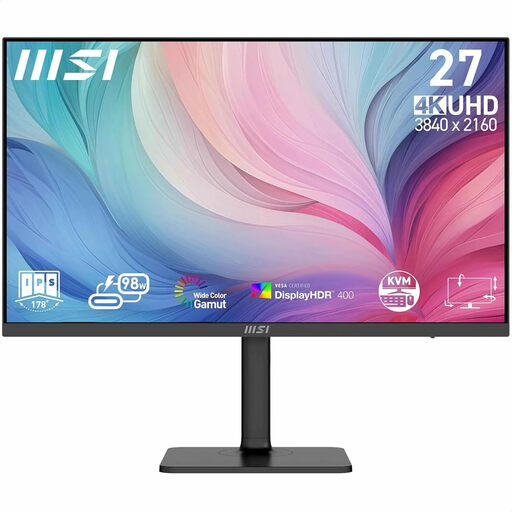
A 27-inch 4K monitor for combining tutorial text, photos and editing windows.
The product information lists PIP/PBP, 97% DCI-P3 and 94% Adobe RGB. USB-C provides 98 W Power Delivery, and the stand is adjustable.
 No image available
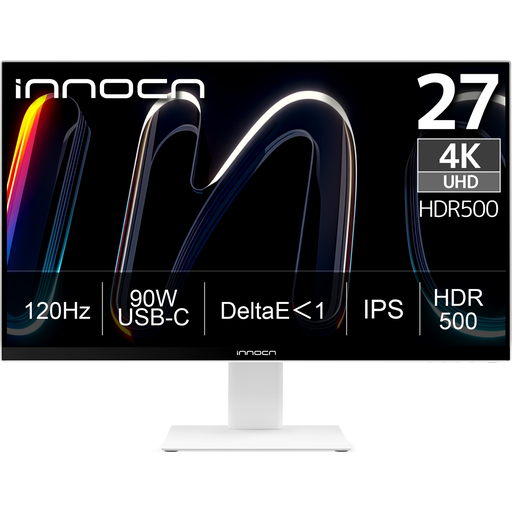
A 27-inch 4K monitor for a workspace where photos and editing windows sit side by side.
The product specifications list 100% sRGB, 99% Adobe RGB and Delta E < 1. According to the product information, USB-C delivers 90 W Power Delivery; the stand is height-adjustable.
 No image available
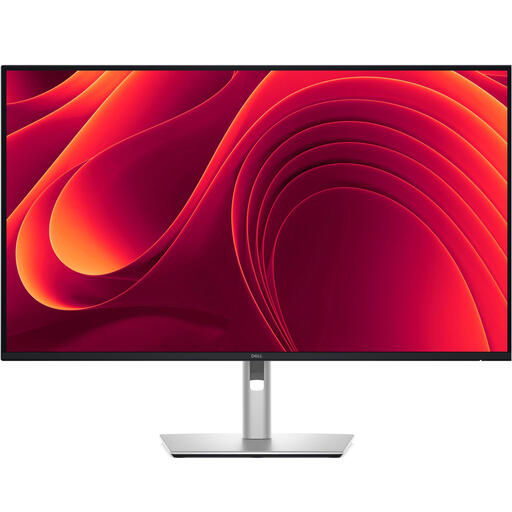
A 31.5-inch 4K monitor for anyone who wants to combine text and photos on a larger screen.
The product information lists 3840 × 2160 pixels, USB-C with 90 W Power Delivery and an adjustable stand.
 No image available
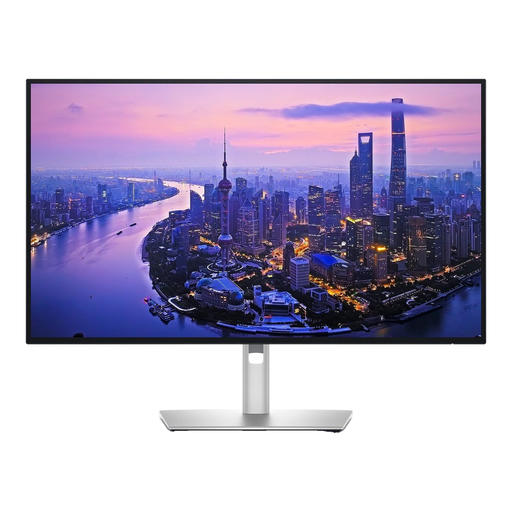
A 27-inch 4K monitor to consider if you’re weighing up connectivity and stated colour coverage as well as workspace.
The product information lists 3840 × 2160 pixels, 99% DCI-P3 and Display P3, USB-C and low reflectivity.
 No image available
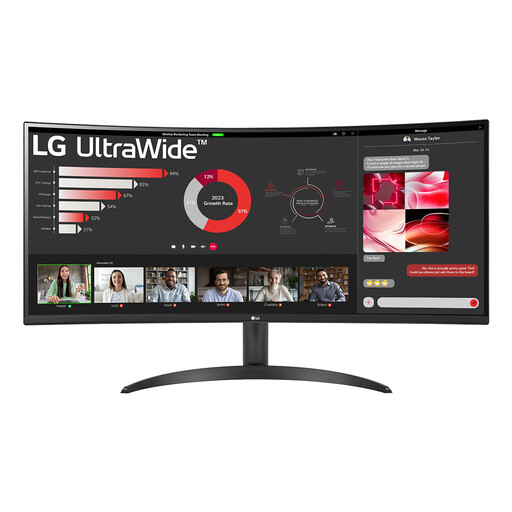
An ultrawide monitor for anyone who wants to place tutorial text and photos side by side.
The product information lists a 34-inch screen, 3440 × 1440 pixels, PBP and 99% sRGB. It also mentions a reader mode and an ergonomic stand.
No. Version history is part of the software or file storage you use. For Photoshop cloud documents, Adobe describes the feature for Photoshop 2023 (version 24.0) or later, and only for documents saved in Creative Cloud.
Not necessarily; match the colour mode to your intended output. BenQ lists an sRGB mode for the PD2705U, while ASUS also specifies Adobe RGB coverage for the PA279CRV. A wider colour gamut is no substitute for the right settings or calibration.
Compare your laptop’s video output and charging requirements with the port, cable and stated power delivery of the exact monitor. The presence of USB-C alone does not confirm that one cable will provide both a picture and enough power.
If colour assessment matters to you, match calibration to your workspace and intended output. Adobe describes using a colorimeter to achieve objectively accurate colours; a factory specification does not show how your screen will look in your room.
According to ACM ConsuWijzer, the legal guarantee depends on what you could reasonably expect from the product; if it does not meet expectations, the seller must resolve the issue free of charge. For an online purchase, the statutory cooling-off period usually ends 14 days after delivery. Check which exceptions apply to your purchase.