
App developer focused mainly on coding
You want to keep code, tag fields and photo previews clearly laid out side by side. Philips and Dell offer 27-inch QHD models to compare. Also check that the adjustability and connections suit your workspace.


If you’ll mainly be working on code and the tagging interface, compare adjustable QHD monitors. If you also need to assess fine photo detail, consider a 27-inch 4K screen and check that your computer supports the connection you’ve chosen. A wide colour gamut and calibration are most relevant if assessing colour is a genuine part of your work. Store photos, tags and backups on your computer or a connected storage device, not on the monitor.
You want to keep code, tag fields and photo previews clearly laid out side by side. Philips and Dell offer 27-inch QHD models to compare. Also check that the adjustability and connections suit your workspace.
You also check photo details or colour as you develop. Compare, for example, a QHD monitor focused on sRGB with a 4K model that specifies Adobe RGB colour space, and check the calibration options of the exact screen.
You want a practical way to connect your laptop, but storage and backups are separate from your monitor. The digiKam documentation describes databases for things such as tags and metadata; decide where your own app will store this information and the photo files.
Start with the layout of your code and interface, then decide whether you need extra detail for assessing photos. Before choosing, check your computer’s connections and how you want to arrange your screen.
| What to consider | What should you check? | Who should consider this? |
|---|---|---|
| Workspace and readability | Compare 27-inch QHD with 27-inch 4K on your own computer and with the screen layout you plan to use. | I want to see my editor, tag fields and photo previews side by side. Around 36% of consumers give workspace and readability top priority. |
| Photo detail and colour | Decide whether you mainly want to view photos or also assess colour, then compare the stated sRGB or Adobe RGB coverage and calibration options. | If I assess colours or fine detail, I want to know which screen setting and profile I’m using. Around 29% of consumers prioritise photo display. |
| Comfort during long sessions | Check the height adjustment and other adjustment options, and whether the setup will fit your desk. | I spend long periods coding and want to position the screen to suit me. Around 21% of consumers pay most attention to posture and adjustability. |
| Laptop connection and storage | Check video support, the USB-C port’s features and its power output; plan storage and backups separately. | I want to connect my laptop appropriately and know where my photos and tags are stored. Around 14% of consumers prioritise connectivity and a local workspace. |
A video connection and the storage of photos or tag data are two different things. Your choice of monitor doesn’t determine where your app files are stored.
First decide where your app will store photos and data and how you’ll back them up; then assess which screen ports you need.
Storage, backups and, if needed, recovery of a tag database must be arranged separately.
A stated colour space doesn’t automatically tell you which colour profile is active or how accurately colours will appear in your setup.
Check the screen profile and calibration approach. Choose specialist colour features only if you’ll use them for your work.
EIZO lists a calibration measurement device as an optional accessory for the ColorEdge CS2740.
Video, data and power over a single cable depend on the capabilities of the laptop, the cable and the exact monitor model.
Before buying, compare your laptop’s video support and power requirements with the screen’s stated features.
Depending on your equipment, you may need a different cable or connection, or a separate laptop charger.
The 27E1N1600AE/00 is a QHD option to consider for a general-purpose workspace.
The UltraSharp U2724D is a QHD option to compare for a development workspace.
The PD2705Q is worth comparing for sRGB display and laptop connectivity alongside coding work.
The UltraFine 27UP850K-W offers a 4K option for a mix of interface and photo work.
The ColorEdge CS2740 is a specialist option to compare if assessing colour is an important part of your work.
This selection includes 27-inch QHD and 4K monitors for coding, photo previews and colour-focused workflows. Check that each model’s connections and features suit your computer and how you’ll use it.
 No image available
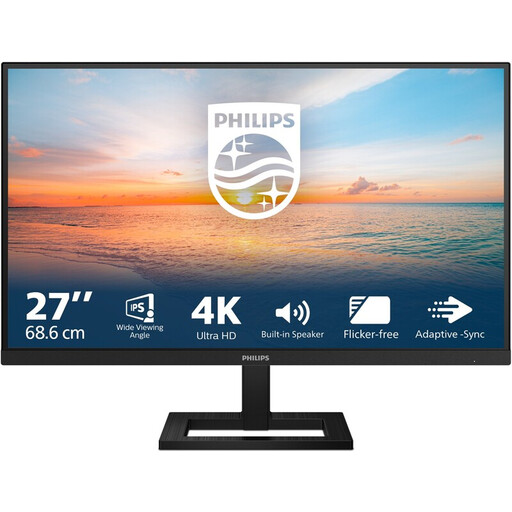
A 27-inch 4K monitor for viewing code and photo previews side by side.
Joybuy lists IPS, 3840 × 2160 pixels, 60 Hz, 4 ms, HDMI, DisplayPort and a height-adjustable stand.
 No image available
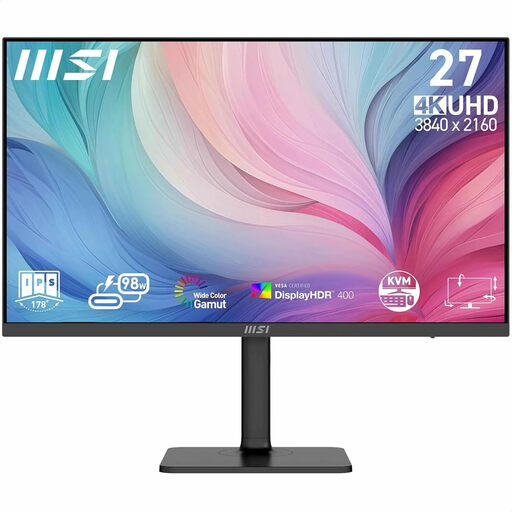
A 27-inch 4K monitor for viewing code and photo details on the same screen.
Joybuy lists 3840 × 2160 pixels. The product description mentions 97% DCI-P3, 94% Adobe RGB and factory calibration; check that these features suit your colour workflow.
 No image available
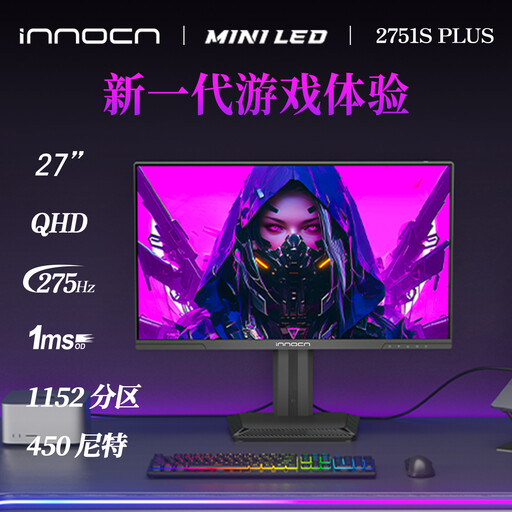
A 27-inch QHD monitor for viewing code and photo previews on one screen.
Joybuy lists QHD 2K, 275 Hz and 1 ms. The product name mentions 99% sRGB and 99% Adobe RGB; if you’re assessing colour, also check your profile and screen settings.
 No image available
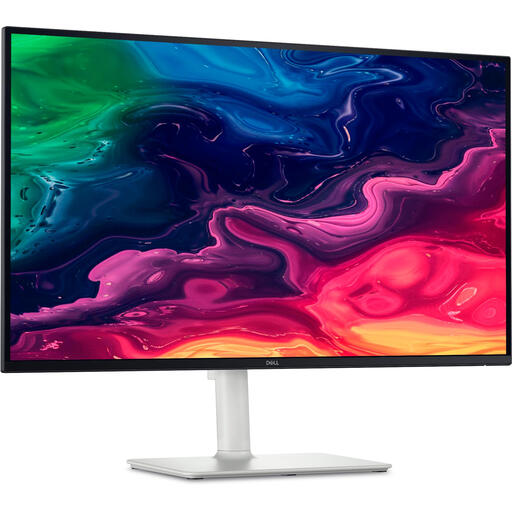
A 27-inch 4K monitor for viewing photo detail alongside code.
Joybuy lists 3840 × 2160 pixels, IPS, up to 120 Hz, HDMI and USB-C. Check your laptop’s video support and power requirements before relying on a single cable.
 No image available
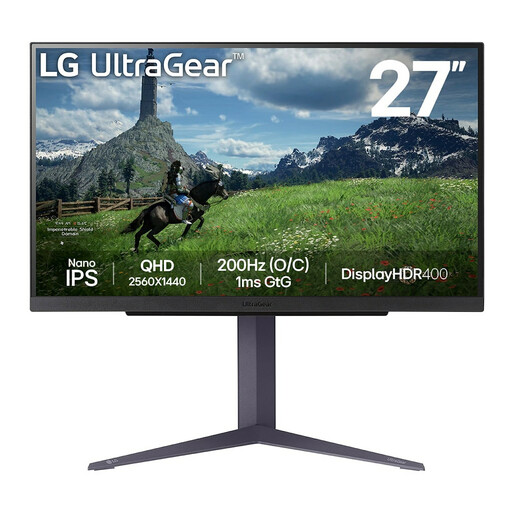
A 27-inch QHD monitor for working with code, tag fields and photo previews side by side.
Joybuy lists an IPS panel and 2560 × 1440 pixels. The product description mentions height adjustment, tilt and pivot; check that these adjustment options suit your desk.
A USB-C connection links to your computer; it isn’t a storage location for your app. Decide in your software where your photos, database and backups will be stored. The digiKam documentation describes separate databases for things such as tags and face data.
4K describes resolution, not colour accuracy. If you’re assessing colour, check the active screen setting and its colour profile; Adobe explains why using the right monitor profile matters.
That depends on the laptop, cable and exact monitor model. BenQ lists USB-C with DisplayPort Alt Mode, data and 65 W Power Delivery for the PD2705Q; compare these features with your laptop’s video support and power requirements.
According to ACM ConsuWijzer, the seller must resolve a problem free of charge if the product breaks sooner than you could reasonably expect under normal use. The outcome depends on the circumstances; any manufacturer’s warranty is separate.
The European Commission states that energy labelling rules also apply to displays, so compare the label for the exact model. The Dutch Arboportaal sets out specific workplace requirements for employees who use display screens for more than two hours a day, including that the screen and keyboard must not be attached to each other. This employment requirement doesn’t automatically apply as a buying rule to every private user.