Start by measuring the space available for the screen and stand, then choose a resolution that suits comparing photos and zoomed-in details. A monitor of around 24 inches with a higher resolution gives you more pixels in a compact size, while 1920 × 1200 pixels may be enough if you mainly review one photo at a time, zoomed in. A wide colour gamut and calibration matter most if you also edit images for print with colour accuracy in mind.
Who is this type of monitor for?
Photographer selecting a burst
If you compare lots of near-identical photos, check whether your screen gives you enough room for both the image and your selection workspace. Zoom in to assess the details that matter too; Adobe explains the comparison and filtering features in Lightroom Classic.
Photographer with a small desk
Check that both the screen and stand fit your workspace before weighing up extra resolution or features. For example, BenQ lists the SW242Q as having a depth of 262,6 mm with the stand. Measure your available space and compare it with the dimensions of the model you’re considering.
Photographer who also prints
If you edit images for print with colour accuracy in mind as well as selecting photos, compare the colour gamut and calibration options separately from the resolution. EIZO lists the ColorEdge CS2400S as offering more than 99% Adobe RGB coverage and hardware calibration.
What should you look for when choosing?
First, measure the space taken up by the screen and stand. Then compare the resolution for your photo selection, and consider colour management if you also edit for print.
| What to consider |
What should you check? |
Who should consider this? |
| Assessing differences in sharpness |
Compare the native resolutions and check how you switch between photos and a zoomed-in detail view in your photo software. |
If you want to assess small differences between shots, both the viewing area and the ability to check details zoomed in matter. Around 36% of consumers rank comparing sharpness as their top priority. |
| Desk space |
Measure the available width and depth, then compare them with the dimensions of the screen and stand. If you’re using a monitor arm, check that it’s suitable for both the screen and desk. |
With a small desk, it’s worth checking in advance that the whole set-up will fit, rather than just assuming the screen will be small enough based on its diagonal measurement. Around 29% of consumers put available desk space first. |
| Colour for print |
Compare the stated colour gamut and calibration method of the exact model with the requirements of your print workflow. |
If you also edit your selected photos for print with colour accuracy in mind, colour gamut and calibration are important considerations alongside resolution. Around 21% of consumers rank print colour as their top priority. |
| Connection and charging |
Check your computer’s video output and compare it with the monitor’s ports and charging power. |
If you use a laptop and want to keep your cables to a minimum, check that the connection suits both your computer and your power requirements. Around 14% of consumers put connectivity and cable set-up first. |
Common buying mistakes
-
Comparing screen size alone
The diagonal measurement doesn’t tell you how much depth the monitor takes up with its stand. BenQ lists the SW242Q as having a depth of 262,6 mm with the stand.
Measure the space available first and compare it with the dimensions of the screen with its stand. Separately, check whether a monitor arm, if you’re using one, is suitable for your desk.
If the stand won’t fit your desk set-up, you may need to consider a different stand or a suitable monitor arm.
-
Confusing a wide colour gamut with extra sharpness
Colour gamut and resolution describe different things. EIZO lists the CS2400S as offering more than 99% Adobe RGB at 1920 × 1200 pixels; BenQ lists the SW242Q at 2560 × 1600 pixels.
Choose colour management based on your print workflow, and assess the resolution separately according to how you select photos. Check key details at a suitable zoom level too.
Brands to consider
BenQ
The SW242Q is a compact option to consider if resolution, colour management and USB-C matter to you.
- According to BenQ, the SW242Q has a 24,1-inch screen, a resolution of 2560 × 1600 pixels, 99% Adobe RGB and USB-C with 90 W Power Delivery.
- The stated depth with the stand is 262,6 mm. Measure your space to check it will fit; specifications aren’t an independent performance test.
ASUS
The ProArt PA248QV is a 24,1-inch sRGB model to consider for photo selection and online image editing.
- ASUS specifies a resolution of 1920 × 1200 pixels, 100% sRGB, factory pre-calibration and an adjustable stand.
- Its resolution is lower than that of the SW242Q mentioned above. Also check the stand dimensions and availability of the exact model variant.
EIZO
The ColorEdge CS2400S is a compact option for anyone who selects photos and also edits for print with colour accuracy in mind.
- According to EIZO, this 24,1-inch model offers more than 99% Adobe RGB coverage and hardware calibration.
- Its resolution is 1920 × 1200 pixels, lower than the 2560 × 1600 pixels of the SW242Q mentioned above. These features apply to this model, not to all EIZO monitors.
Dell
The UltraSharp U2424H is a compact, office-focused alternative with an adjustable stand.
- Dell specifies that this model has a 23,8-inch IPS screen with a resolution of 1920 × 1080 pixels and an adjustable stand.
- Its resolution has fewer vertical pixels than the 1920 × 1200 models mentioned above. These specifications alone don’t determine whether it’s suitable for colour-critical print work.
Monitors at Joybuy
These models are suited to selecting photos in a limited workspace, from high-resolution portable screens to compact monitors for colour work.
 No image available
TECLAST V16Q Portable Monitor
This portable 16-inch screen could suit a compact set-up where you want to view photos at high resolution.
According to the product description: 2560 × 1600 pixels, IPS, 100% sRGB, 16:10, two USB-C ports and mini-HDMI. The description also mentions a built-in stand.
View at Joybuy
 No image available
ARZOPA Z1RC 16" 2.5K Portable Monitor
This portable 16-inch model is worth comparing if you’re looking for high resolution in a limited workspace.
The product title lists 2560 × 1600 pixels; the product description mentions an IPS panel, 123% sRGB, a built-in stand, USB-C and HDMI.
View at Joybuy
 No image available
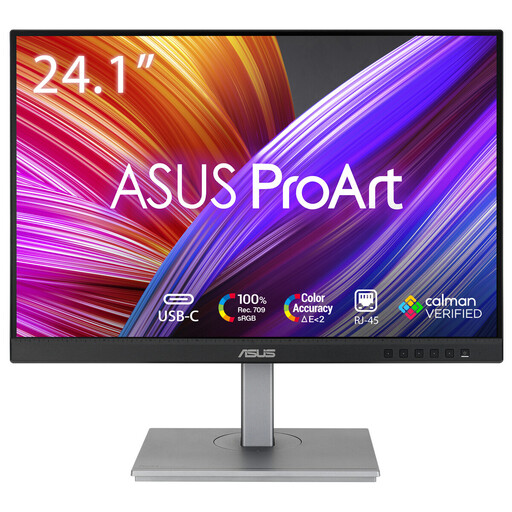
ASUS ProArt PA248CNV
This 24,1-inch model could suit photo selection and online image work in a compact, permanent workspace.
The product information lists 1920 × 1200 pixels, 100% sRGB, 100% Rec.709 and factory calibration. The description mentions an adjustable stand.
View at Joybuy
 No image available
ASUS ProArt PA24ACRV
This 23,8-inch model is worth comparing if you want to combine photo selection with creative image editing.
The product information lists 2560 × 1440 pixels and 95% DCI-P3. The product description mentions Calman verification and an adjustable stand.
View at Joybuy
 No image available
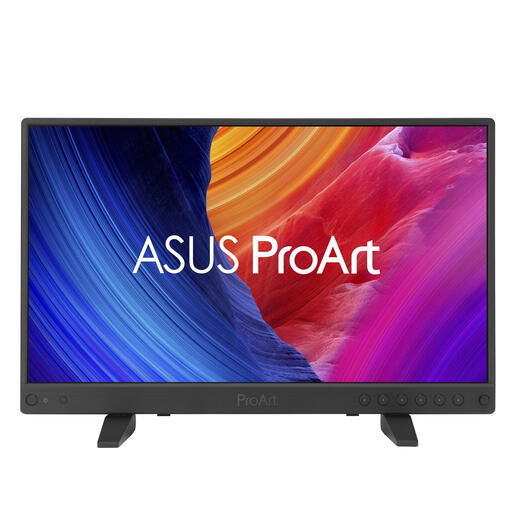
ASUS ProArt PA16USV
This portable 15,6-inch screen is an option if you need a small set-up for photo selection and online image work.
The product information lists 3840 × 2160 pixels, IPS, 100% sRGB and 100% Rec.709. The description mentions a dual stand for studio and on-location use.
View at Joybuy
Frequently asked questions
Should I focus mainly on a high refresh rate when selecting the sharpest photo?
When assessing still photos, start with the resolution and the ability to view details zoomed in. A higher refresh rate matters most for moving images; ASUS lists 75 Hz for the PA248QV specifically for animated content.
How can I check sharpness when several photos look similar in the overview?
Use your photo software’s selection tools and zoom in on the detail that matters. Adobe explains how to filter by flags and stars in Lightroom Classic and documents a 100% or 1:1 zoom setting; these are software features, not monitor specifications.
Can a single USB-C cable handle my laptop’s display and power?
Only if your laptop supports video output over USB-C and the monitor provides enough charging power. BenQ lists DisplayPort Alt Mode and 90 W Power Delivery for the SW242Q; EIZO lists DisplayPort Alt Mode and up to 70 W power delivery for the CS2400S.
What should I know about warranties and online purchases in the Netherlands?
According to the Dutch government, as a consumer you’re entitled to a product that works as it should; there’s no fixed statutory warranty period in the Netherlands, and the seller is your point of contact if there’s a problem. For purchases covered by distance-selling rules, you generally have 14 days to change your mind. Check who the seller is and which terms apply to your purchase.


