A monitor displays your scan, but it won’t remove dust spots for you: you’ll need retouching software for that, as Adobe explains. First, choose a screen and stand that fit your desk. For detailed work, Lenovo says the ThinkVision P24q-30 offers 2560 × 1440 pixels, compared with 1920 × 1200 pixels for the ASUS ProArt PA248QV, according to ASUS. For colour-critical scans and prints, calibration and colour profiles also matter, as Adobe explains.
Who is this for?
Anyone retouching tiny dust spots
If you enlarge scans to inspect small marks, you’ll want enough screen pixels to view the scan and tool panels comfortably. Adobe describes how to retouch dust spots in scanned photos; Lenovo lists a resolution of 2560 × 1440 pixels for the ThinkVision P24q-30.
Anyone sharing a small desk with a scanner and monitor
You’ll need to fit in the monitor, stand, viewing position and possibly a scanner. So don’t just look at the screen size: check the stand’s dimensions and the adjustment options on the specific model. ASUS and BenQ publish model dimensions, while Arboportaal describes workplace set-up for the relevant working situation.
Anyone assessing colour-critical scans
If you’re preparing scans for further colour processing or printing, suitable colour profiles and monitor calibration are important. Adobe recommends calibrating your monitor and setting a profile; EIZO describes the colour gamut and hardware calibration of the ColorEdge CS2400S.
What should you look for when choosing?
Start by checking how much space you have for the screen, stand and scanner. Then decide whether resolution for detailed work, colour management or your laptop’s connectivity matters most.
| Consideration |
What to look for |
Who will find this important? |
| Fine detail |
Compare resolution and usable workspace: Lenovo lists 2560 × 1440 pixels for the ThinkVision P24q-30; ASUS lists 1920 × 1200 pixels for the ProArt PA248QV. |
If I want to inspect tiny dust spots while keeping the scan and tool panels visible, I’m looking for a resolution that suits the task. Around 36% of consumers say fine scan detail is their main buying concern. |
| Desk space |
Measure the available width and depth, allowing for the monitor stand and space for the scanner. ASUS lists a stand depth of 21,10 cm for the PA248QV. |
When my desk also needs to accommodate a scanner and keyboard, I want to know how much space the whole stand takes up. Around 29% of consumers put available desk space first. |
| Colour management |
Check which colour space and calibration options suit your workflow. EIZO lists more than 99% Adobe RGB coverage and hardware calibration for the CS2400S. |
If I’m assessing scans for further colour processing or printing, I want to be able to manage colours using suitable profiles. Around 21% of consumers say colour-critical work is their main buying concern. |
| Connecting a laptop |
Check video support via your laptop port and whether the available charging power is sufficient. BenQ lists USB-C with DisplayPort Alt Mode and 65 W Power Delivery for the PD2506Q. |
If my laptop and monitor are part of the same workstation, I want to know in advance whether the connection supports both a picture and the charging power I need. Around 14% of consumers prioritise laptop connectivity. |
Avoiding common buying mistakes
-
Focusing only on screen size
Two screens with similar diagonals can still take up different amounts of desk space because of their stands.
Measure the available width and depth, then compare them with the dimensions of the exact model.
If the supplied stand doesn’t fit, you may need a suitable monitor arm. Check beforehand that your desk and monitor are compatible with one.
-
Confusing a wide colour gamut with a complete print workflow
According to Adobe, scanners, monitors and printers don’t automatically reproduce colours in the same way. A wide colour gamut therefore doesn’t replace suitable profiles and monitor calibration.
First decide what you want to produce, then check the profiles for your monitor, scanner and print output.
Depending on your workflow, you may need a separate calibrator and additional profiling.
-
Assuming every USB-C laptop works with a single cable
BenQ lists video via DisplayPort Alt Mode and up to 65 W Power Delivery for the PD2506Q. Your laptop must support the required video connection, and the available power must be sufficient for it.
Check your laptop port’s specifications and the charging power required before choosing USB-C.
Depending on your laptop and connection, you may need a different cable or a separate laptop power supply.
Brands to compare
Lenovo
The ThinkVision P24q-30 is a 23,8-inch QHD option for detailed work on a compact screen.
- Lenovo lists 2560 × 1440 pixels, 99% sRGB and an average Delta E < 2 for this model.
- These are Lenovo’s specifications, not independent measurements. Check the stand dimensions and the exact model.
ASUS
The ProArt PA248QV is a 24,1-inch 16:10 option if extra screen height and an adjustable stand matter to you.
- ASUS lists 1920 × 1200 pixels, 100% sRGB and a stand depth of 21,10 cm.
- Its resolution is lower than that of the QHD options mentioned. The colour figures are ASUS specifications.
EIZO
The ColorEdge CS2400S is designed for colour-critical retouching and print workflows.
- EIZO lists hardware calibration and more than 99% Adobe RGB coverage for this model.
- The resolution is 1920 × 1200 pixels. A wide colour gamut doesn’t replace suitable profiles for your monitor and output.
BenQ
According to BenQ, the PD2506Q combines QHD with USB-C for a laptop and retouching workstation.
- BenQ lists 2560 × 1440 pixels, 100% sRGB and USB-C with 65 W Power Delivery.
- The stated stand depth is 256,9 mm. Check your available space and your laptop’s compatibility.
Philips
The 24E1N1300AE/00 is a 23,8-inch Full HD option if a compact laptop workstation is important to you.
- Philips lists 1920 × 1080 pixels and USB-C with power delivery for compatible devices.
- For fine retouching, consider whether Full HD is sufficient for your screen layout and needs; don’t assume colour suitability based on USB-C or screen size.
Joybuy monitors
This selection from Joybuy includes monitors around 24 inches for retouching scanned images. Before buying, check that the dimensions and connections suit your desk and laptop.
 No image available
DELL Pro Plus P2425DE, 24-inch QHD monitor
Ideal if you want to view scans on a compact QHD screen.
24 inch; 2560 × 1440 pixels.
View at Joybuy
 No image available
DELL Pro Plus P2425D, 24-inch QHD monitor
Ideal if you want to view fine scan details on a 24-inch QHD screen.
24 inch; 2560 × 1440 pixels.
View at Joybuy
 No image available
ASUS ProArt PA24ACRV, 23,8-inch QHD monitor
Ideal if you’re looking for a 23,8-inch QHD screen for retouching scanned images.
23,8 inch; 2560 × 1440 pixels.
View at Joybuy
 No image available
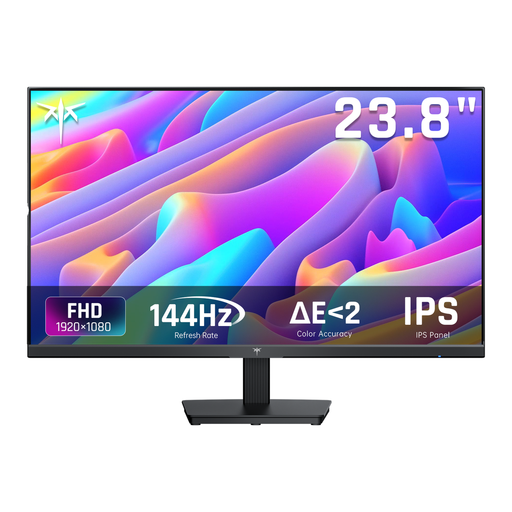
KTC H24B9S, 24-inch gaming monitor
Ideal if you’re looking for a 24-inch screen for a compact workstation and scan editing.
24 inch; 1920 × 1080 pixels; 144 Hz.
View at Joybuy
 No image available
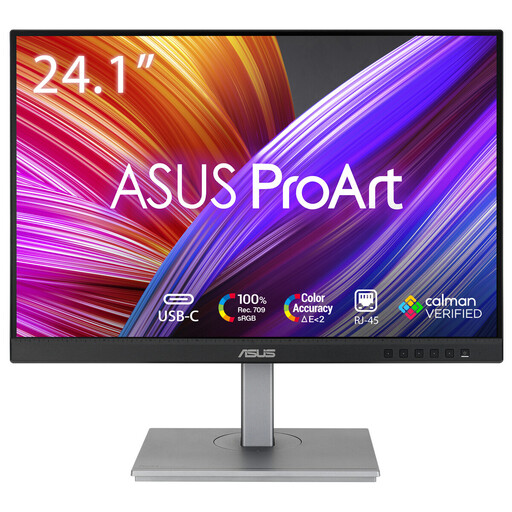
ASUS ProArt PA248CNV, 24,1-inch monitor
Ideal if you’re looking for a 24,1-inch screen for a scanning and laptop workstation.
24,1 inch; 1920 × 1200 pixels.
View at Joybuy
Frequently asked questions
Does a monitor remove dust spots from my scans?
No. A monitor displays the scan; Adobe explains how to remove dust spots from scanned photos using a retouching brush in software. Zoom in to inspect small details.
How do I set up a monitor for scans I want to print?
Use colour management and set a monitor profile; Adobe recommends calibrating your monitor. Remember to consider profiles for your other devices too: a calibrated screen alone doesn’t guarantee an identical print.
What should I consider when setting up on a small desk?
Measure the space needed for the entire monitor stand, not just the screen, and allow room for your scanner and keyboard. Arboportaal describes additional rules for employees who work with display screens for more than two hours a day; this requirement doesn’t automatically apply to every home user.
What are my rights when buying a monitor online in the Netherlands?
According to the Dutch government, when you buy from a business remotely, you’re entitled to a 14-day cooling-off period in many cases. You’re also entitled to a product that is fit for purpose; the Netherlands doesn’t have a fixed statutory warranty period of exactly two years. If a product is faulty, contact the seller.


