Who is this buying guide for?

Student who prints with colour accuracy in mind

You want to assess photos on paper, so a monitor you can calibrate, colour management and a suitable print profile will be particularly useful. Canon Europe explains the importance of a calibrated monitor and a colour-managed workflow.

Photo editor with a small desk

You’re weighing up screen space against the room the monitor takes up, and you may also have to contend with changing light. The stated sizes of the 24- and 27-inch models mentioned here give you different starting points for that decision.

Student with a laptop setup

You want to use the monitor for studying too. Check that your laptop can output a video signal through the connection you choose and, if you want to charge it through the monitor, that the charging power is suitable for your laptop.

What should you look for when buying?

Compact monitor for colour-critical print work

Choose this option: if you print photos regularly and have limited desk space. For example, compare the BenQ SW242Q and EIZO ColorEdge CS2400S.

Bear in mind: calibration, suitable software and viewing light are still important. A compact screen doesn’t offer the same workspace as a larger model.

27-inch 4K monitor with a wide colour gamut

Choose this option: if you have enough desk and viewing space and want more room for your image and editing tools. ASUS specifies a 27-inch screen, 3840 × 2160 pixels and 99% Adobe RGB for the PA279CRV.

Bear in mind: a larger screen takes up more space and doesn’t replace checking your own calibration and print workflow.

sRGB monitor for mainly digital use

Choose this option: if you mainly share photos digitally and only print occasionally. ASUS lists a 27-inch QHD screen and 100% sRGB for the PA278QV.

Bear in mind: ASUS lists sRGB coverage for this model, not the same stated Adobe RGB coverage as for the PA279CRV. Even for occasional prints, use a suitable colour management workflow.

What to consider What should you check? Who is this important for?
Colour for printing Compare the exact model’s colour space with your workflow and check that you can use a suitable printer and paper profile. If you want to assess colours and tones for a print, look at colour management and the right profile; around 33% of consumers put colour for printing first.
Calibration and light Check the model’s calibration method and consider how you’ll minimise reflections and changes in viewing light at your desk. If you want to assess the screen in changing room light, a suitable calibration workflow and manageable viewing light can help; around 27% of consumers prioritise consistent screen assessment.
Desk space Measure the space available and compare it with the dimensions of the screen and stand. If you have limited desk space, weigh up the physical screen size against the workspace you need; around 20% of consumers prioritise having a smaller desk footprint.
Connecting a laptop Compare your laptop’s video output with the monitor and check the charging power required if you want to charge it through a single connection. If you want to use the monitor with a study laptop and avoid unnecessary extra accessories, check the connections and charging requirements in advance; around 20% of consumers prioritise laptop convenience.

Buying pitfalls

  • Assuming a wide colour gamut guarantees identical prints

    Paper reflects light, while a screen emits its own light. The printer and paper also affect the result, so a screen specification alone can’t guarantee that colours will look the same on paper.

    Calibrate your screen, use a suitable profile for your printer and paper combination, and make a test print for important jobs.

    Test prints and any reprints use up extra materials.

  • Relying on the factory settings alone

    Ambient light and screen settings both affect how you assess colours. A calibration option is only useful if it suits your workflow and setup.

    Before buying, check the exact model’s calibration method and consider how you’ll manage reflections and viewing light in your workspace.

    Some calibration workflows may require a colorimeter if you don’t already have one.

  • Assuming USB-C automatically means you can use one cable

    A USB-C port on the monitor doesn’t automatically mean your laptop can output video through it or charge at the available power level.

    Compare your laptop’s video output and charging requirements with the monitor’s connections and stated charging power.

    You may need a compatible cable, adapter or separate charger.

Brands to consider

BenQ

BenQ presents the SW242Q as a monitor for photographers, designed to help bridge the gap between screen and print.

  • BenQ lists an anti-reflective panel and Paper Color Sync for the SW242Q.
  • The link to a print workflow is a manufacturer claim; calibration and suitable colour management settings are still important.

EIZO

The ColorEdge CS2400S is a 24.1-inch 16:10 monitor designed for photography.

  • EIZO specifies more than 99% Adobe RGB coverage and hardware calibration via ColorNavigator for the CS2400S.
  • The stated resolution is 1920 × 1200 pixels; these specifications aren’t an independent measure of print quality.

ASUS

The ProArt PA279CRV and PA278QV offer different stated resolutions and colour spaces within the range.

  • ASUS specifies a 27-inch 4K screen and 99% Adobe RGB for the PA279CRV. For the PA278QV, ASUS lists a 27-inch QHD screen and 100% sRGB.
  • These features apply to the models mentioned and don’t represent all ProArt monitors.

Dell

The UltraSharp U2725QE is a 27-inch 4K model that also offers connection and adjustment options for a laptop setup.

  • Dell lists an anti-reflective screen, along with connection and adjustment options for this model.
  • Assess its suitability for specific prints based on this model’s colour management and your own print workflow, not just the brand name.

Joybuy products for photography and study

This selection includes monitors for photography, design, study and work, including larger and portable models. For colour-critical prints, check the colour space, calibration options and support for your printer and paper profile in advance.

LG UltraFine 27U711B-B 27-inch 4K IPS monitor

LG UltraFine 27U711B-B 27-inch 4K IPS monitor

A 27-inch screen described as suitable for photo and design work. For colour-critical prints, check that its colour management features suit your workflow.

27 inches, 4K resolution and IPS panel.

Joybuy

TECLAST V16H portable 16-inch FHD IPS monitor

TECLAST V16H 16-inch portable monitor

A portable extra screen could be a good fit if you want a second workspace alongside your laptop; check that it can connect to your laptop.

FHD resolution, IPS panel, 16:10 aspect ratio and 144 Hz.

Joybuy

TECLAST V16Q portable 16-inch 2.5K IPS monitor

TECLAST V16Q 16-inch portable monitor

A portable screen for photography and work; check that its size and connection suit the space available and your laptop.

2.5K resolution, IPS panel, 16:10 aspect ratio and 144 Hz.

Joybuy
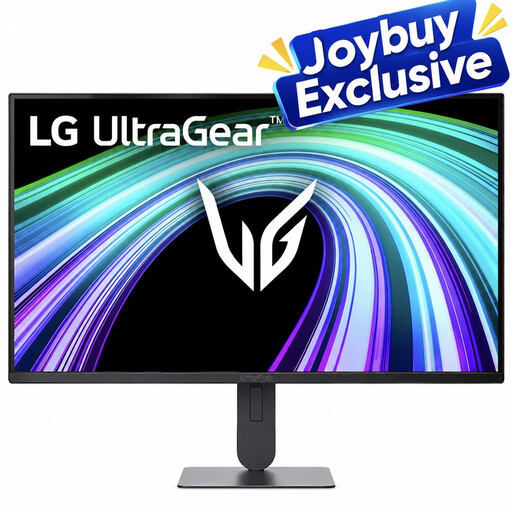
LG UltraGear 24G414B-B 24-inch Full HD monitor

LG UltraGear 24G414B-B 24-inch Full HD monitor

The 24-inch size could be an option if desk space is a major consideration. Before using it for prints, check that its colour reproduction and calibration meet your requirements.

Full HD resolution.

Joybuy

Philips 27E1N1800AE/00 27-inch 4K UHD IPS monitor

Philips 27E1N1800AE/00 27-inch 4K monitor

A 27-inch screen for study and work, with extra space for images and applications. For colour-critical prints, check that its colour management workflow is suitable.

4K UHD resolution of 3840 × 2160, IPS panel, 60 Hz, HDMI and DisplayPort. The stand is height-adjustable.

Joybuy

Frequently asked questions

Do I need 4K to prepare photos for printing?

No. 4K isn’t essential for preparing prints; calibration, colour space and your print profile matter too. EIZO specifies a resolution of 1920 × 1200 pixels for the ColorEdge CS2400S, while ASUS specifies 3840 × 2160 pixels for the PA279CRV. The workspace that suits you also depends on your desk and how you work.

How do I use soft proofing before getting photos printed?

Calibrate your monitor and, in a colour-managed workflow, use the profile for your chosen printer and paper combination to simulate the print on screen. If the result matters, assess a test print under suitable lighting: a screen simulation isn’t the same as paper. Canon Europe also describes this workflow for its own software.

What are my rights when buying a monitor online in the Netherlands?

According to ACM ConsuWijzer, consumers generally have 14 days from delivery to change their mind about an online purchase, although there are exceptions. The seller is also responsible for the statutory guarantee if the product doesn’t meet what you could reasonably expect; a commercial guarantee is separate.

Does a monitor need an energy label in the Netherlands?

The European Commission states that energy labelling rules for electronic displays also cover computer monitors, with a scale from A to G. Check the label and information for the exact model; an energy label doesn’t indicate how suitable a screen is for colour-critical prints.
