
Photo book maker with limited desk space
You want to select photos and put pages together, while still leaving room for things like a mouse, keyboard and open book. So measure your whole setup, not just the screen size.


First, measure the space taken up by the monitor stand, then decide how much screen space and colour management you need for your photo book projects. According to BenQ and EIZO, the BenQ SW242Q and EIZO ColorEdge CS2400S are 24.1-inch 16:10 monitors with hardware calibration. A smaller portable screen may be more practical if desk space is the main constraint. A wider colour gamut alone won’t guarantee a match with a print: calibration, colour profiles and ambient light all play a part.
You want to select photos and put pages together, while still leaving room for things like a mouse, keyboard and open book. So measure your whole setup, not just the screen size.
You edit photos with the final print in mind and want your colour management to suit your workflow. Adobe notes that calibration, ambient light and paper also play a part in preparing a print.
You switch between photos, page previews and design tools. Extra vertical screen space can be useful, as long as the screen and stand fit on your desk.
Choose this option if: you mainly select photos and arrange pages, and a 24.1-inch 16:10 screen will fit on your desk.
The trade-off: the stated sRGB coverage alone doesn’t tell you what a print will look like. Also check the version sold in the Netherlands and its connections.
Choose this option if: colour assessment is important to your print workflow and you use suitable profiles and calibration.
The trade-off: a wider colour gamut won’t automatically make a print match what you see on screen. Also compare the stand, connection and power requirements.
Choose this option if: a tidy setup matters more than extra vertical screen space.
The trade-off: the 16:9 Full HD models listed have fewer vertical pixels than the 16:10 models discussed here. USB-C alone doesn’t confirm full compatibility between a laptop and monitor.
| What to consider | What should you check? | Who should pay extra attention? |
|---|---|---|
| Will the whole setup fit? | Measure the available width and depth, then compare them with the monitor’s dimensions including the stand. Check any monitor arm and its mounting separately. | If I’m sharing a small desk with a mouse, keyboard or open photo book, I want to know how much workspace will be left. Around 33% of consumers in this buying consideration put desk space first. |
| Checking colour for prints | Check the stated sRGB or Adobe RGB coverage, calibration options, and support for the profiles and soft proofing in your software. | If I want to assess photos for print, the right profile and suitable viewing conditions matter alongside the screen’s colour gamut. Around 27% of consumers focus mainly on print colours. |
| Room for page layouts | Compare the screen’s aspect ratio and resolution, and choose a scaling setting that’s comfortable to read. EIZO and ASUS state that their 16:10 models listed here have 1920 × 1200 pixels; BenQ lists 2560 × 1600 pixels for the SW242Q. | If I often switch between photos, pages and tools, I want enough screen space without making text uncomfortably small. Around 20% of consumers prioritise screen space and page layout. |
| Connecting to your laptop | Check your laptop’s video output, cable and required charging capacity against the exact monitor version. BenQ lists up to 90 W USB-C power delivery for the SW242Q, while EIZO lists up to 70 W for the CS2400S. | If I want to connect my laptop with as few separate cables as possible, the connection must also suit its video output and power requirements. Around 20% of consumers prioritise a practical laptop connection. |
The stand takes up space too. BenQ lists a stand depth of 262.6 mm for the SW242Q, so measure the full footprint of the version you’re considering.
Before you order, compare the monitor’s dimensions with its stand against the workspace you have available.
A different setup or a suitable monitor arm may require extra space and installation work.
According to Adobe, assessing a screen and preparing a print also involve calibration, colour profiles and ambient light. A stated colour gamut doesn’t guarantee a matching print.
Set up the monitor to suit the software and print process you use, and treat colour gamut as one specification alongside calibration and profiles.
Colour management may take extra setup and could involve a calibration device or attention to soft proofing.
A USB-C port alone doesn’t tell you how much power the monitor supplies or which video mode your laptop supports. BenQ and EIZO list different maximum USB-C power delivery capacities for the SW242Q and CS2400S.
Check your laptop’s video output, cable and charging needs against the exact monitor version.
If the combination isn’t sufficient, you may need a separate laptop power supply or a different cable.
The Dutch specifications for the PhotoVue SW242Q are worth considering if you’re looking for a 24.1-inch screen for colour-managed photography.
The Dutch specifications for the ColorEdge CS2400S are relevant if colour management in a 24.1-inch 16:10 format is your priority.
The ProArt PA248QV is a 24.1-inch 16:10 option for page layouts and the stated sRGB coverage.
The 24E1N1300A/01 is a 23.8-inch Full HD option to consider if a simple workspace matters more than extra vertical pixels.
The UltraSharp U2424H is a 23.8-inch Full HD option to compare if adjustability and everyday connectivity matter to you.
These monitors are options for a compact workspace and extra screen space when making photo books. Check each model’s connections, aspect ratio and colour features to make sure they suit your way of working.
 No image available
Could suit you if desk space is limited and you’d like an external screen you can move around too.
The product name lists a 16-inch IPS screen, 144 Hz, 16:10, two USB-C ports, Mini HDMI and a built-in stand.
 No image available
A portable option if you’re looking for a smaller external screen with extra pixels for photo book pages.
The product specifications list 2560 × 1600 pixels, 16:10, an IPS screen and a built-in stand. The product name also lists 123% sRGB.
 No image available
A good fit if you’re looking for a monitor in the 24-inch class with room for photos and page layouts.
The product details list an IPS screen with 2560 × 1440 pixels and a stand with height, tilt, swivel and pivot adjustment.
 No image available
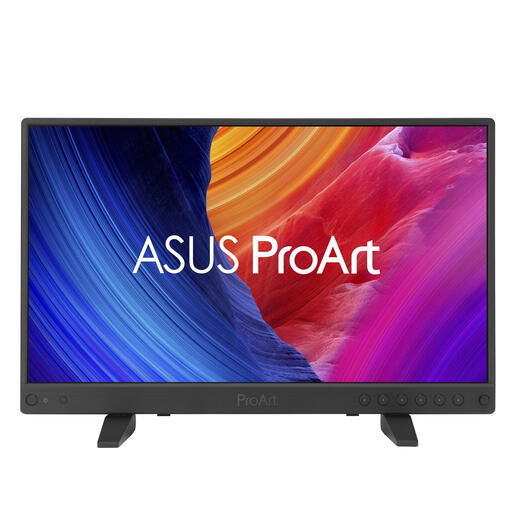
A compact option to consider if you’re looking for a portable screen for creative work. Check the connections and setup you need beforehand.
The product specifications list 3840 × 2160 pixels, 100% sRGB and factory calibration with Calman verification. The stand depth is stated as 109.3 mm.
 No image available
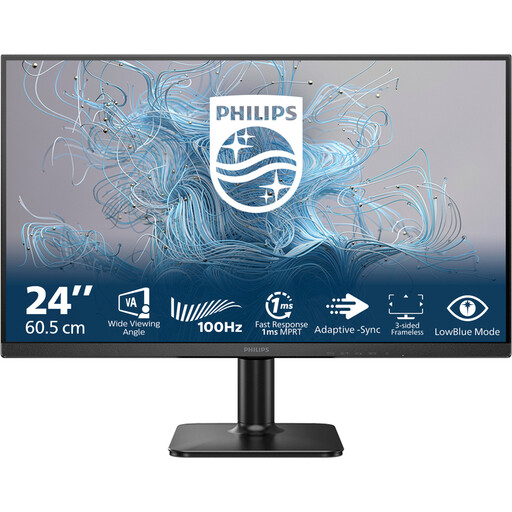
An option to compare if you’re looking for a monitor in the 24-inch class for a regular workspace.
The product name lists Full HD, 100 Hz and a VA panel.
No, it’s not a universal requirement. First check which colour profiles and soft proofing your editing and printing process uses; a stated colour gamut alone won’t predict what a print will look like. For assessing colour, calibration, a suitable profile and stable ambient light can all be important.
Measure the available width and depth, then compare them with the dimensions of the exact version, including its stand. If you want to use a monitor arm, check the VESA mount and make sure the arm and desk are suitable for your setup.
Assess colours in ambient light that’s as consistent as possible, and use calibration and a profile suited to your workflow. For print preparation, Adobe recommends a calibrated screen and a profile that describes the screen’s current display. If you change the screen settings after calibration, check again to see whether recalibration is needed.
According to ACM ConsuWijzer, online purchases generally come with a statutory cooling-off period that ends 14 days after delivery; applicable terms and exceptions still matter. ACM ConsuWijzer also says that the seller must ensure the product meets what you could reasonably expect when used normally. This statutory protection isn’t automatically limited to the length of the manufacturer’s warranty.