
Photo archivist with limited desk space
You want to organise photos without the screen and stand taking over your work surface. Compare the exact model’s overall dimensions, stand depth and adjustability.


First, measure the available width and depth, including the stand: screen diagonal alone won’t tell you how much desk space a monitor takes up. If you also edit photos for print, look for extra pixels for reviewing detail, a wide colour gamut and calibration. If you want a tidy laptop set-up, check for a suitable USB-C connection. Manufacturers such as BenQ, EIZO, ASUS, Dell and Philips publish model specifications, so always check the exact version and your computer’s connections.
You want to organise photos without the screen and stand taking over your work surface. Compare the exact model’s overall dimensions, stand depth and adjustability.
You use the same screen to select photos and edit them with colour accuracy in mind. Colour gamut and calibration options matter more here than if you’re only organising files. For example, EIZO describes hardware calibration for the ColorEdge CS2400S.
You want to view thumbnails and photo details at a compact workstation, and need to balance resolution with connection options and cables. Check that your computer supports your chosen resolution and connection, too.
Decide which limitation matters most for your desk or workflow, then compare the specifications for the exact model version.
| What to consider | What to look for when buying | Who is this important for? |
|---|---|---|
| Desk space | Compare the monitor’s full width and depth, including the stand, with the space available. Also check that it offers the height adjustment you want. | If I need to fit the screen, stand and work materials on a small desk, I want to know the full dimensions in advance. Around 36% of consumers put this space requirement first. |
| Colour and calibration | Check the model’s stated colour gamut and whether your workflow actually requires calibration. Wide gamut coverage alone doesn’t guarantee a match with a print. | If you edit colour or prepare photos for print as well as sorting them, you’ll benefit more from colour control and calibration. Around 29% of consumers prioritise this colour-critical workflow. |
| Resolution and detail | Compare the native resolution and check whether text and controls can be scaled comfortably for your viewing distance. | If I want to assess thumbnails and details while archiving, I focus on the screen’s resolution. Around 21% of consumers give this level of detail the highest priority. |
| Connections and cables | Check that your laptop supports video output through the connection you want, and that the power delivery is suitable for your laptop. | If you want to connect your laptop with as few cables as possible, the monitor needs to match your computer’s video output and power requirements. Around 14% of consumers put connection convenience first. |
Monitors of around 24 inches can have different overall dimensions and stand depths. Comparing the diagonal alone won’t tell you whether the whole set-up will fit.
Measure the available width and depth, then compare them with the dimensions of the exact model, including its stand.
If the supplied stand doesn’t fit your set-up, you may need another stand or a monitor arm.
Manufacturers list the colour gamut and calibration options for each model. Those specifications alone don’t guarantee accurate prints.
First decide whether you’ll only be sorting photos or also editing them with colour accuracy in mind. If you’re preparing prints, consider your entire colour workflow when making your choice.
Colour management also takes time and may require suitable calibration equipment.
A USB-C connector alone doesn’t confirm that a laptop can output video or receive enough power.
Check your laptop’s video output and power requirements, then compare them with the capabilities of the exact monitor version.
You may need a suitable cable, adapter or separate power supply if your existing set-up isn’t compatible.
The SW242Q is a 24.1-inch point of comparison for anyone looking to combine a compact size with extra pixels and colour management. The features below are specifications from BenQ, not the result of an independent performance test.
The ColorEdge CS2400S is a 24.1-inch option for a colour-managed photography or print workflow. Its features are based on information from EIZO.
The ProArt PA248QV is a 24.1-inch 16:10 model for sRGB-focused photo and archive work. This applies to this model and is not a general statement about the ProArt range.
The P2423D is a 23.8-inch QHD point of comparison for selecting photos in an archive. The specifications below are from Dell.
The 24E1N1300AE/01 is particularly relevant if USB-C connectivity and a laptop set-up are important to you. These features apply to the /01 version.
These models are suited to organising photos on a compact screen, with options for QHD detail and Full HD use.
 No image available
An option for viewing photos and details on a compact screen.
24 inch; 2560 × 1440 pixels (Quad HD).
 No image available
A compact option if you want to view photo details on a QHD screen.
24 inch; 2560 × 1440 pixels (Quad HD).
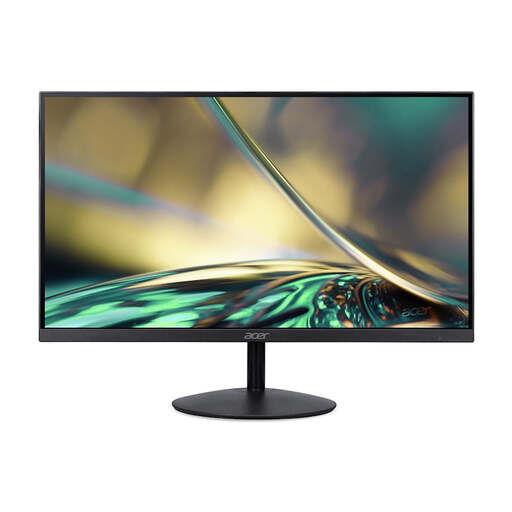 No image available
A Full HD option for organising photos on a compact screen.
24 inch; Full HD (1920 × 1080).
It offers fewer pixels than QHD, which may matter if you want more room to view fine detail.
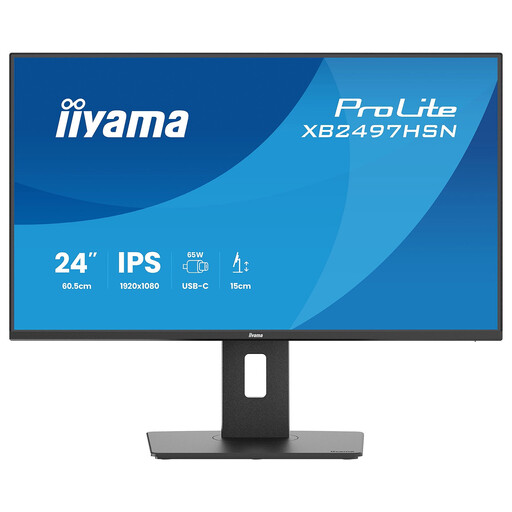 No image available
A compact Full HD option for a photo archive at a laptop workstation.
24 inch; Full HD; IPS panel.
It offers fewer pixels than QHD, which may matter if you want more room to view fine detail.
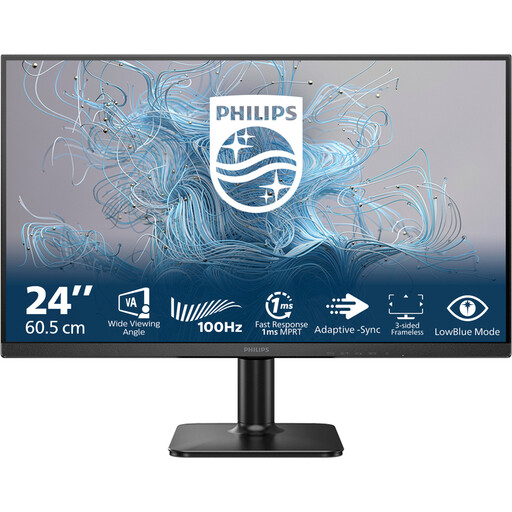 No image available
A compact Full HD option for browsing and organising photos.
24 inch; Full HD; VA panel; 100 Hz.
It offers fewer pixels than QHD, which may matter if you want more room to view fine detail.
No, not if you mainly select photos and view them on screen. In that case, start by comparing fit, resolution and the colour reproduction you need. If you also carry out colour-critical edits for print, a wide colour gamut and a calibrated workflow become more relevant; a stated AdobeRGB percentage alone doesn’t guarantee a match with a print.
Before buying, check the full dimensions of the screen and stand, and whether you can set the height you want. Arboportaal describes workplace requirements for employees who work with screens for more than two hours a day, including a height-adjustable screen and avoiding reflections. These employer requirements are not a general buying requirement for every home user.
BenQ recommends unplugging the monitor before cleaning it, using very little liquid and applying minimal pressure. Also follow the instructions for your screen’s coating. For colour-critical work, EIZO describes calibration with ColorNavigator for ColorEdge monitors.
Not automatically. According to the Dutch government, consumers have statutory rights when a product is in good working order, but there is no fixed statutory guarantee period in the Netherlands. If a product is faulty, the seller must provide a solution. So compare paid cover with the rights you already have.
No. The requirements described by Arboportaal are aimed at employers and apply under certain conditions. Specific workplace requirements apply to employees who work with screens for more than two hours a day. This doesn’t make any particular monitor feature a legal requirement for every home buyer.