
Panorama editor
You want to see the stitched photo and editing panels at the same time, so you’re weighing up screen width against the amount of detail on show. Adobe explains how Lightroom Classic can stitch photos together into a panorama.


For panoramic work, your choice largely depends on what you want to see at the same time: a wide view of the image and your tools, or more pixels for checking detail. A monitor with USB-C video and sufficient Power Delivery can replace a separate laptop charger for a compatible laptop, but the monitor itself still needs mains power. For colour-critical work, colour management and profiling are important; a wide screen alone is no guarantee of colour accuracy.
You want to see the stitched photo and editing panels at the same time, so you’re weighing up screen width against the amount of detail on show. Adobe explains how Lightroom Classic can stitch photos together into a panorama.
You want to know whether a single monitor can provide video, data and enough power to charge your laptop via USB-C. Dell and LG models show why you should check the connection and power output of each monitor.
You assess colour differences in a panorama and will benefit more from suitable colour management and calibration than from screen width alone. Adobe recommends calibration and profiling for colour-critical work.
First, identify the biggest constraint in your workspace: viewing the panorama, powering your laptop, managing colour or available space.
Best for: anyone who wants to view the panorama and editing windows side by side, and has a laptop that outputs video via USB-C.
The trade-off: check that the power output suits your laptop; the monitor still needs its own mains connection.
Best for: anyone who wants to see more vertical image detail alongside a wide panorama, and has a computer that supports the chosen resolution.
The trade-off: check in advance that the connection and charging function suit your computer and workspace.
Best for: anyone who already has suitable screens and values separate workspaces more than one wide image.
The trade-off: count the mains plugs you’ll need; the Netherlands Fire Service advises against connecting extension leads to one another.
| What to consider | What should you check? | Who is this important for? |
|---|---|---|
| Viewing the panorama | Compare the aspect ratio and both pixel dimensions of the exact model. | If I want to view the panorama and my editing windows at the same time, I prioritise screen space. Around 31% of consumers cite viewing the panorama as their main reason. |
| Mains plugs required | Check that the laptop outputs video through the USB-C connection you’ve chosen, that the power output is sufficient and that you have the right cable. | If I want to do without a separate laptop charger, both USB-C video and the power supplied must be compatible with my laptop. Around 31% of consumers mainly want to reduce the number of plugs they need. |
| Assessing colour | Compare the colour space with your workflow and check the options for profiling and calibrating the screen. | If I’m critically assessing colours in a panorama, I don’t want to rely on screen width or quoted colour coverage alone. Around 23% of consumers cite colour assessment as their main reason. |
| Space and usage | Measure the available width and viewing distance; also compare the EU energy labels for the exact models. | If my desk is limited in size or the monitor is often switched on, its physical footprint and energy use matter too. Around 15% of consumers prioritise their workspace and usage. |
A monitor will only save you a mains plug if the laptop outputs video through the chosen connection and the power output is sufficient.
Check the laptop, monitor connection, power output and cable as a complete setup. You may still need a separate laptop power supply or a suitable cable.
Resolution and quoted colour coverage don’t automatically tell you how accurately the monitor displays your colours with its current settings.
Choose a colour space that suits your workflow and profile the screen for colour-critical assessments. You may need calibration equipment to do this.
The Netherlands Fire Service advises against connecting extension leads to one another.
Count the connections you’ll need for your monitor, computer and other devices in advance, and check cables and extension leads for damage.
The P3425WE is a 34.1-inch ultrawide monitor with a USB-C hub, designed for laptop workspaces.
The models reviewed offer different features: a wide IPS workspace, USB-C power delivery or a higher resolution.
The 346B1C/00 is a 34-inch ultrawide model with USB-C, offering a wide workspace.
This Joybuy selection includes ultrawide monitors for creating panoramas, from 34-inch workspaces to models with more pixels for viewing detail. Check each model’s connections, whether it can charge your laptop and how much space it takes up.
 No image available
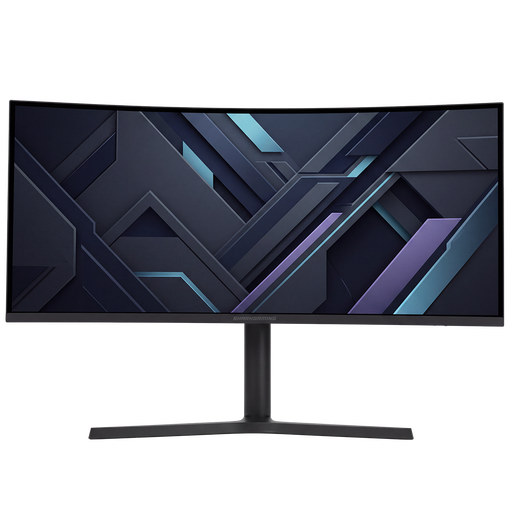
A 34-inch UWQHD screen to consider if you want to view a panorama and editing windows side by side.
The product name specifies a 34-inch UWQHD monitor.
 No image available
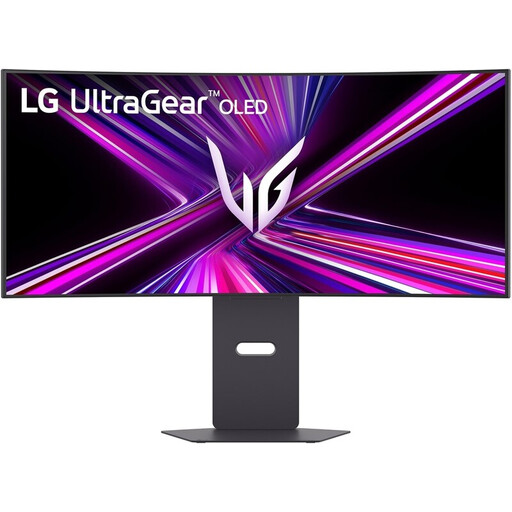
This curved ultrawide may suit you if you’re looking for a wide workspace and want to check laptop charging too.
The product information lists USB-C power delivery up to 65 W. Check whether that’s sufficient for your laptop; the monitor itself still needs to be connected to mains power.
 No image available
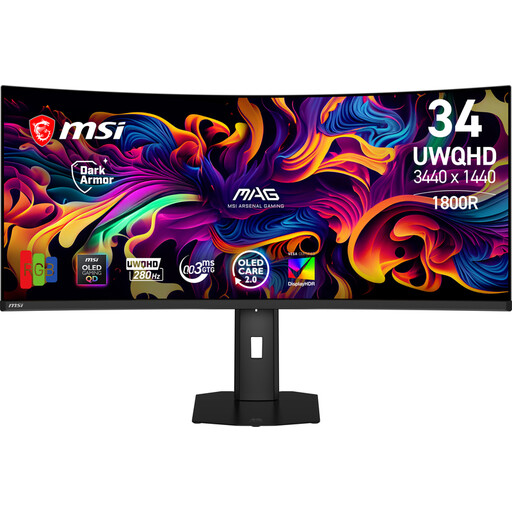
A 34.18-inch ultrawide to consider if you want to assess a wide panorama on a single screen.
The product name specifies 3440 × 1440 pixels and a QD-OLED panel. The product information lists USB-C power delivery of 15 W; check whether that suits your laptop. The monitor itself still needs to be connected to mains power.
 No image available
The 49-inch version is designed for anyone who wants to see an exceptionally wide panorama and work windows side by side; measure your available desk width first.
The product name specifies 5120 × 1440 pixels, a VA panel and height adjustment.
 No image available
An option to consider if you want to view a wide panorama with more vertical pixels than a 3440 × 1440 screen offers.
The product name specifies 5120 × 2160 pixels, a 21:9 aspect ratio and USB-C Power Delivery up to 65 W. Check whether that power output suits your laptop; the monitor itself still needs to be connected to mains power.
Yes, if your laptop outputs video through the relevant USB-C connection and the monitor’s power output is sufficient for your laptop. Dell lists up to 90 W for the P3425WE; also check the cable and your laptop’s requirements.
For colour-critical assessment, Adobe recommends calibrating and profiling your monitor. Quoted colour coverage or factory calibration doesn’t replace checking the actual screen and workspace settings.
The Netherlands Fire Service advises against connecting extension leads to one another and recommends checking cables and extension leads for damage. First, count the connections your setup requires.
For online purchases from a business, you’re entitled to a 14-day cooling-off period in many cases, according to the Government of the Netherlands. You’re also entitled to a product that meets the required standards; there is no fixed term for the statutory guarantee in the Netherlands. An additional manufacturer’s guarantee doesn’t replace this right.