First, measure the clear width and depth of your desk, including the space taken up by the monitor stand. A compact 24- or 25-inch screen may leave room for your drawing tools; choose QHD for more detail, or prioritise colour management if you’re preparing prints. A 27-inch 4K monitor offers more pixels, while a 29-inch ultrawide screen gives you a wider view, but needs more desk width and, at 2560 × 1080, has fewer vertical pixels than QHD.
Who is this choice relevant to?
Illustrator with a small desk
You want to leave room for input devices and paper, while still having a comfortable drawing area. So compare the dimensions with the stand included, as well as the adjustability, rather than looking only at the screen size. BenQ and ASUS list the dimensions and adjustment options for the screens mentioned here.
Illustrator who prints panoramas
You’ll benefit more from a suitable colour workflow, a monitor profile and calibration options than from a larger screen alone. EIZO lists hardware calibration for the ColorEdge CS2400S; Adobe explains how to use separate profiles for your monitor and output device.
Panorama artist looking for a wider view
You want to see a wide image and your tool panels at the same time. Your choice involves balancing horizontal workspace, the physical width of the screen and the number of vertical pixels. LG lists a resolution of 2560 × 1080 for the UltraWide 29U511A-B.
What should you consider when choosing?
Start by measuring the clear space on your desk, then decide whether detail, colour management or a wider view matters most. This helps you avoid a larger screen taking up the space you need for your drawing tablet or paper.
Compact 24.1-inch, 16:10
Best for: a desk where you need to keep room for your drawing tools.
Trade-off: According to the manufacturers, the ASUS PA248QV and EIZO CS2400S have a resolution of 1920 × 1200 pixels. That means you’ll see less of a wide panorama at once than on the QHD and ultrawide screens mentioned here.
Compact 25-inch QHD
Best for: anyone who wants to assess fine lines and a panorama on a relatively compact screen.
Trade-off: BenQ lists the stand depth of the PD2506Q as 256,9 mm, so remember to measure the depth of your desk too.
27-inch 4K
Best for: anyone with enough space who values extra pixels for detail. LG lists a resolution of 3840 × 2160 pixels for the 27UP850K-W.
Trade-off: Check that the larger screen will fit and that your laptop can output video via USB-C. LG lists power delivery of up to 96 W for this model.
29-inch ultrawide, 21:9
Best for: anyone who wants to view a long panorama alongside tool panels and has enough desk width.
Trade-off: According to LG, the 29U511A-B has a resolution of 2560 × 1080 pixels: the same number of horizontal pixels as the QHD monitor mentioned here, but 360 fewer vertical pixels.
| Concern |
What to check before buying |
Who is this important for? |
| Will the screen fit with its stand? |
Measure the available width and depth, then compare them with the dimensions including the stand. BenQ lists the PD2506Q as 570,0 mm wide and 256,9 mm deep with the stand. |
If you need space beside the screen for a drawing tablet, keyboard or paper, you’ll want to know how much workspace will be left. Around 26% of consumers say desk space is their top priority. |
| Will the colours match the finished result? |
Decide whether you’ll mainly publish digitally or print, then check colour management, calibration options and the profiles you’ll need. |
If you want to assess tulip colours for a possible print, don’t rely on a gamut percentage alone. Around 26% of consumers prioritise colour management. |
| Will you be able to see fine details clearly? |
Compare both the resolution and screen size, and check whether the display scaling works for you on your computer. |
If you need to assess fine lines, textures or crops, the pixels matter more than screen size alone. Around 21% of consumers put checking detail at the top of their list. |
| Will you have a wide enough view of your panorama? |
Compare the aspect ratio and both pixel dimensions, and measure how much desk width will be left. |
If you want to view a long canvas and tool panels at the same time, extra horizontal space can help, as long as the monitor will physically fit. Around 16% of consumers make a wide view their top priority. |
| Will USB-C work for connecting your devices? |
Check that your laptop supports video output through the USB-C connection in question, then compare its charging requirements with the model specifications. |
If you want to keep cables to a minimum on a small desk, check your own laptop’s ports and power requirements first. Around 11% of consumers prioritise using a single cable. |
Common mistakes when choosing
-
Measuring only the screen size
A compact screen size doesn’t tell you how much space the stand takes up. BenQ lists the PD2506Q as 256,9 mm deep including the stand.
Compare the width and depth with the space you’ve set aside for your monitor. If you’re using a monitor arm, also check the VESA size, weight capacity and available mounting space.
-
Assuming ultrawide means more detail
According to LG, the UltraWide 29U511A-B has a resolution of 2560 × 1080 pixels, while the BenQ PD2506Q has 2560 × 1440 pixels. So a larger screen doesn’t automatically give you more vertical workspace.
Choose an ultrawide screen if a wider view of your panorama matters and you have room for the extra width. Compare resolutions if vertical drawing space or fine detail matters more.
-
Taking a colour gamut claim as a guarantee of print accuracy
A stated colour space won’t, by itself, ensure that what you see on screen matches the print. Adobe explains how to use separate profiles for your monitor and output device.
Check the profiles for your working file, monitor and intended print before comparing on-screen colours with paper.
Profiling or calibration can require extra time and tools as part of a colour-managed print workflow.
-
Confusing an extended warranty with your statutory rights
An extended warranty isn’t the same as your statutory rights. ACM ConsuWijzer explains that the statutory guarantee applies alongside any seller’s guarantee.
Check what an extended warranty adds, and remember that your statutory rights still apply if a product is faulty.
Relevant brands to consider
BenQ
The DesignVue PD2506Q is a 25-inch QHD option for anyone looking for detail in a relatively compact setup.
- BenQ lists 100% sRGB, 95% P3 and USB-C with 65 W for this model.
- BenQ lists the stand depth as 256,9 mm. Colour coverage and factory calibration are manufacturer claims, not independent measurements of the unit you receive.
EIZO
The ColorEdge CS2400S is a 24.1-inch option for illustrators who value colour management when printing.
- EIZO lists more than 99% AdobeRGB coverage and hardware calibration for this model.
- Its resolution is 1920 × 1200 pixels, so you’ll see less of a long panorama at once than on the QHD and ultrawide screens mentioned here. You’ll still need a suitable profiling workflow.
ASUS
The ProArt PA248QV is a 24.1-inch 16:10 option for anyone looking for a more compact screen and sRGB settings.
- ASUS lists a resolution of 1920 × 1200 pixels, 100% sRGB and an adjustable stand for the PA248QV.
- The stated colour accuracy is a manufacturer claim. Check the exact model name too: the PA248QV is not the same model as the PA248QV Gen2.
LG
Of the models discussed here, the UltraFine 27UP850K-W offers 27-inch 4K detail, while the UltraWide 29U511A-B gives you a wider 21:9 canvas.
- LG lists USB-C with power delivery of up to 96 W for the 27UP850K-W, and a resolution of 2560 × 1080 pixels for the 29U511A-B.
- The ultrawide resolution has fewer vertical pixels than QHD. The Dutch product information for the 29U511A-B contains conflicting colour space claims; don’t base a colour-critical choice on the disputed DCI-P3 figure.
Portable monitors at Joybuy
The Joybuy options below are portable monitors for a compact drawing setup. For colour-critical work, check that the stated features and your own profiling workflow are suitable for the result you want.
 No image available
TECLAST V16Q portable monitor
A portable screen may suit a compact workspace. Check the connection and how much room the stand needs before buying.
The product name lists 16:10, 2.5K, 144 Hz, IPS, 100% sRGB, 10-bit, two USB-C ports, mini-HDMI and a built-in kickstand.
View at Joybuy
 No image available
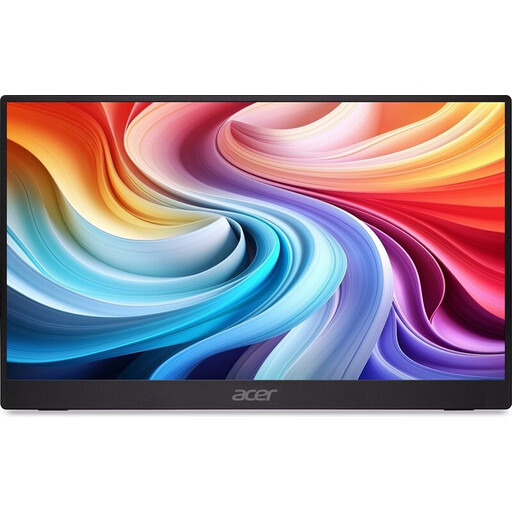
Acer PM161QB1 portable monitor
Its portable size may suit a desk where you want to keep the space used by your screen to a minimum.
The product name lists a 15,6-inch screen and a refresh rate of 60 Hz.
View at Joybuy
 No image available
UPERFECT 16-inch 2K 144Hz portable monitor
A portable 16-inch screen can help free up workspace. Check that its connections are compatible with your laptop or other equipment.
The product name lists 2560 × 1600 pixels, 16:10, QLED, 144 Hz, mini-HDMI, USB-C and VESA compatibility.
View at Joybuy
 No image available
ARZOPA Z1RC 16-inch 2.5K portable monitor
Its portable size and built-in stand may suit a compact drawing space. Check your device’s connections before buying.
The product name lists 2560 × 1600 pixels, 16:10, IPS, USB-C and HDMI. The stated 123% sRGB figure doesn’t, by itself, guarantee a match with a print; suitable profiles for your monitor and output device are important for that.
View at Joybuy
 No image available
TECLAST V16H 16-inch portable monitor
A portable screen may suit a small setup. Bear in mind that the stated FHD resolution offers fewer pixels for fine detail than QHD or 4K options.
The product name lists 16:10, FHD, IPS, 144 Hz, two USB-C ports, mini-HDMI and a built-in kickstand.
View at Joybuy
Frequently asked questions
Should you rely mainly on the stated colour coverage when assessing tulip colours?
No. First decide whether you’ll be delivering your work digitally or printing it. Adobe explains how to use separate profiles for your monitor, document and output device; a stated colour space alone doesn’t guarantee a match with paper.
How should you set up a monitor on a small desk?
Compare the dimensions including the stand with the available space you’ve measured, then adjust the height and lighting to suit. For employees who work at a screen for more than two hours a day, Arboportaal describes workplace requirements and a height-adjustable screen; this employer guidance doesn’t automatically apply to every freelance illustrator.
Will every USB-C monitor charge your laptop?
No. Check whether your laptop can output video through the USB-C connection in question and how much power it needs. BenQ lists up to 65 W for the PD2506Q, and LG lists up to 96 W for the 27UP850K-W.
What are your rights if a monitor bought online doesn’t fit or breaks too soon?
For a typical online consumer purchase in the Netherlands, ACM ConsuWijzer says you generally have a 14-day cooling-off period from delivery, subject to legal exceptions. If a product is faulty, you also have statutory rights: the seller must provide a remedy free of charge under the applicable conditions. These are separate rights.
Does a freelance illustrator have to buy a specific type of monitor by law?
Dutch rules on screen-based work apply to employers and workplaces for employees; they don’t prescribe one monitor model for private purchases. If you work at a screen for long periods as an employee, discuss workplace requirements with your employer.


