
Editor working with a timeline and transcript
You want to review recordings while editing without the Dutch-language transcript disappearing from view. Audacity explains how you can display a waveform and spectrogram together in the same track.


An adjustable 27-inch QHD monitor is a compact choice if you can switch between windows. An ultrawide gives you more horizontal space to place your timeline and transcript side by side, provided your desk is wide enough. A 27-inch 4K monitor may suit you if you’re looking for more pixels and hub features, but check how text scales in your own software. Whichever option you choose, make sure the screen can be adjusted for different users and that its connections and power delivery work with your shared computers.
You want to review recordings while editing without the Dutch-language transcript disappearing from view. Audacity explains how you can display a waveform and spectrogram together in the same track.
Several people use the same screen, so each person needs to adjust the setup to suit their working position. Arboportaal outlines the requirements for employees working with display screens, including a height-adjustable screen.
You connect a laptop or desktop at different times and want to know in advance which display, peripheral and, where applicable, power-delivery features are supported by the connections you choose.
A good fit when: desk space is limited and you can edit using a window layout or by switching between windows to view your timeline and transcript.
Trade-off: the 27-inch QHD models listed have fewer horizontal pixels than the ultrawide option. Check that text and windows are comfortable to read.
A good fit when: you want to see your timeline, waveform and transcript side by side more often, and have enough desk width.
Trade-off: the LG listed is approximately 809 mm wide. Measure your desk and check separately how you’ll switch peripherals between computers.
A good fit when: you want more pixels on a 27-inch screen and connections such as RJ45.
Trade-off: 4K doesn’t automatically make text larger. Check the display scaling and whether your laptop supports the required video and charging features over USB-C.
First, choose the window layout you want to use while editing. Then check that the workspace is adjustable and its connections work with the computers you have.
| What to consider | What should you check? | Who is this relevant to? |
|---|---|---|
| Space for your timeline and transcript | Try your own software at the text size you want to use. Compare the window layout on 27-inch QHD with the horizontal space offered by an ultrawide. | I want to view my timeline and transcript together while editing, without making the text too small to read. Around 36% of consumers prioritise workspace for their timeline and transcript. |
| Adjustability for multiple users | Check the height and tilt adjustments, how much space the stand takes up and, if needed, the VESA mount. | I share the screen with others and want to adjust its position for each user. Around 29% of consumers prioritise adjustability in a shared workspace. |
| Connecting and switching between computers | For each computer, check video over USB-C, the power required for charging, and how you’ll share the keyboard, mouse and network connection. | I connect different computers at different times and want to know in advance which ports and cables I’ll need. Around 21% of consumers prioritise connections and switching between computers. |
| Essential features and aftercare | Consider whether you need additional display or hub features for your audio workspace, and what any extra warranty adds to your rights. | I want to choose features I’ll actually use and know who to contact if there’s a problem. Around 14% of consumers prioritise essential features and aftercare. |
The presence of USB-C doesn’t automatically tell you which features the connected computer provides. According to LG, the LG 34WR55QC-B doesn’t have a built-in KVM.
Make a note of which computer needs to provide the display, keyboard, mouse and, if necessary, power. Check the ports and cables for each device, and work out separately how you’ll switch peripherals.
An ultrawide can give you more horizontal space, but the LG listed is approximately 809 mm wide. In a shared workspace, adjustability and the readability of your own software matter too.
Measure your desk and try the window layout you want, using a text size that’s easy for everyone to read.
The Dutch government distinguishes between statutory rights and additional warranties. If there’s a problem with a product, the seller must provide a solution.
Before deciding whether the terms suit you, read what cover an additional offer actually provides.
The ProArt PA278CV is an adjustable 27-inch QHD option with USB-C. ASUS’s factory calibration is particularly relevant if you also work with colour-critical images.
The Pro Plus P2725QE is a 27-inch 4K option with a USB-C hub and RJ45 for a workspace that uses these connections.
The GW2790QT is a 27-inch QHD office monitor with USB-C, a hub and multiple adjustment options.
The 34WR55QC-B is an ultrawide option for anyone looking for more horizontal space for their timeline and text.
The 27E1N5600AE/00 is a 27-inch QHD USB-C option for a compact workspace.
These product choices are suited to a shared editing workspace, with models offering extra horizontal space, an adjustable QHD screen or connection options for compatible computers.
 No image available
The ultrawide layout may suit you if you want to place your timeline and transcript side by side and have a desk wide enough to accommodate it.
34.1 inches and 3440 × 1440 pixels. The description lists an integrated USB hub, RJ45, KVM and an adjustable stand. USB-C delivers up to 90 W; your laptop must support USB Power Delivery and DisplayPort Alt Mode.
 No image available
An adjustable 27-inch option if you have a more compact workspace and want to arrange your windows in QHD.
2560 × 1440 pixels, 150 mm of height adjustment and USB-C with 65 W Power Delivery. The description also lists a USB hub. Check that your laptop supports the features you want over USB-C.
 No image available
This ultrawide may suit you if you want to display two sources at once and have enough space for a wide screen.
3440 × 1440 pixels and a 21:9 aspect ratio. The description lists Picture-by-Picture for two device sources, as well as height and tilt adjustment.
 No image available
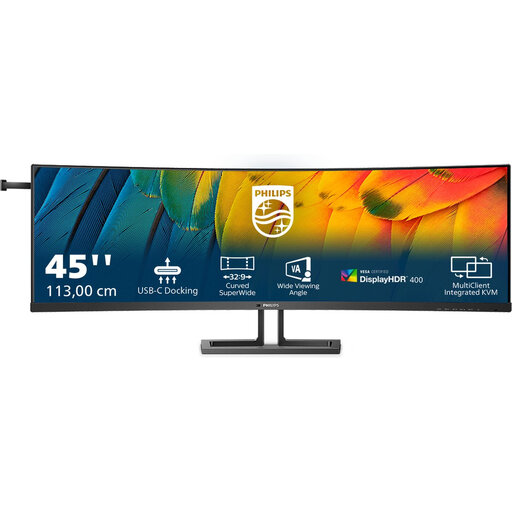
A wide aspect ratio may suit you if you’re looking for plenty of horizontal workspace and features for a shared computer setup. Check beforehand that the screen will fit on your desk.
5120 × 1440 pixels and a 32:9 aspect ratio. The description lists height adjustment, KVM, RJ45 and USB-C with up to 100 W Power Delivery.
 No image available
A 27-inch 4K option if you want to display multiple sources and adjust the screen height.
3840 × 2160 pixels, 150 mm of height adjustment and USB-C with 90 W Power Delivery. Picture-in-Picture and Picture-by-Picture are listed. The specifications don’t mention a built-in KVM, so this feature won’t let you share your keyboard and mouse.
No, 4K isn’t a general requirement for audio editing. Audacity can display a waveform and spectrogram at the same time, among other features. Check whether your preferred timeline and transcript layout fits on a 27-inch QHD screen in your own software. The text size you can comfortably use also depends on your display scaling settings.
Adjust the screen position and check readability for each user. Also consider the chair, desk, lighting and reflections. According to Arboportaal, the rules for employees working with display screens include requirements for an adjustable-height, non-reflective screen in the circumstances it describes. How these rules apply depends on the working situation.
No, having a USB-C port doesn’t guarantee it. Check that the specific computer can output video over USB-C, compare its power requirements with the monitor’s stated power delivery, and make sure the cable supports the features you need.
According to Arboportaal, employers must ensure that screen-based work is regularly alternated with other work or breaks. The same government guidance states that when employees work at a screen for more than two hours a day, there are also requirements for the workstation setup, including the option to use a separate screen or keyboard with a laptop. This is a conditional employer obligation, not a product specification for every individual buyer.
For many online purchases from a business, the Dutch government states that you have a 14-day cooling-off period. Check the relevant exceptions and the information provided by the seller. If a product is faulty, the seller is responsible for providing a solution. According to the Dutch government, the Netherlands doesn’t have a fixed statutory warranty period of two years for every product.